> For the complete documentation index, see [llms.txt](https://help.seoutils.app/llms.txt). Markdown versions of documentation pages are available by appending `.md` to page URLs; this page is available as [Markdown](https://help.seoutils.app/guide/google-search-console/keyword-metrics.md).
# Keyword Metrics
The **Keyword Metrics** feature enriches your Google Search Console queries with valuable SEO data like search volume, CPC, keyword difficulty, and competition metrics. You can also analyze SERP data to understand your competition better.
Keyword Metrics
### Configure Keyword Metrics Settings
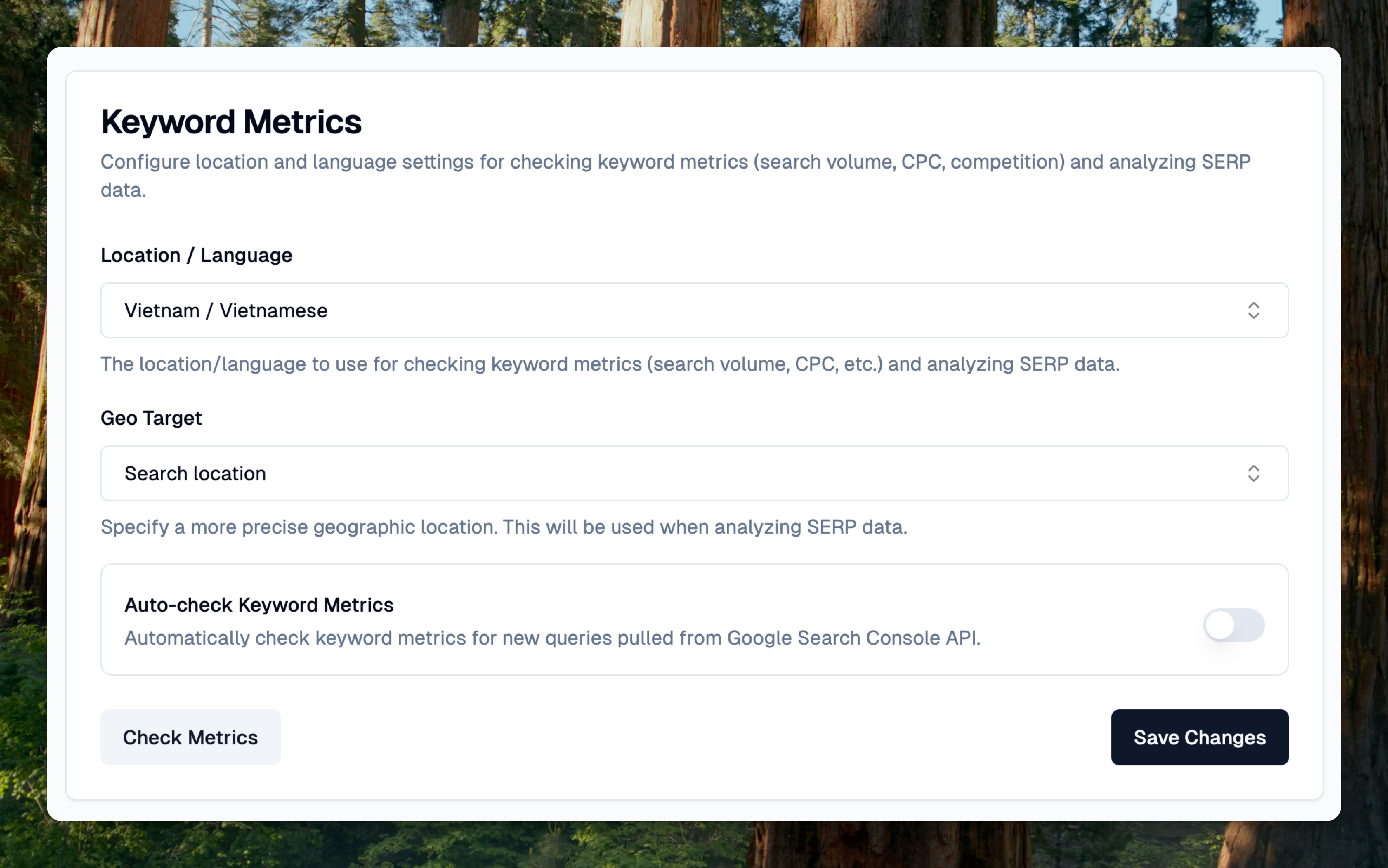
Before checking metrics, you need to configure the location and language settings. Navigate to your Search Console property settings and find the "Keyword Metrics" section.
**Required Settings:**
* **Location/Language:** Select your target market (e.g., United States / English)
* **Geo Target (Optional):** Specify a more precise location for SERP analysis
* **Auto-check:** Toggle this on to automatically check metrics for new queries pulled from GSC
Configure keyword metrics settings
### Check Keyword Metrics
Once configured, click the "**Check Metrics**" button to start checking metrics for your queries.
{% hint style="info" %}
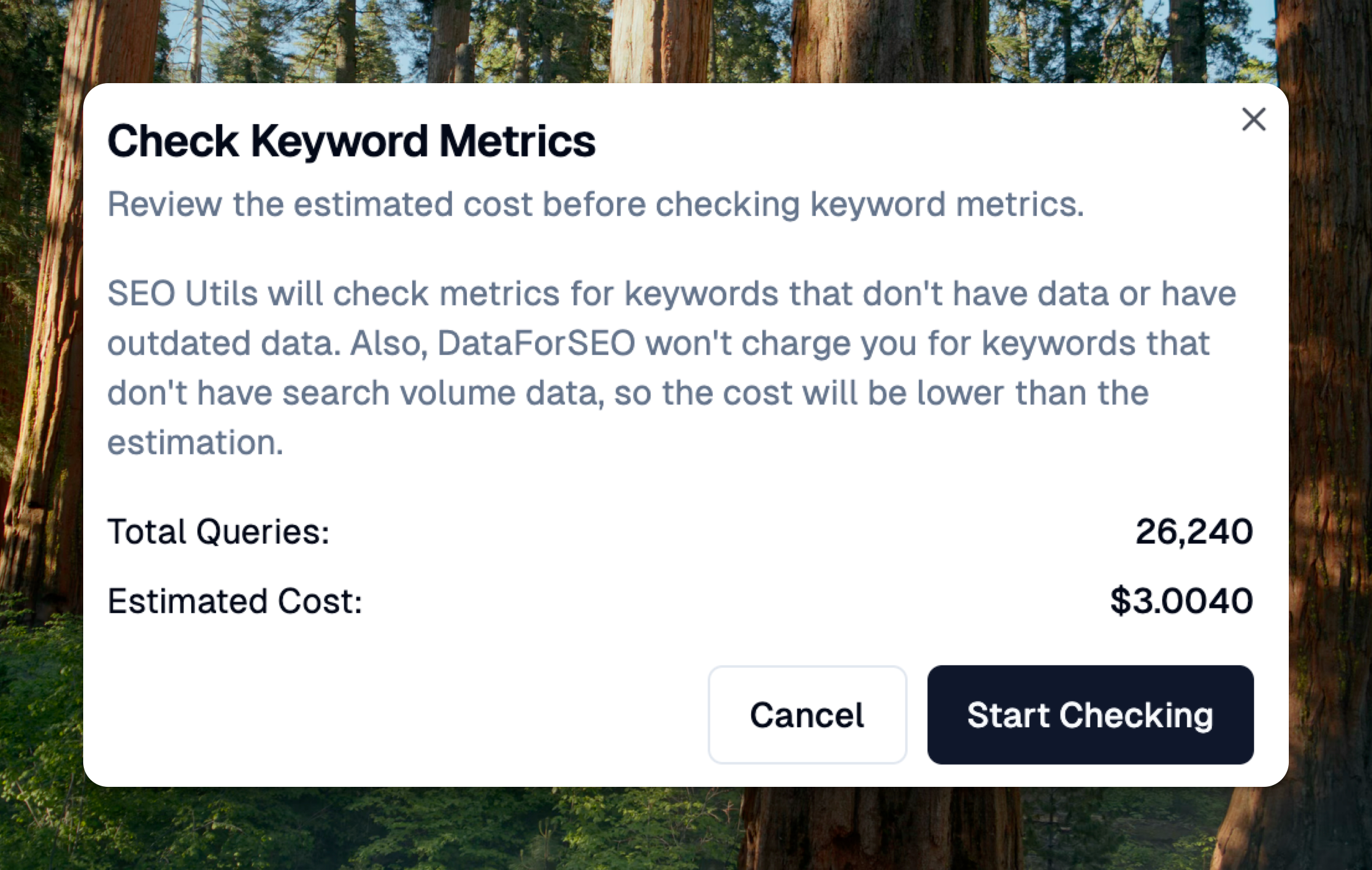
**Cost Note:** DataForSEO won't charge for keywords without search volume data, so actual costs will be lower than the estimation. SEO Utils only checks metrics for queries with missing or outdated data.
{% endhint %}
Review estimated cost before checking
{% content-ref url="/pages/9ZN2hqv3w3x3TElty4OK" %}
[Keyword Metrics Data Source](/guide/keyword-metrics-data-source.md)
{% endcontent-ref %}
### View Queries with Metrics
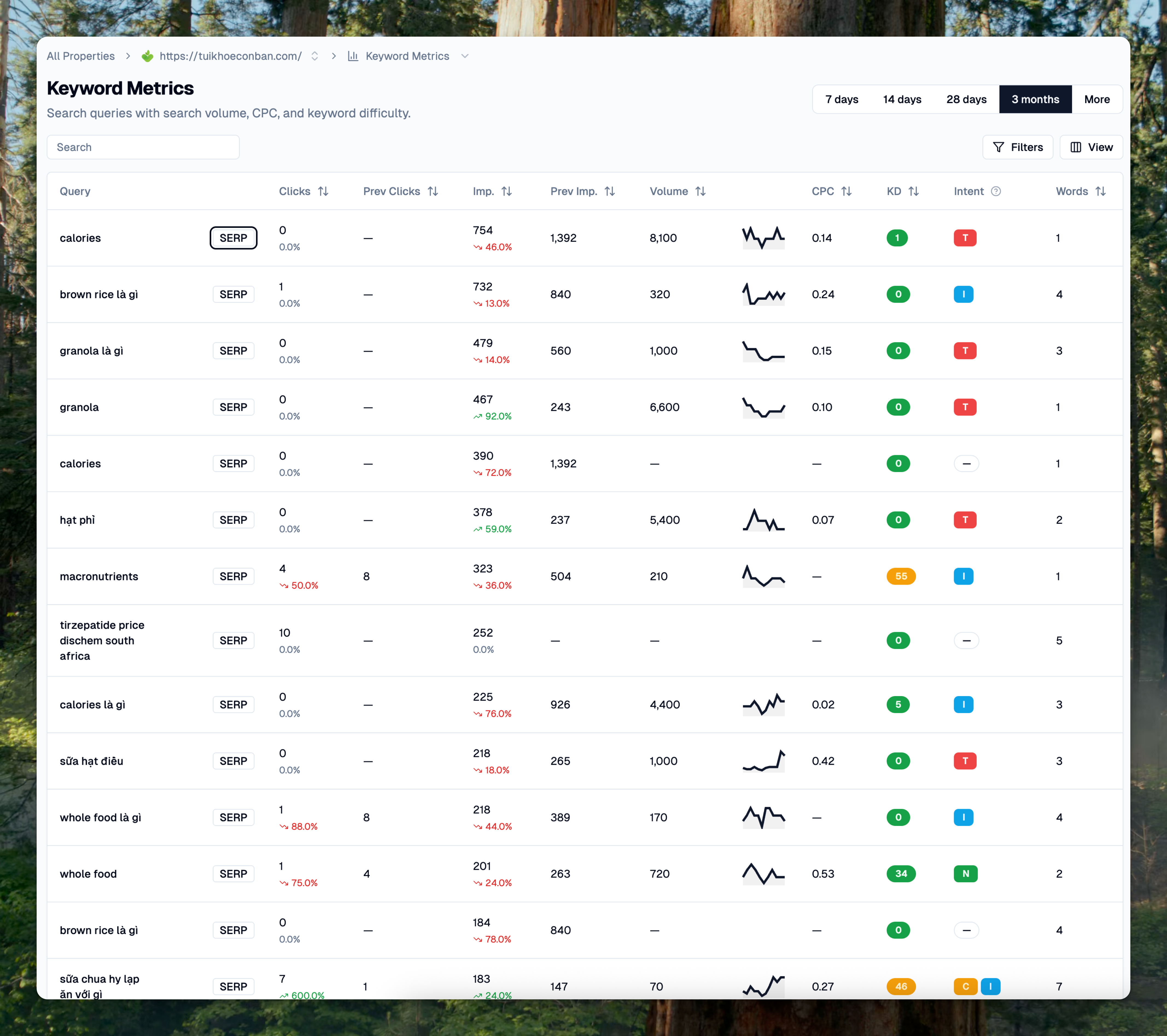
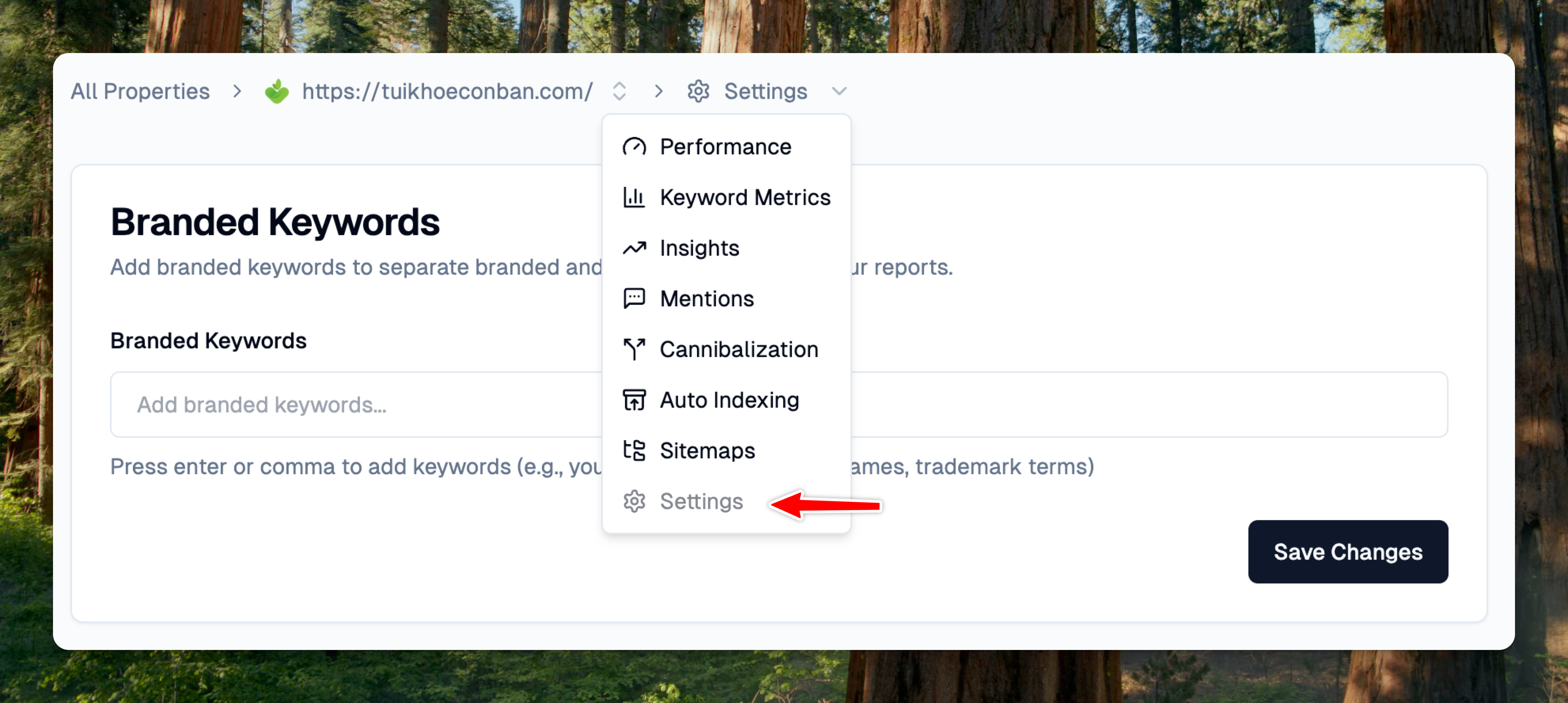
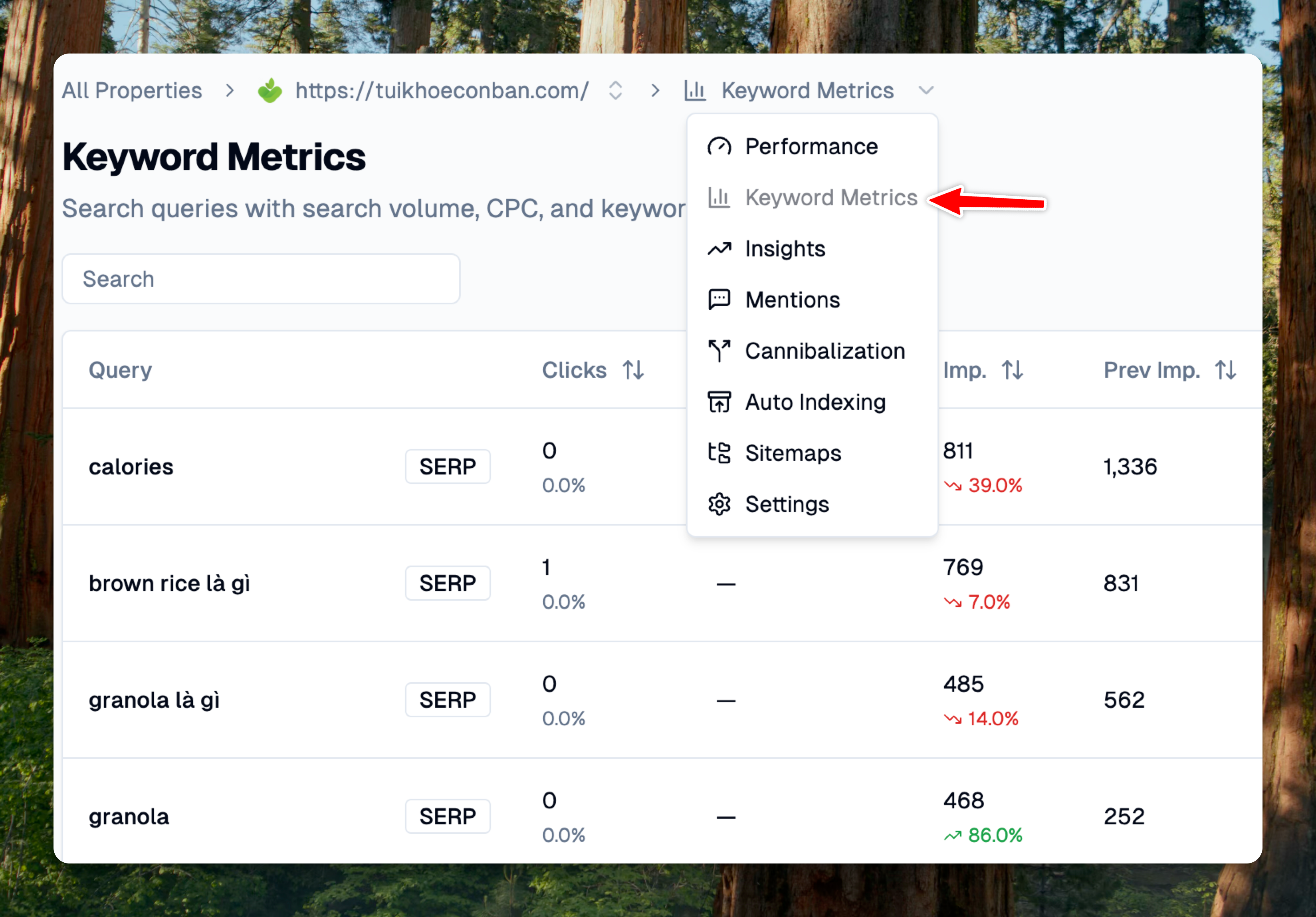
After checking completes, visit the "Keyword Metrics" page from the main dropdown to see your enriched query data.
Access Keyword Metrics page
You can:
* Sort by any column (clicks, impressions, search volume, CPC, keyword difficulty)
* Filter using range filters for numeric values
* Search for specific queries
Keyword metrics table with enriched data
{% hint style="info" %}
You can click the **View** button on the table to see more columns.
{% endhint %}
### Analyze SERP Data
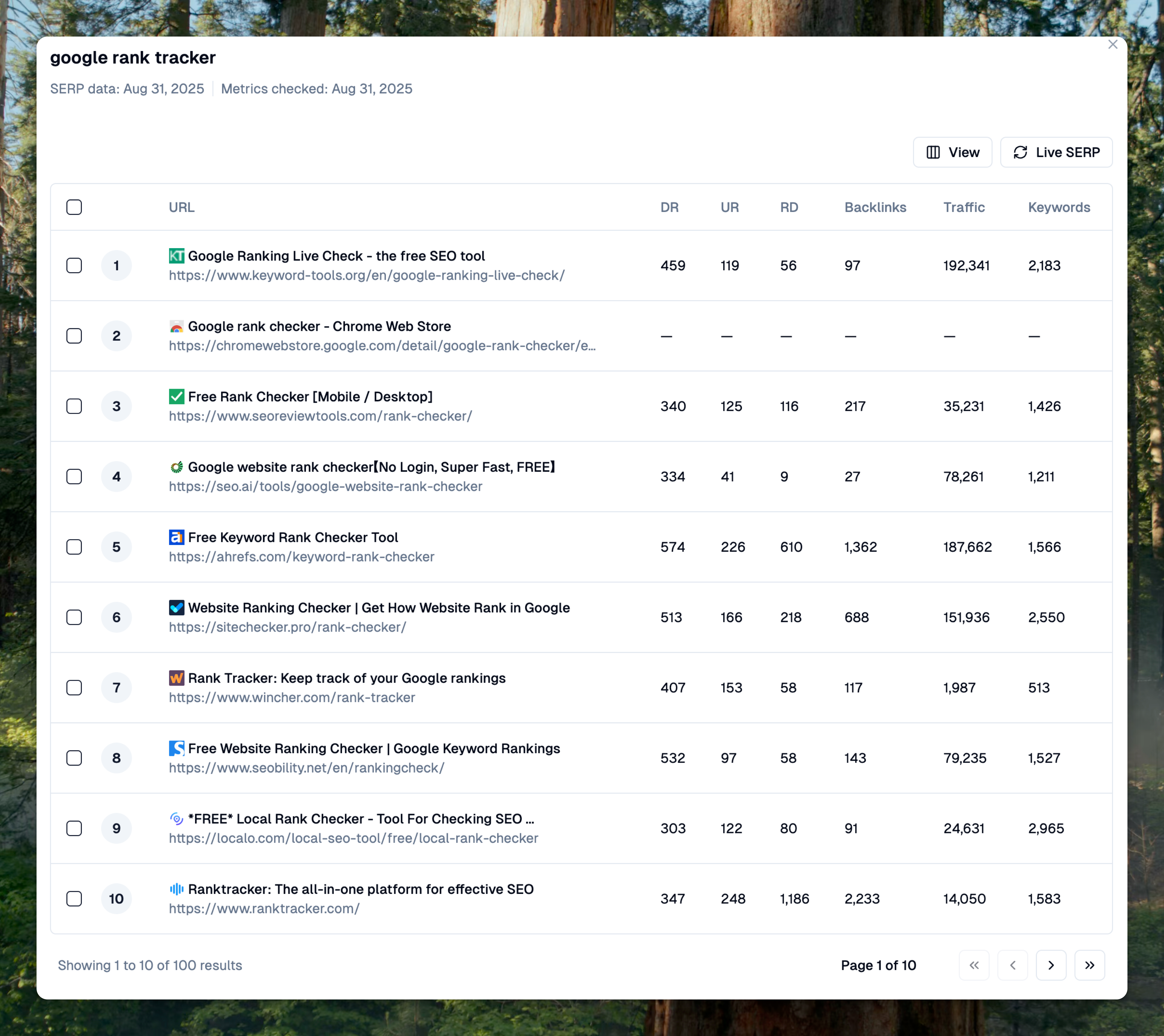
Click the "**Live SERP**" button next to any query to pull live SERP data. This shows the top-ranking pages for that keyword.
For deeper analysis, select SERP URLs and click "**Analyze SERP**" to view:
* **DR** (Domain Rating)
* **UR** (URL Rating)
* **RD** (Referring Domains)
* **Backlinks** count
* **Traffic** estimates
* **Ranked Keywords** count
SERP analysis showing competitor metrics
This data helps you understand the competition level and identify opportunities to improve your rankings.