> For the complete documentation index, see [llms.txt](https://help.seoutils.app/llms.txt). Markdown versions of documentation pages are available by appending `.md` to page URLs; this page is available as [Markdown](https://help.seoutils.app/guide/automations.md). Agents can also search and read this documentation through its [MCP server](https://help.seoutils.app/~gitbook/mcp).

# Automations

### How Does the Automations Tool Work?

SEO Utils allows you to automate actions when rank tracking completes. When an Organic Rank Tracker or Google Business Rank Tracker snapshot finishes, you can automatically export PDFs, send emails to clients, or trigger webhook URLs.

A PDF created by an automation holds the same sections as one you export yourself, including [Site traffic (GA4)](https://help.seoutils.app/guide/organic-rank-tracker.md#show-site-traffic-in-the-report) when the report has a GA4 property chosen.

The automation system processes actions sequentially. If one action fails, subsequent actions that don't depend on its output will still run. Only actions requiring output from failed actions will be skipped.

### How to Create an Automation

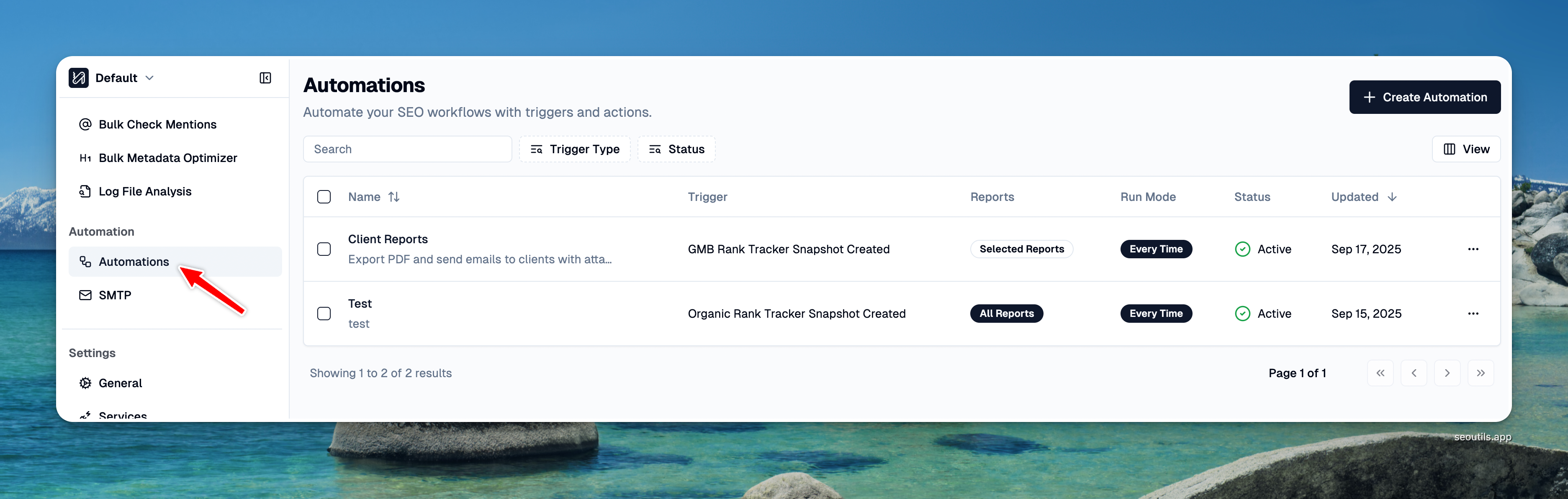
To get started, head to Automations in the left sidebar. Then, click the Create Automation button.

<figure><img src="https://1176579443-files.gitbook.io/~/files/v0/b/gitbook-x-prod.appspot.com/o/spaces%2F2DwV6sJBiKjUHMDggb4d%2Fuploads%2Fgit-blob-e4a6382c006c3d4cc1ab0e664862ce22499ca4f8%2FXnapper-2025-09-18-10.53.03.png?alt=media" alt=""><figcaption><p>Access the Automations tool in the left sidebar</p></figcaption></figure>

The automation form has three steps:

#### Step 1: Basic Information

* **Name**: Give your automation a descriptive name like "Send GMB Report to Client"
* **Description**: Optional notes about what this automation does
* **Active Status**: Toggle whether the automation should run

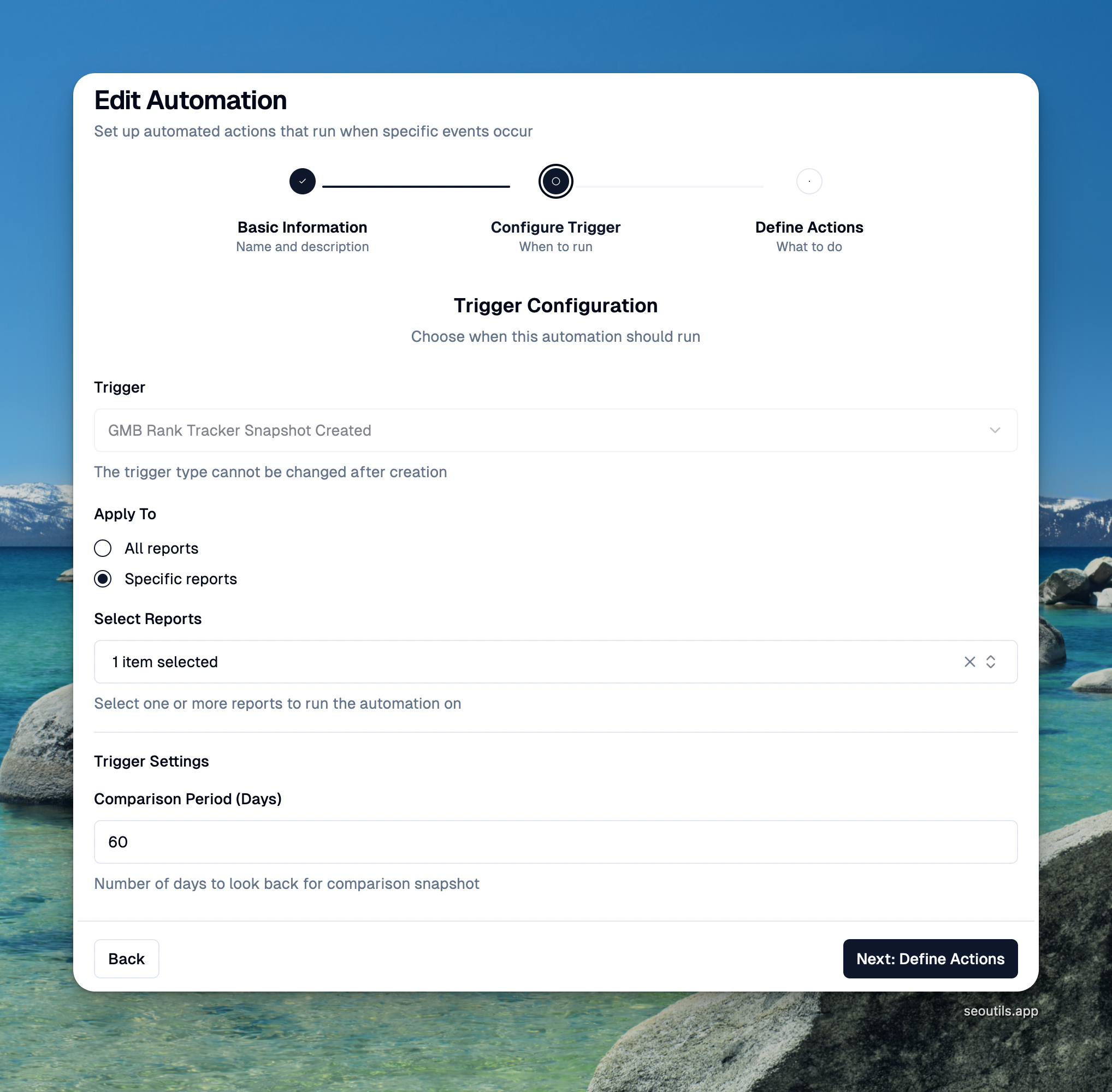
#### Step 2: Configure Trigger

Select when the automation should run:

* **Trigger Type**: Choose between Organic Rank Tracker or GMB Rank Tracker completion, GSC Rank Tracker Alerts (see [GSC Rank Tracker alerts](https://help.seoutils.app/guide/google-search-console/gsc-rank-tracker/alerts.md#send-alerts-by-email-or-webhook)) or Google Business Profile alerts (see [below](#google-business-profile-alerts-trigger))
* **Run On**: Select "All Reports" or choose specific reports
* **Run Once**: Enable this to run the automation only once per report, preventing duplicate actions like sending multiple emails when re-running the tracker

<figure><img src="https://1176579443-files.gitbook.io/~/files/v0/b/gitbook-x-prod.appspot.com/o/spaces%2F2DwV6sJBiKjUHMDggb4d%2Fuploads%2Fgit-blob-80da7af0eb1056d5b88da96b47555af3a47da32d%2FXnapper-2025-09-18-10.53.52.png?alt=media" alt=""><figcaption><p>Configure the trigger</p></figcaption></figure>

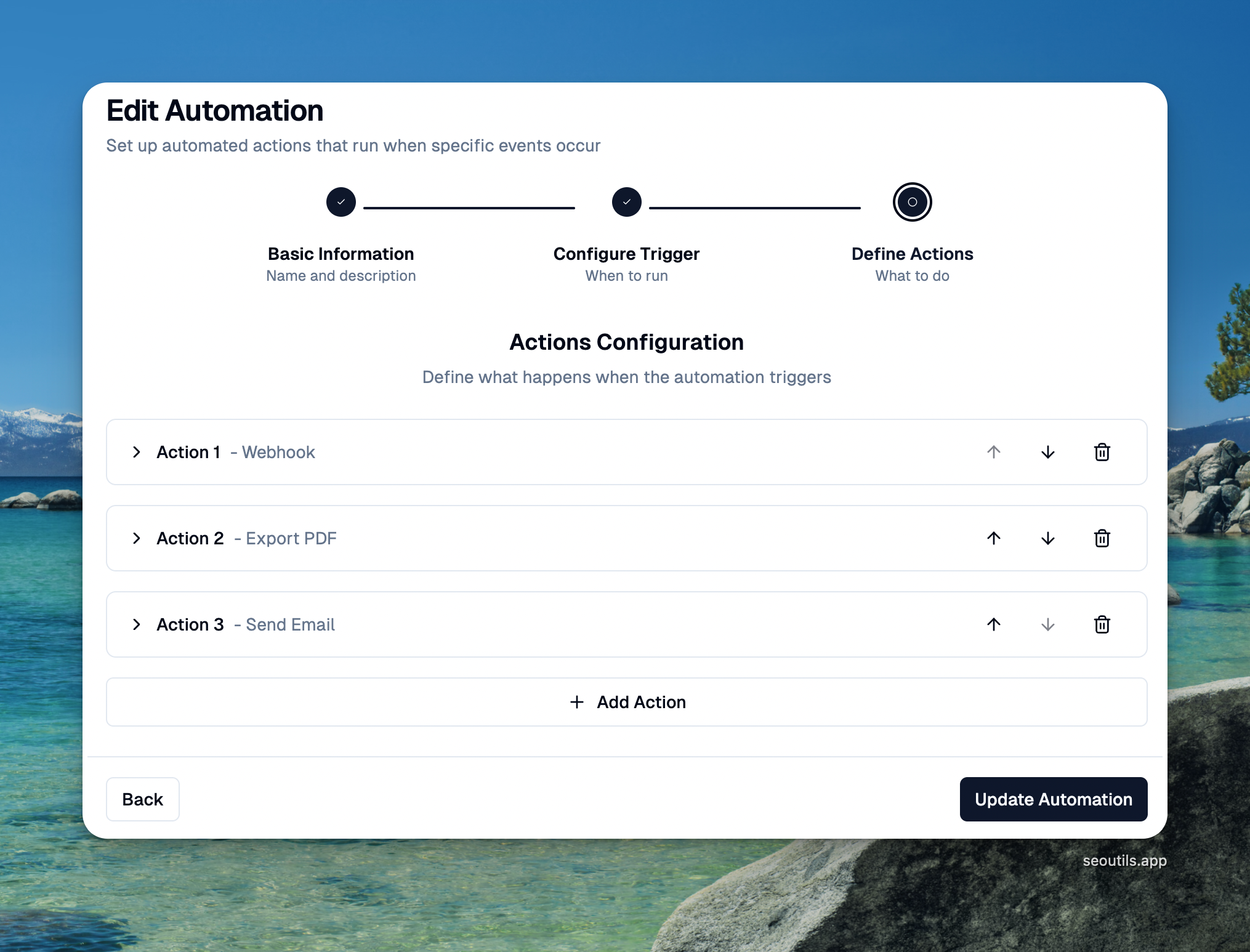
#### Step 3: Define Actions

Add one or more actions that execute in sequence. Each action type has specific configuration options.

### Using Variables in Actions

Variables allow you to use dynamic data from your rank tracking reports. Variables are wrapped in double curly braces `{{variable_name}}`.

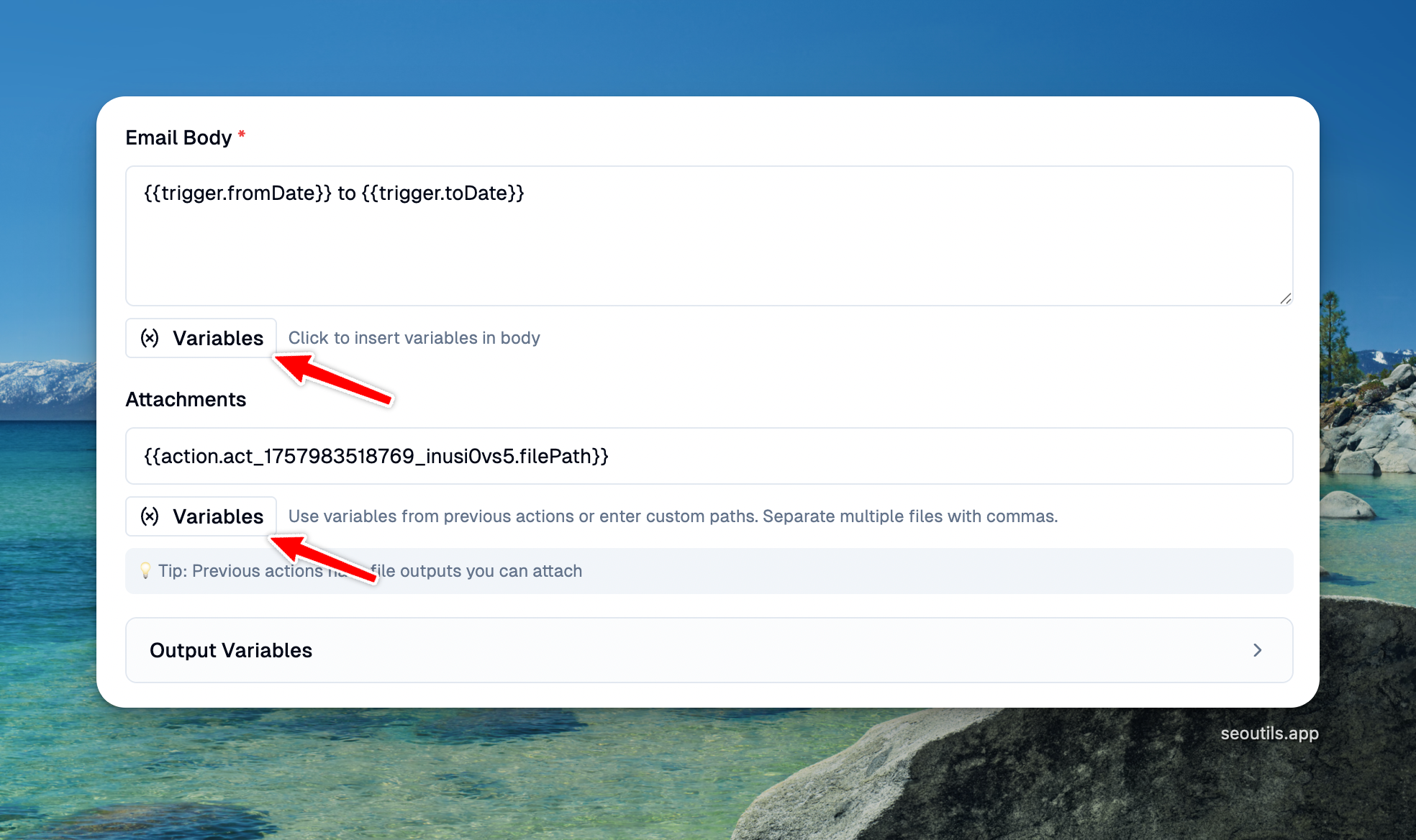
Click the **Variables** button in any text field to search and insert variables quickly. You can search by typing keywords like "action 1" or "email" to find relevant variables.

<figure><img src="https://1176579443-files.gitbook.io/~/files/v0/b/gitbook-x-prod.appspot.com/o/spaces%2F2DwV6sJBiKjUHMDggb4d%2Fuploads%2Fgit-blob-af20336ebf5f4dc588810c72a7dd6006261277b7%2FXnapper-2025-09-18-10.54.50.png?alt=media" alt=""><figcaption><p>Use Varaibles Selector button to quickly find and insert variables</p></figcaption></figure>

**GMB Rank Tracker Trigger Variables:**

* `{{trigger.reportID}}` - ID of the GMB rank tracker report
* `{{trigger.reportType}}` - Type of report (google-business-rank-tracker)
* `{{trigger.fromDate}}` - Date of the comparison snapshot (based on automation's comparison days setting)
* `{{trigger.toDate}}` - Date of the current snapshot that triggered this automation
* `{{trigger.ranOn}}` - Date when the snapshot was created
* `{{trigger.snapshotID}}` - ID of the current snapshot
* `{{trigger.businessName}}` - Business name being tracked
* `{{trigger.address}}` - Business address
* `{{trigger.comparisonDays}}` - Number of days between snapshots

### GSC Rank Tracker Alerts Trigger

This trigger runs once each time a refresh of a [GSC Rank Tracker](https://help.seoutils.app/guide/google-search-console/gsc-rank-tracker.md) finds new alerts. Its actions are **Export PDF**, **Send Email** and **Webhook**. The setup is in [Alerts](https://help.seoutils.app/guide/google-search-console/gsc-rank-tracker/alerts.md#send-alerts-by-email-or-webhook), and **Export PDF** creates the tracker's [report](https://help.seoutils.app/guide/google-search-console/gsc-rank-tracker/print-and-pdf.md).

**Main trigger variables:**

* `{{trigger.trackerName}}` - Name of the tracker
* `{{trigger.alertsCount}}`, `{{trigger.alertsSummary}}`, `{{trigger.alertsList}}` - How many alerts, in a few words, and one line each
* `{{trigger.fromDate}}` and `{{trigger.toDate}}` - The first and last day an alert was confirmed on
* `{{trigger.reportFrom}}` and `{{trigger.reportTo}}` - The report period: the 30 days ending on the tracker's latest final day. The Export PDF action covers it
* `{{trigger.aiSummaryText}}` - This week's AI summary as one paragraph, empty when the weekly summary is off or not written yet. It says "written by AI" and names the model, unless the tracker's [AI label](https://help.seoutils.app/guide/google-search-console/gsc-rank-tracker/ai.md#hide-the-ai-label-for-clients) is switched off

The full list is in [Alerts](https://help.seoutils.app/guide/google-search-console/gsc-rank-tracker/alerts.md#send-alerts-by-email-or-webhook). To email the PDF with the summary, add **Export PDF**, then **Send Email** with the file attached and a body such as:

```
Hi,

Here is the rank report for {{trigger.trackerName}}, from {{trigger.reportFrom}} to {{trigger.reportTo}}.

{{trigger.aiSummaryText}}
```

### Google Business Profile Alerts Trigger

This trigger runs when a GMB report linked to a Business Profile gets new [alerts](https://help.seoutils.app/guide/google-my-business-rank-tracker/business-profile-alerts.md): the profile's actions dropped, a new low-star review arrived or the profile changed. It runs once for each report each time new alerts arrive, with those alerts, and an alert is never sent twice. Its actions are **Send Email** and **Webhook**. **Export PDF** is not offered, because an alert has no run to export.

<figure><img src="https://1176579443-files.gitbook.io/~/files/v0/b/gitbook-x-prod.appspot.com/o/spaces%2F2DwV6sJBiKjUHMDggb4d%2Fuploads%2Fgit-blob-6565d1b6ec213c099d46bdc5a70df62a3687013d%2Fgbp-automation-trigger.png?alt=media" alt="The trigger step of a new automation with Google Business Profile alerts chosen, Apply To and the Alert types"><figcaption><p>The trigger (1), the reports it applies to (2) and the alert types (3)</p></figcaption></figure>

* **Apply To:** **All reports** or **Specific reports**. The reports are the ones linked to a Business Profile, and an analytics-only report counts
* **Alert types:** tick **Actions dropped**, **Low-star review** or **Profile changed**. With none ticked, every type is sent

**Trigger variables:**

* `{{trigger.reportID}}`, `{{trigger.reportType}}`, `{{trigger.businessName}}` and `{{trigger.address}}` - The report and its business
* `{{trigger.alertCount}}` - How many alerts this run sends
* `{{trigger.alertsText}}` - One sentence per alert, one per line, for an email body
* `{{trigger.alerts}}` - The alerts as a list, each with its kind, the day it was found, its sentence and its details
* `{{trigger.fromDate}}` and `{{trigger.toDate}}` - The earliest and the latest day an alert of this run was found

A body such as this emails you the alerts:

```
New Business Profile alerts for {{trigger.businessName}} ({{trigger.alertCount}}):

{{trigger.alertsText}}
```

{% hint style="info" %}
The email and webhook go out from your computer, so SEO Utils must be open when the sync finds the alert. Settings and thresholds are in [Business Profile alerts](https://help.seoutils.app/guide/google-my-business-rank-tracker/business-profile-alerts.md#change-what-counts-as-an-alert).
{% endhint %}

### Example: GMB Report Email Automation

Here's a practical template for automatically sending GMB ranking reports to clients:

#### Action 1: Export PDF

* **Action Type**: Export PDF
* **Export Folder**: `/Users/yourname/Downloads` (or your preferred folder)

**Output Variables** (automatically available for next actions):

* `exportDate` - Date when the file was exported
* `exportTime` - Full timestamp of export
* `fileName` - Name of the PDF file
* `filePath` - Full path to the exported PDF file
* `fileSize` - Size of the file in bytes

#### Action 2: Send Email

* **Action Type**: Send Email
* **SMTP Credential**: Select your configured credential or leave empty for default
* **Recipients**: `client@example.com`
* **CC Recipients**: *(optional)*
* **Email Subject**: `GMB Rankings Report - {{trigger.businessName}} - {{trigger.ranOn}}`
* **Email Body**:

```
Hi,

Your Google Business ranking report for {{trigger.businessName}} is ready.

Comparison Period: {{trigger.fromDate}} to {{trigger.toDate}}
Location: {{trigger.address}}

The detailed report is attached to this email.

Best regards,
Your SEO Team
```

* **Attachments**: Use the Variables button to insert the file path from Action 1. It will look like: `{{action.act_[actionId].filePath}}`

{% hint style="info" %}
**Tip**: The action ID (like `act_1757983518769_inus10vs5`) is automatically generated when you create the action. Use the Variables button to easily insert the correct reference without typing it manually.
{% endhint %}

<figure><img src="https://1176579443-files.gitbook.io/~/files/v0/b/gitbook-x-prod.appspot.com/o/spaces%2F2DwV6sJBiKjUHMDggb4d%2Fuploads%2Fgit-blob-6dbc4b023cf70a55268541480a4deabd71293598%2FXnapper-2025-09-18-21.55.43.png?alt=media" alt=""><figcaption><p>Configure multiple actions to run in sequence</p></figcaption></figure>

{% hint style="info" %}
**Important**: To send emails, you must first configure SMTP credentials. See [SMTP Credentials](https://help.seoutils.app/guide/smtp-credentials.md) Setup for instructions.
{% endhint %}

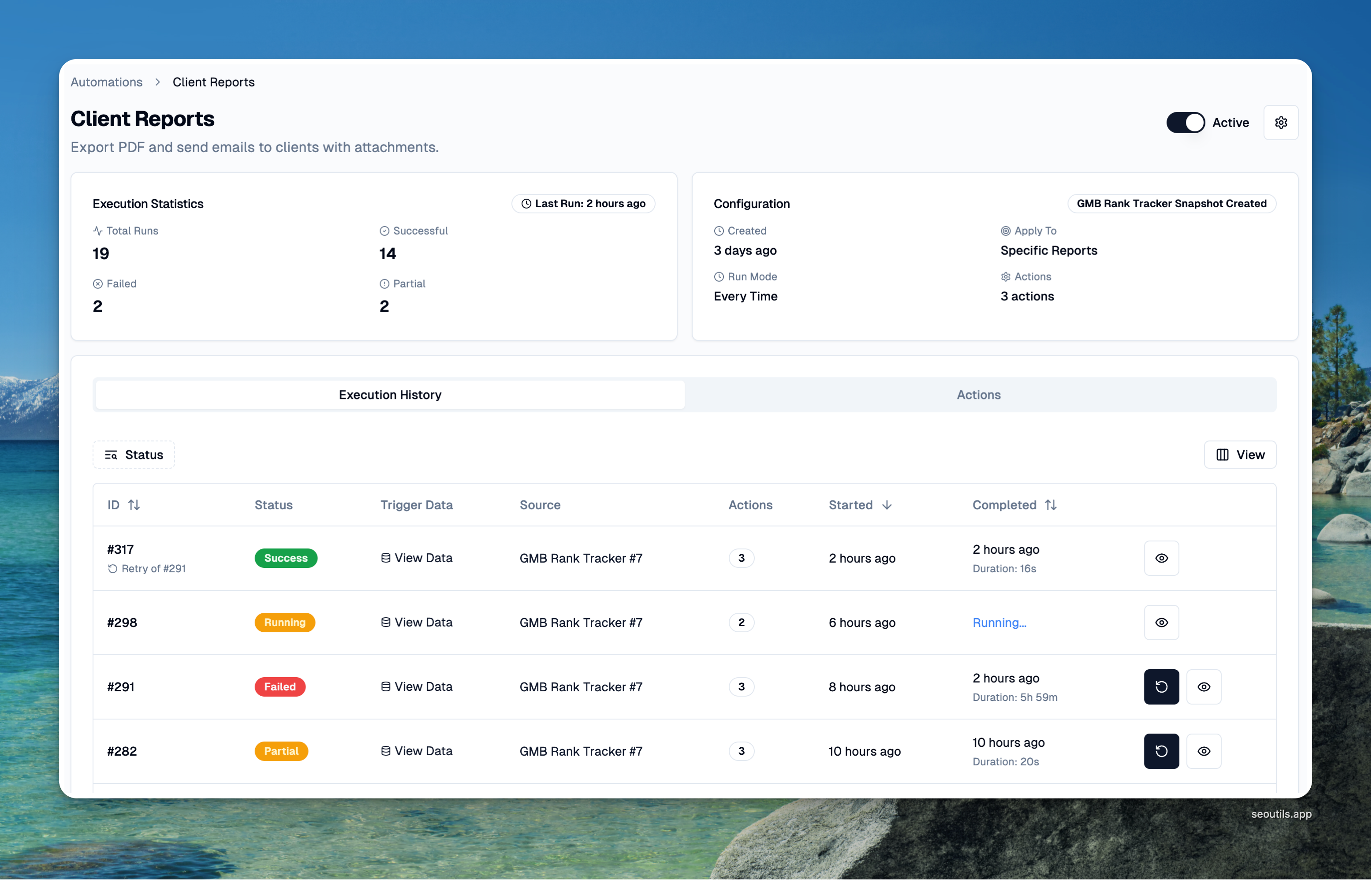
### Monitoring Automation History

The Automation detail page shows comprehensive execution history:

#### Execution Statistics

* **Total Runs**: How many times the automation has triggered
* **Successful/Failed/Partial**: Breakdown of execution results

#### Execution History Tab

View each automation run with:

* **Status**: Completed, Failed, or Partial (some actions failed)
* **Duration**: How long the automation took
* **Actions**: Number of actions executed
* **Trigger Data**: The snapshot or report that triggered it

<figure><img src="https://1176579443-files.gitbook.io/~/files/v0/b/gitbook-x-prod.appspot.com/o/spaces%2F2DwV6sJBiKjUHMDggb4d%2Fuploads%2Fgit-blob-b767e7a53a862646c1d0fdd81836070818772369%2FXnapper-2025-09-18-21.56.23.png?alt=media" alt=""><figcaption><p>Monitor automation execution history and retry failed actions</p></figcaption></figure>

### Retrying Failed Automations

When an automation fails or partially completes, you have two retry options:

1. Click the **vertical three dots** next to the execution
2. Choose your retry method:
   * **Retry All Actions**: Runs the entire automation from the beginning
   * **Retry Failed & Cancelled Actions**: Only retries actions that failed or were cancelled
3. The system will:
   * For "Retry All": Execute all actions from the start
   * For "Retry Failed & Cancelled": Skip completed actions and only retry failed/cancelled ones
   * Use the **original trigger data** (not current automation settings)

### Automations Set Up by an AI App

An AI app connected through [Remote Access](https://help.seoutils.app/guide/mcp-server/connect-ai-apps-from-anywhere.md#extra-access-you-can-turn-on) can create and change automations once you turn on **Let my AI apps send email with attachments and manage automations over Remote Access**. Under the name of such an automation, the page says who set it up:

* **Created by&#x20;*****app name*****&#x20;via AI-app access**
* **Changed by&#x20;*****app name*****&#x20;via AI-app access**, when an app edited it later

<figure><img src="https://1176579443-files.gitbook.io/~/files/v0/b/gitbook-x-prod.appspot.com/o/spaces%2F2DwV6sJBiKjUHMDggb4d%2Fuploads%2Fgit-blob-879d064ca1ad9d253a86038ce6a652918859fc19%2Fautomations-ai-app-created.png?alt=media" alt="An automation page with the Created by line under its name"><figcaption><p>The Created by line (1) under the automation's name</p></figcaption></figure>

SEO Utils checks the app's access before every run. If the app has lost access, or you turned the switch off, the run is skipped and the automation shows **Paused: the AI app that set it up no longer has access**. If you only turned the switch off, turning it on again lets the next run go through. If the app lost access, take the automation over.

<figure><img src="https://1176579443-files.gitbook.io/~/files/v0/b/gitbook-x-prod.appspot.com/o/spaces%2F2DwV6sJBiKjUHMDggb4d%2Fuploads%2Fgit-blob-7f2afd48ca2a9f47f28f325693ed28f6583ecf1b%2Fautomations-ai-app-paused.png?alt=media" alt="An automation page with the Paused notice and its Take over button"><figcaption><p>The Paused notice (1), its Take over button (2) and the skipped run in the history (3)</p></figcaption></figure>

To take it over, click **Take over** in the notice or in the menu of the automation's name, and confirm. It becomes your own automation and runs again with no AI-app check. The **Created by** line stays. Check its export folders, email recipients and webhooks first, because the app chose them. **Take over** is available in the desktop app only.

### Execution & Action Status Types

#### Automation Execution Status

* **Running**: Automation is currently executing
* **Success**: All actions completed successfully
* **Failed**: All actions failed
* **Partial**: Some actions succeeded, others failed or cancelled
* **Waiting**: An AI app's automation, while SEO Utils confirms the app still has access. It tries again every minute and skips the run after a day if it cannot confirm
* **Skipped**: The run did not happen, and its row says why. After you take the automation over, **Retry** runs it

#### Individual Action Status

* **Running**: Action is currently executing
* **Completed**: Action executed successfully
* **Failed**: Action encountered an error
* **Cancelled**: Action was stopped before completion