> For the complete documentation index, see [llms.txt](https://help.seoutils.app/llms.txt). Markdown versions of documentation pages are available by appending `.md` to page URLs; this page is available as [Markdown](https://help.seoutils.app/guide/workspace.md).
# Workspace
Workspaces in SEO Utils allow you to organize and separate your projects, clients, or different SEO campaigns. Each workspace maintains its own set of data, making it easy to manage multiple projects without mixing information.
## What are Workspaces?
Workspaces act as separate containers for your SEO data. When you switch between workspaces, you're essentially switching between different databases of:
* [Organic Rank Tracker reports](/guide/organic-rank-tracker.md)
* [GMB Rank Tracker reports](/guide/google-my-business-rank-tracker.md)
* [LLM Rank Tracker reports](/guide/llm-rank-tracker.md)
* [Content Structs](/guide/content-struct.md)
* [Google Search Console properties](/guide/google-search-console.md)
* And many more...
### Default Workspace
Every SEO Utils installation comes with a **Default** that cannot be deleted. This ensures you always have at least one workspace to work with.
## Managing Workspaces
### Accessing Workspaces
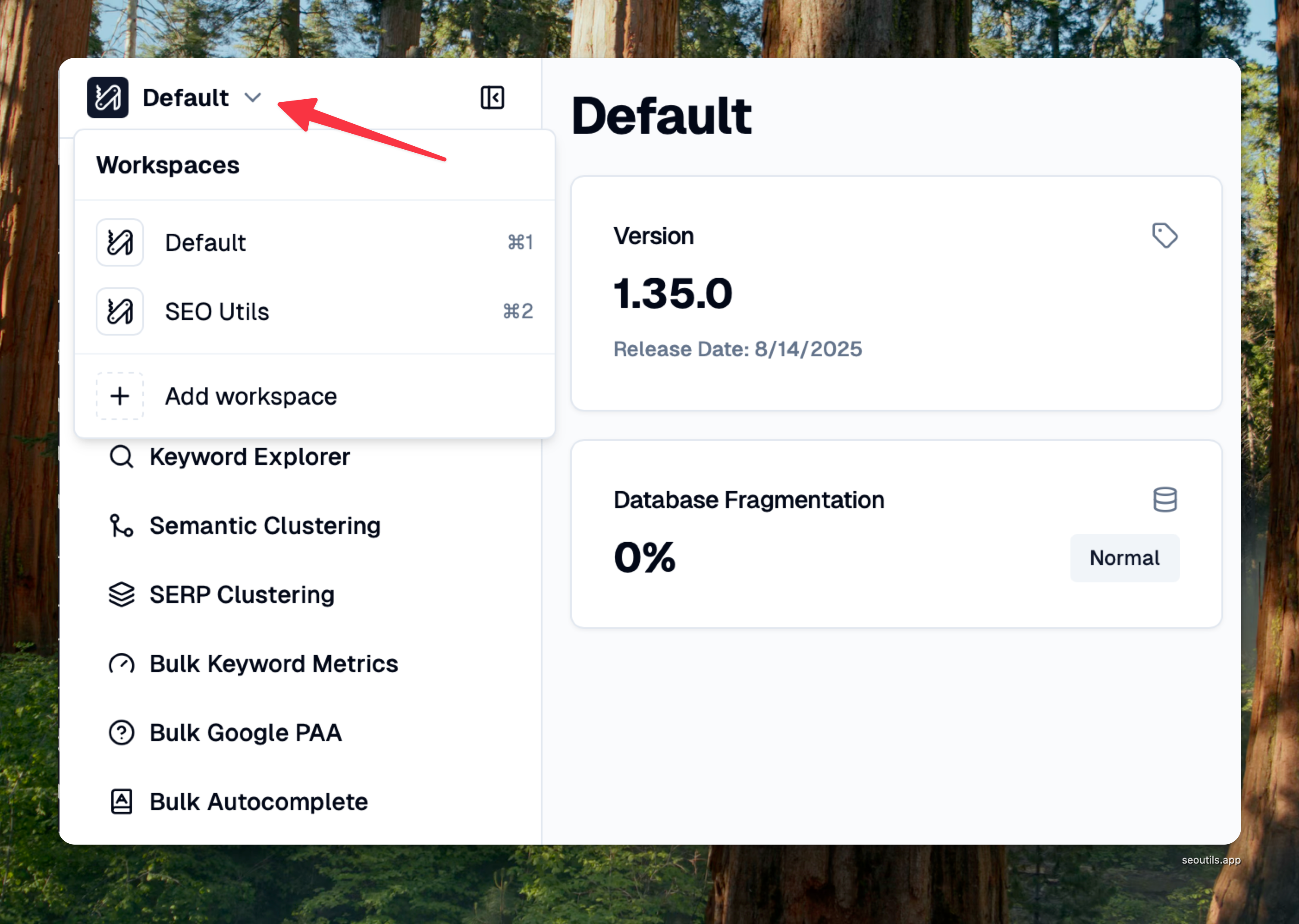
You can access the workspace switcher from the sidebar. The current active workspace is displayed with its logo (if set) or a default icon.
Workspace switcher in the sidebar
### Creating a New Workspace
#### Step 1
Click on the workspace switcher in the sidebar to open the dropdown menu.
#### Step 2
Click on the **"Add workspace"** button at the bottom of the dropdown.
#### Step 3
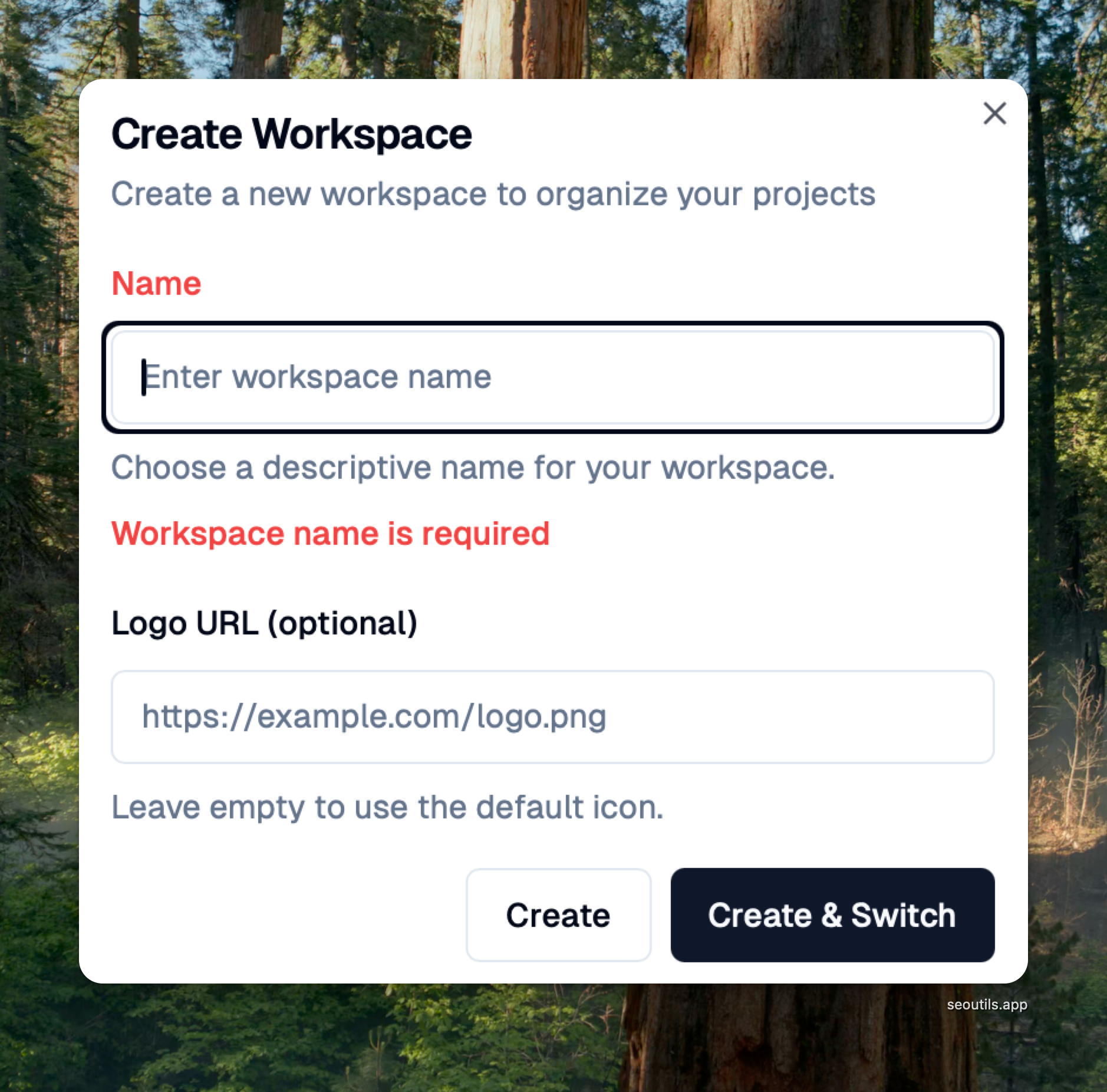
Enter a **name** for your workspace and optionally add a **logo URL** to help identify it visually.
Create workspace modal
Click **"Create"** to create the workspace, or **"Create & Switch"** to create and immediately switch to the new workspace.
### Editing a Workspace
To edit an existing workspace:
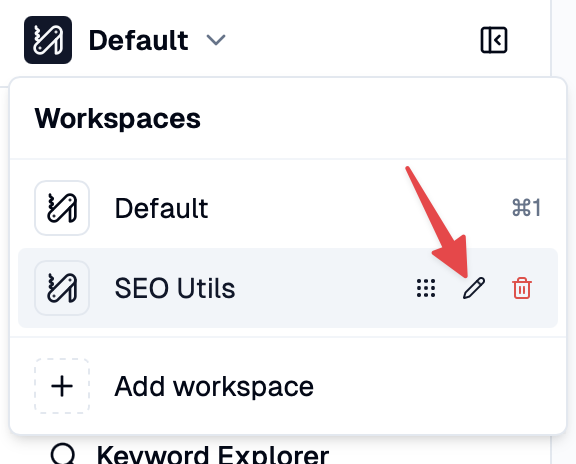
1. Open the workspace dropdown
2. Hover over the workspace you want to edit
3. Click the **pencil icon** that appears
4. Update the name or logo URL
5. Click **"Save"** to apply changes
Edit workspace by clicking the pencil icon
### Deleting a Workspace
{% hint style="warning" %}
You can only delete workspaces that contain **no data**. If a workspace has any reports, tracked keywords, or other data, you must first delete or move that data before deleting the workspace.
{% endhint %}
To delete a workspace:
1. Open the workspace dropdown
2. Hover over the workspace you want to delete
3. Click the **trash icon** that appears
4. Confirm the deletion in the modal
{% hint style="info" %}
The **Default Workspace** cannot be deleted.
{% endhint %}
## Switching Between Workspaces
### Using the Dropdown
Click on any workspace in the dropdown to switch to it. The app will reload with the selected workspace's data.
### Using Keyboard Shortcuts
You can quickly switch between workspaces using keyboard shortcuts:
* **Mac**: `⌘1` through `⌘9`
* **Windows/Linux**: `Ctrl+1` through `Ctrl+9`
The number corresponds to the workspace's position in your list. For example, `⌘1` switches to the first workspace, `⌘2` to the second, and so on.
### Reordering Workspaces
You can reorder workspaces to customize your keyboard shortcuts:
1. Open the workspace dropdown
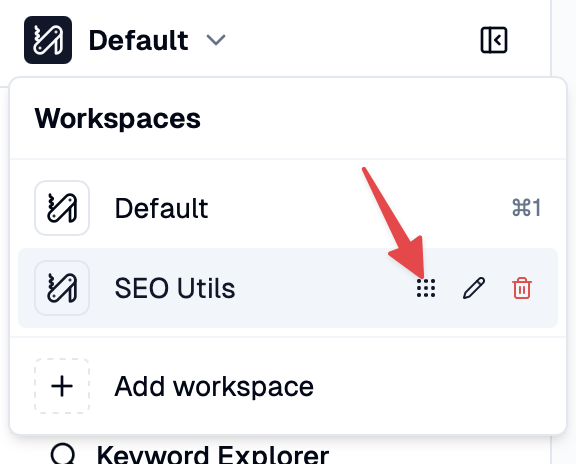
2. Hover over a workspace to see the **drag handle** (grip icon)
3. Click and drag the workspace to your desired position
4. Release to save the new order
Drag workspaces to reorder them
## Moving Data Between Workspaces
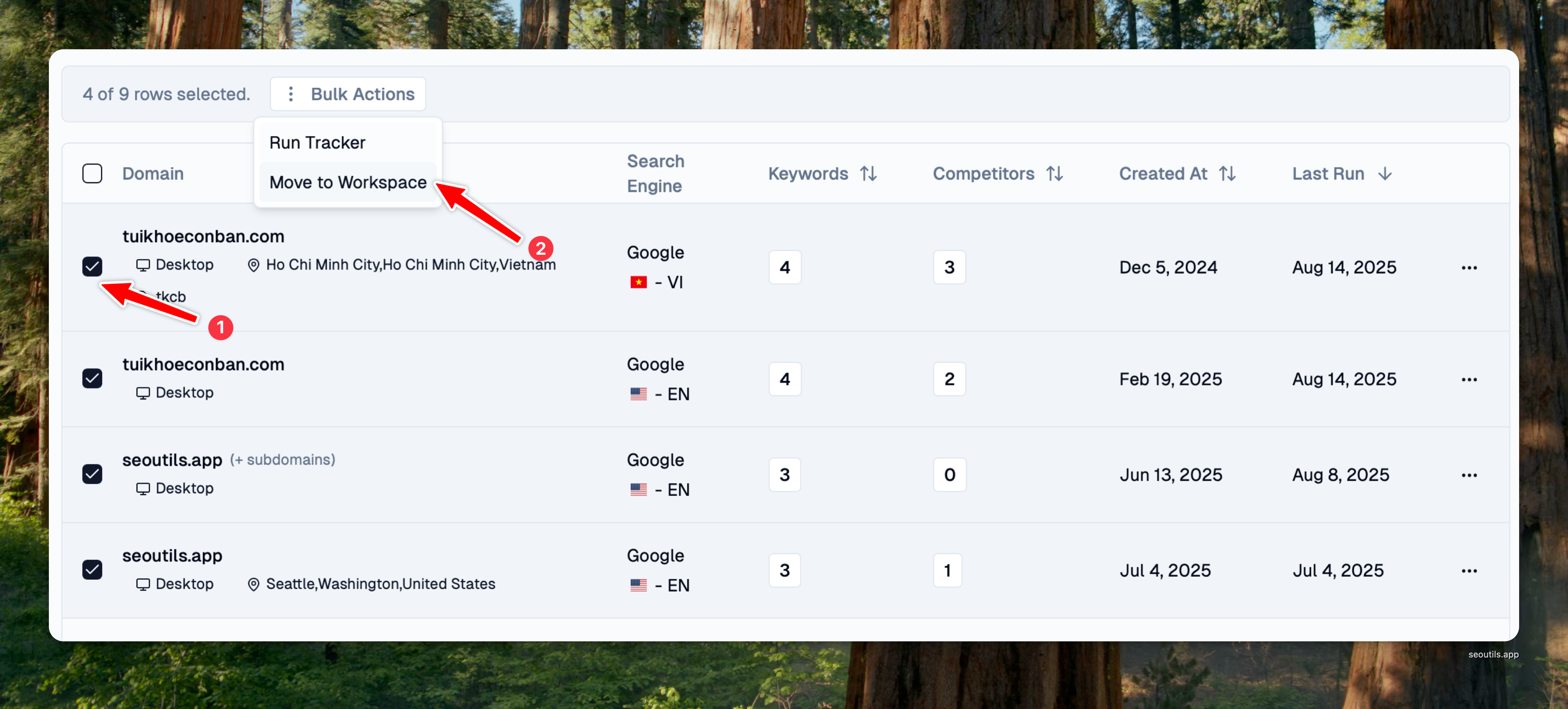
You can move existing data from one workspace to another using the bulk move feature:
### Moving Multiple Records
1. Select the records you want to move (using checkboxes in any data table)
2. Click on **"Bulk Actions"** button
3. Select **"Move to Workspace"**
4. Choose the target workspace from the dropdown
5. Click **"Execute"** to move the selected records
Bulk move records to another workspace
## Use Cases for Workspaces
### Client Management
Create separate workspaces for each client to keep their SEO data isolated:
* **Client A Workspace**: Contains all rank tracking, backlinks, and reports for Client A
* **Client B Workspace**: Separate data for Client B
* **Personal Projects**: Your own website's SEO data
### Project Organization
Organize different projects or websites:
* **E-commerce Site**: Track product page rankings and organic traffic
* **Blog Network**: Monitor multiple blog sites
* **Local Business**: Track Google Business rankings and local SEO
### Team Collaboration
Different teams or departments can have their own workspaces:
* **Content Team**: Focus on content analysis and optimization
* **Link Building Team**: Track backlink campaigns
* **Technical SEO**: Monitor site health and technical metrics
## Important Notes
* Each workspace maintains completely **separate data**
* Switching workspaces will **refresh the current view** to show the new workspace's data
* Workspace settings are **saved locally** and persist between app sessions
* The active workspace is **remembered** when you close and reopen the app
* All API keys and service accounts are **shared across all workspaces**
## Best Practices
1. **Name workspaces clearly**: Use descriptive names like "Client - ABC Corp" or "Project - Summer Campaign"
2. **Add logos**: Upload client logos or project icons to quickly identify workspaces visually
3. **Organize by priority**: Place your most-used workspaces at the top for quick keyboard access
4. **Regular cleanup**: Delete empty workspaces you no longer need to keep your list organized
5. **Move data carefully**: Double-check the target workspace before moving important data