> For the complete documentation index, see [llms.txt](https://help.seoutils.app/llms.txt). Markdown versions of documentation pages are available by appending `.md` to page URLs; this page is available as [Markdown](https://help.seoutils.app/guide/google-business-reviews-fetcher.md).
# Google Business Reviews Fetcher
The Google Business Reviews Fetcher automatically collects and tracks Google reviews for a single business location. Instead of manually checking Google Maps for new reviews, this tool fetches review data on a schedule and tracks changes over time through snapshots.
### Why Use This Tool
**Perfect for:**
* Businesses monitoring their Google reviews over time
* Tracking new reviews as they come in
* Building a historical record of all reviews
* Exporting review data for reporting or analysis
* Monitoring owner response rates
**Key Benefits:**
* 📸 Snapshot-based tracking - See exactly what changed each time
* 🔄 Smart depth calculation - Automatically optimizes API costs
* 📊 Deduplication - Only tracks new reviews, skips duplicates
* 👁️ Visibility tracking - Optionally detect when reviews disappear or reappear on Google
* 🔔 Email alerts for low-rating reviews via Automations
* 💾 Export reviews to CSV for analysis
* ⏰ Scheduled or manual fetching
### Quick Start Guide
{% hint style="warning" %}
This tool requires you to set up a Google Places API key to search for Google businesses. Please read the guide at: [Setup Google Places API key](/guide/google-my-business-rank-tracker.md#setup-the-google-places-api)
{% endhint %}
#### Step 1: Add a Business
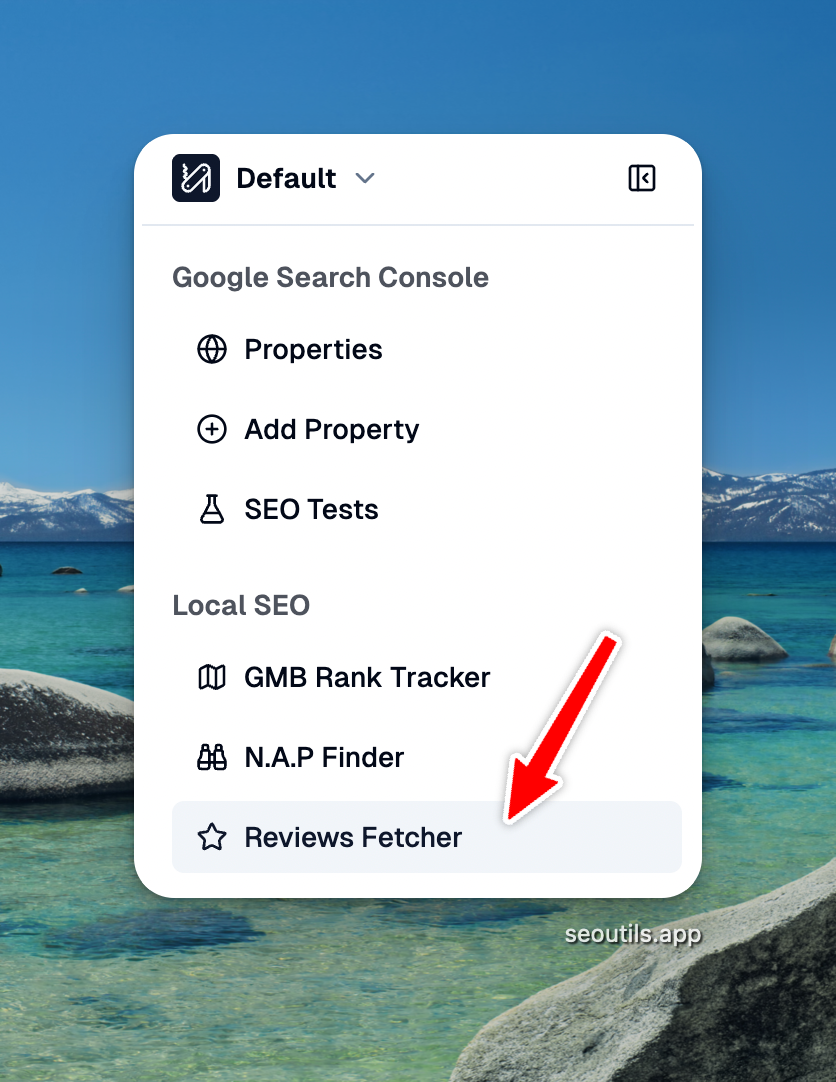
1. Navigate to **Google Business Reviews Fetcher** in the sidebar
2. Click **"Create New Fetcher"**
3. Search for your business using the business search field
4. Enter a friendly name (e.g., "Downtown Seattle Location")
Access Google Business Reviews Fetcher tool
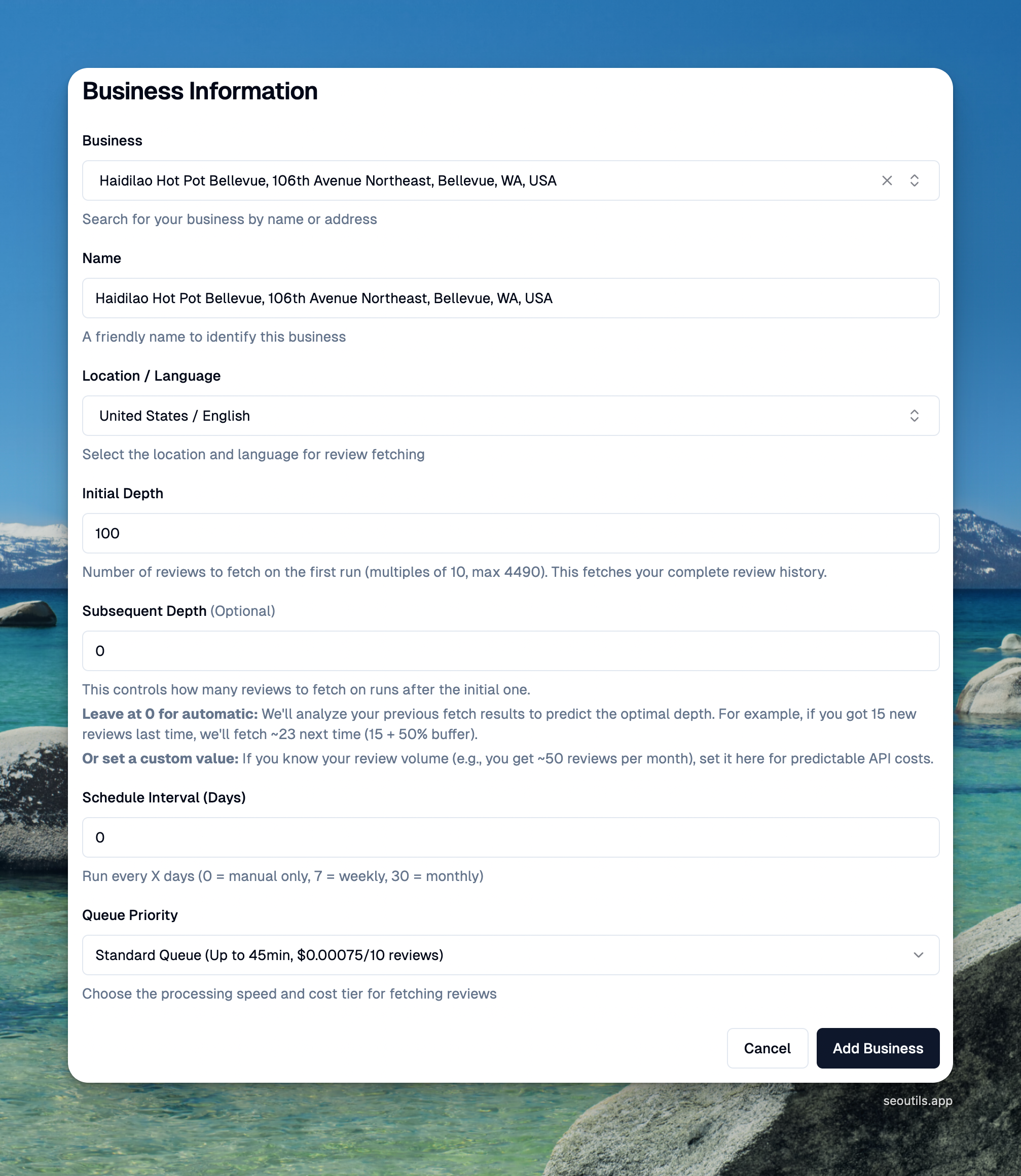
#### Step 2: Configure Fetch Settings
**Initial Depth** (First run only)
* How many historical reviews to fetch on first run
* Range: 10 - 4,490 reviews (in multiples of 10)
* Example: Set to 1,000 to fetch complete review history
* **This only runs once** - pulls all historical reviews
**Subsequent Depth** (Optional)
* How many reviews to fetch on future runs
* Leave at **0 for automatic** (recommended)
* Or set a custom value if you know your review volume
**How Automatic Depth Works:**
```
First Run: Fetches 1,000 reviews (your historical data)
Second Run: Automatically calculates based on schedule
- Example: 7-day schedule = ~21 reviews (3/day × 7 days)
Third+ Runs: Analyzes previous snapshot
- If last run found 15 new reviews
- Next run fetches ~30 reviews (15 × 2 buffer)
```
**Track Disappearing Reviews** (Optional)
* Off by default
* Turn on to detect reviews that Google removes or that reviewers delete
* Every run after the first fetches your **complete** review list, overriding Subsequent Depth
* Uses more DataForSEO credits per run, since each run pulls every review instead of just the newest ones
{% hint style="warning" %}
Confirming that a review was removed requires seeing every review the business has. A shorter fetch cannot tell a deleted review apart from one that simply sits below the depth limit.
Leave this off to keep runs cheap — snapshots will then state that missing reviews were not checked, rather than reporting numbers that cannot be trusted.
{% endhint %}
**Schedule Interval**
* 0 = Manual only (you click "Fetch Data" when needed)
* 7 = Weekly (runs every 7 days)
* 30 = Monthly (runs every 30 days)
* Custom = Any number of days
**Location & Language**
* Select the geographic location and language for review fetching
* Example: United States - English
**Queue Priority**
* **Standard Queue**: Up to 45min processing, $0.00075 per 10 reviews
* **Priority Queue**: Up to 1min processing, $0.0015 per 10 reviews
Create a Google Business Reviews Fetcher
#### Step 3: Save and Run
1. Click **"Add Business"**
2. Initial fetch starts automatically
3. You'll be redirected to the snapshot page showing progress
### Understanding the Business Detail Page
After creating a business, you'll see the detail page with:
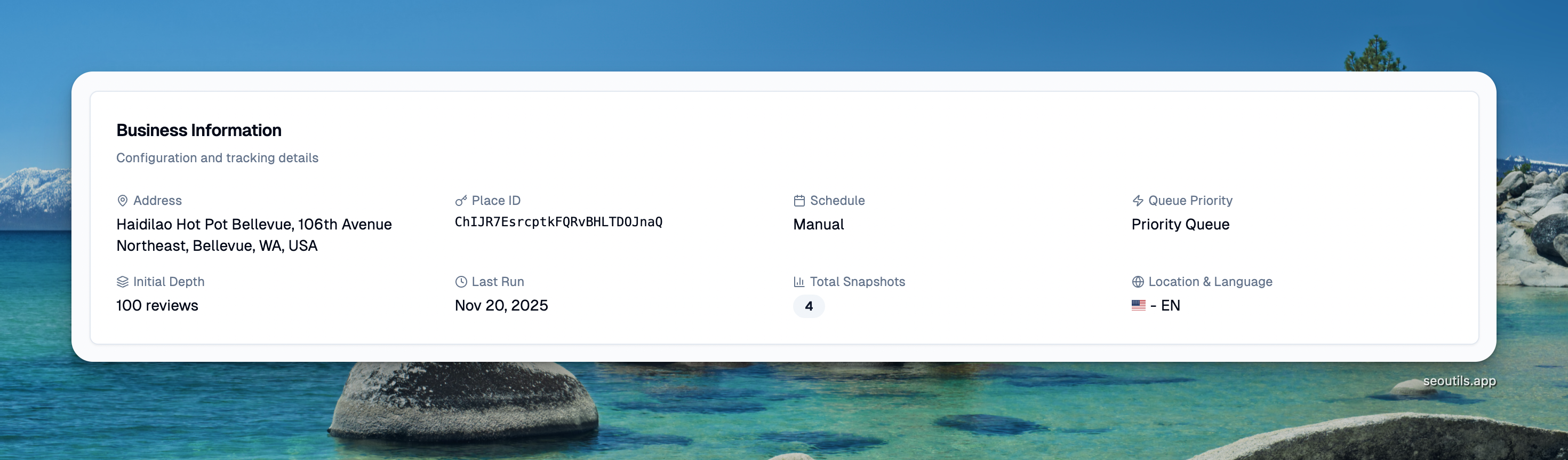
#### Business Information Card
Business Information Card
Shows configuration and tracking details:
* **Address**: Business name and location
* **Place ID**: Google's unique identifier for this business
* **Schedule**: How often reviews are fetched (Manual, Weekly, etc.)
* **Queue Priority**: Standard or Priority processing
* **Initial Depth**: Number of reviews fetched on first run
* **Last Run**: When reviews were last fetched
* **Total Snapshots**: How many times reviews have been fetched
* **Location & Language**: Geographic and language settings
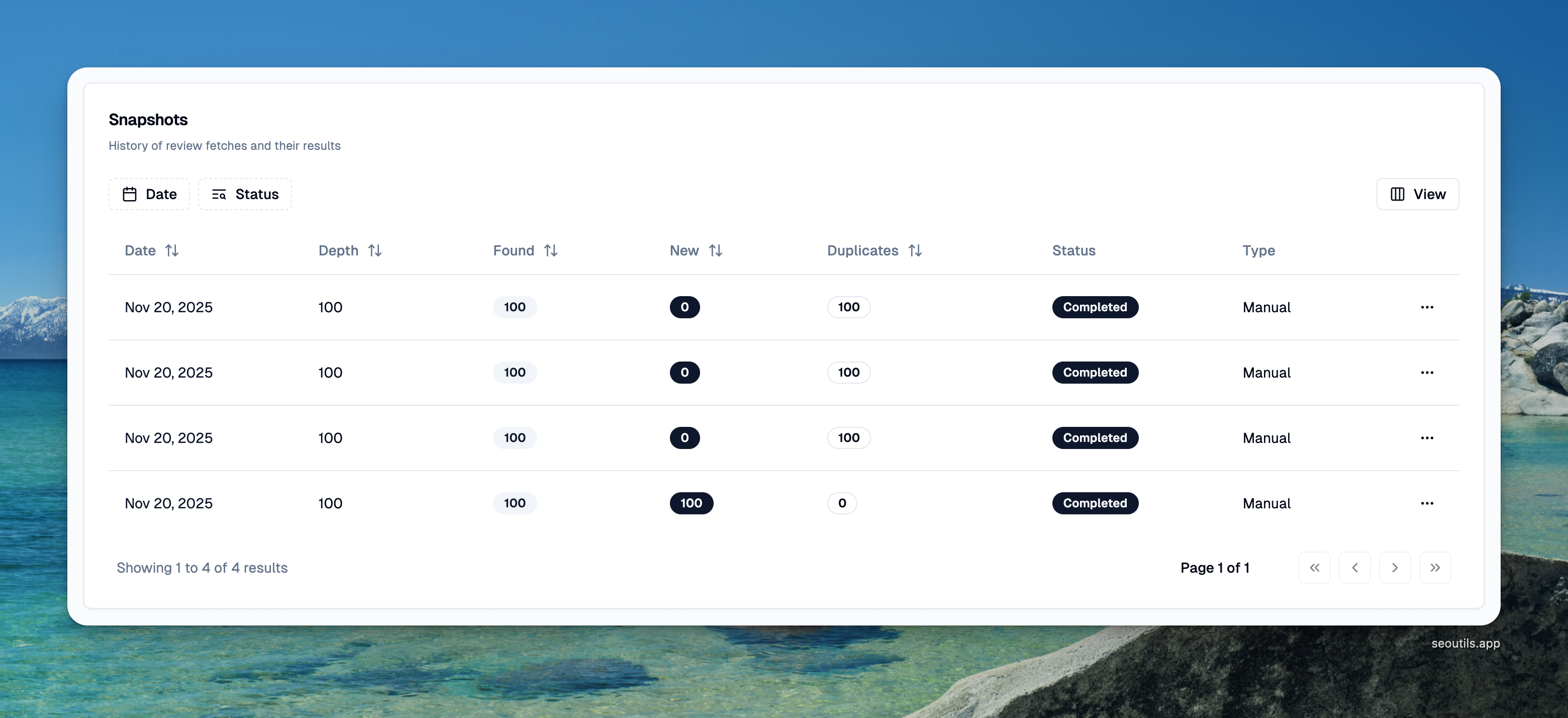
#### Snapshots History Table
Every time you fetch reviews, a new snapshot is created. The table shows:
Snapshots History Table
**Columns:**
* **Date**: When the snapshot was created
* **Depth**: How many reviews were requested from the API
* **Found**: Total reviews returned by Google
* **New**: Reviews that didn't exist in previous snapshots
* **Duplicates**: Reviews already captured in previous snapshots
* **Status**: Pending → Processing → Completed (or Failed)
* **Type**: Scheduled (automatic) or Manual (you clicked "Fetch Data")
**Example Snapshot Flow:**
```
Snapshot #1 (Initial):
Depth: 1,000
Found: 847 reviews
New: 847 (all are new on first run)
Duplicates: 0
Snapshot #2 (7 days later):
Depth: 30 (auto-calculated)
Found: 18 reviews
New: 3 (3 new reviews since last week)
Duplicates: 15 (already had these)
Snapshot #3 (7 days later):
Depth: 30 (auto-calculated)
Found: 25 reviews
New: 5 (5 new reviews this week)
Duplicates: 20 (already had these)
```
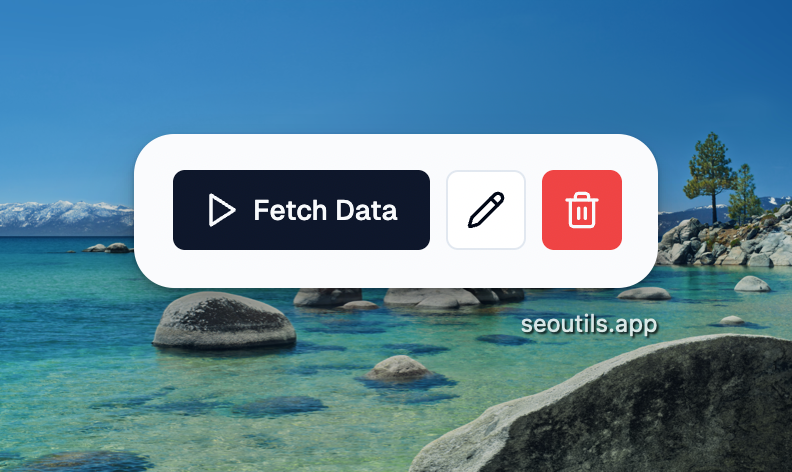
#### Actions
* **Fetch Data**: Manually trigger a new snapshot
* **Edit**: Change business settings (except business selection)
* **Delete**: Remove business and all snapshots
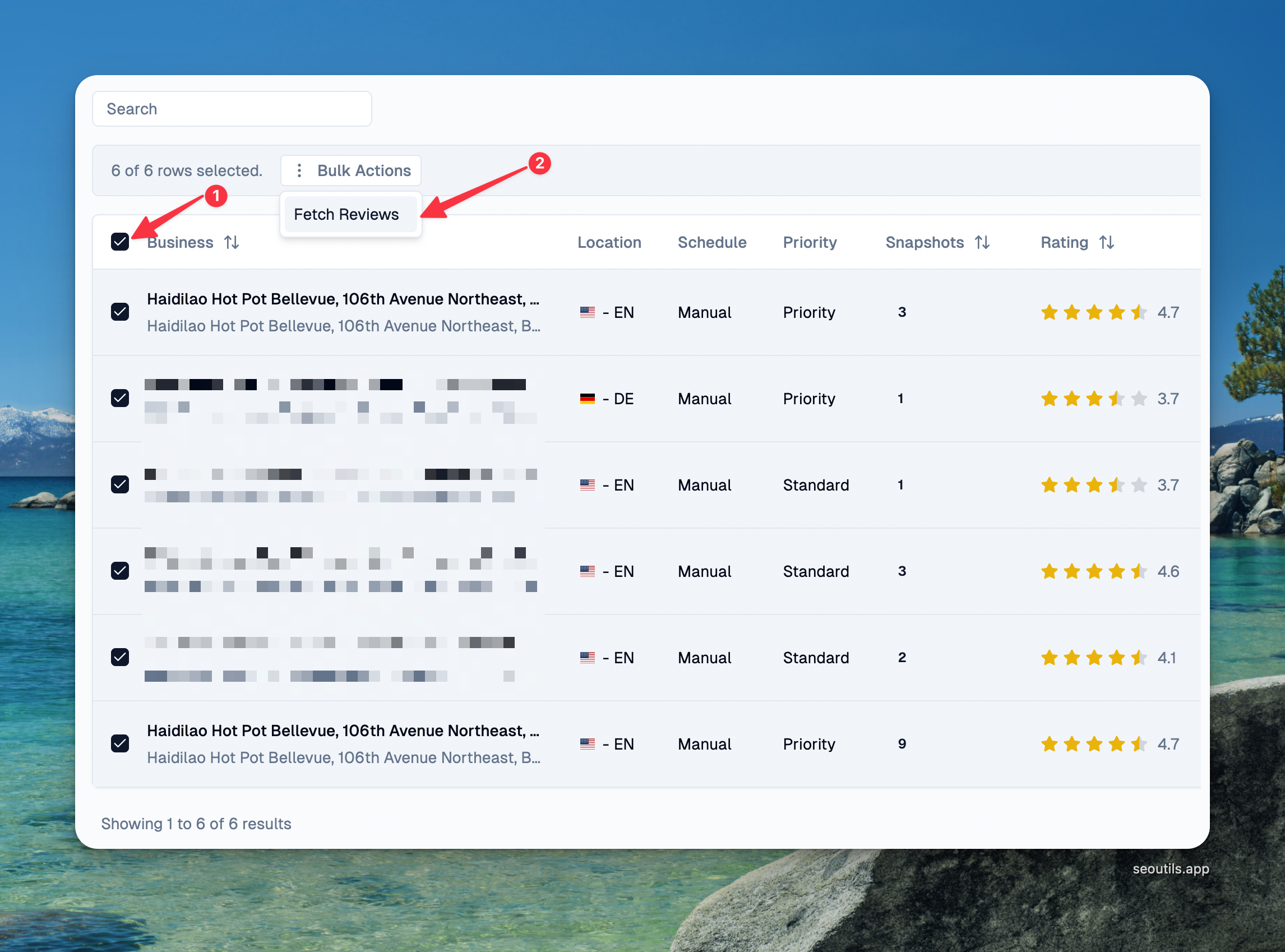
#### Bulk Actions
From the main business list, you can select multiple businesses using the checkboxes and perform bulk actions:
* **Fetch Reviews**: Trigger a review fetch for all selected businesses at once. The fetches run sequentially to avoid API overload.
Fetch reviews for multiple businesses
This is useful when you want to manually refresh reviews for multiple businesses before generating reports.
### Viewing Review Data (Snapshot Page)
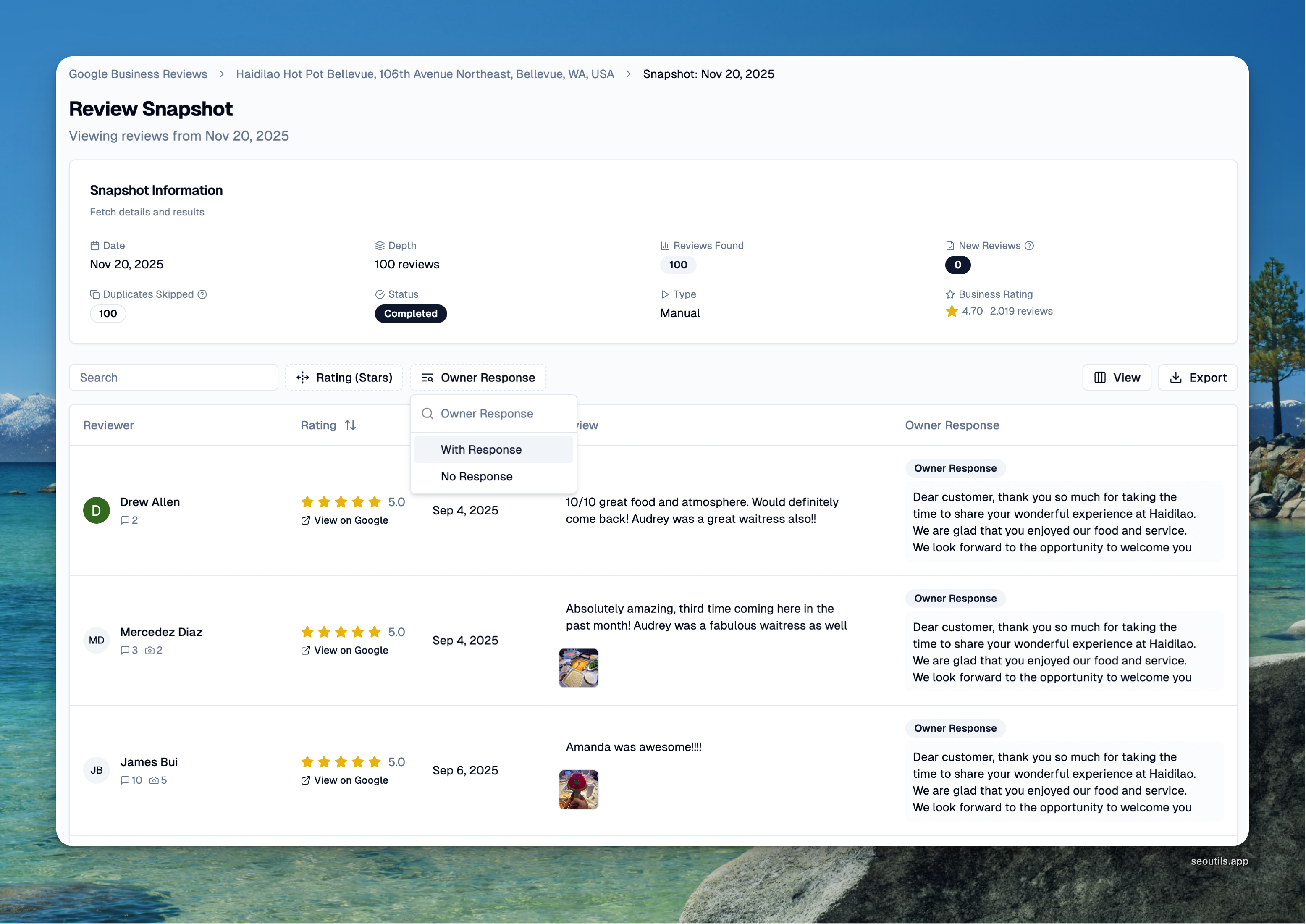
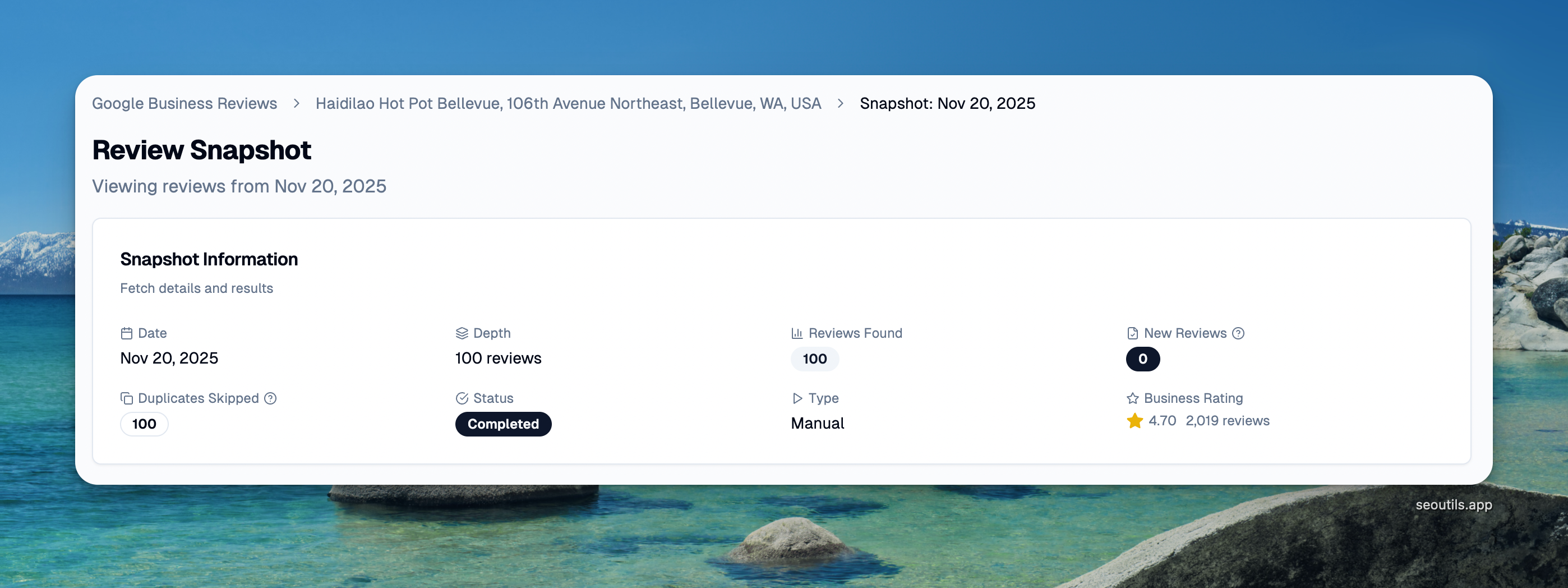
Click on any snapshot date to view the reviews captured in that snapshot.
View detail a snapshot
#### Snapshot Information
Shows details about this specific fetch:
* **Date**: When this snapshot was created
* **Depth**: How many reviews were requested
* **Reviews Found**: Total reviews returned by Google
* **New Reviews**: Reviews discovered for the first time
* **Duplicates Skipped**: Reviews already in previous snapshots
* **Status**: Completion status
* **Type**: Manual or Scheduled run
* **Business Rating**: Overall star rating and total review count
* **Missing Reviews**: Every review known to this business that is no longer on Google, with the number that disappeared in this particular run shown next to it (appears only when the run checked for missing reviews)
* **Reinstated Reviews**: Reviews that reappeared after being missing (shown only if > 0)
If a run could not check for missing reviews, a notice appears here explaining why. See [Review Visibility Tracking](#review-visibility-tracking) below.
#### Reviews Table
Reviews table
**Cumulative View (Default)**
By default, the snapshot page shows **all reviews ever collected** for this business with their current visibility status. This gives you a complete picture of all reviews regardless of which snapshot first captured them.
To see only reviews from this specific snapshot, enable the **"Only show reviews in this snapshot"** toggle above the table.
**Review Columns:**
* **Reviewer**: Name, photo, profile (if available)
* Shows review count and photo count
* "Local Guide" badge if applicable
* **Rating**: Star rating (1-5)
* Number of "helpful" votes
* "View on Google" link to see review on Google Maps
* **Review Date**: When the review was posted
* **Review Text**: Full review content
* Expandable for long reviews
* Shows review images if attached
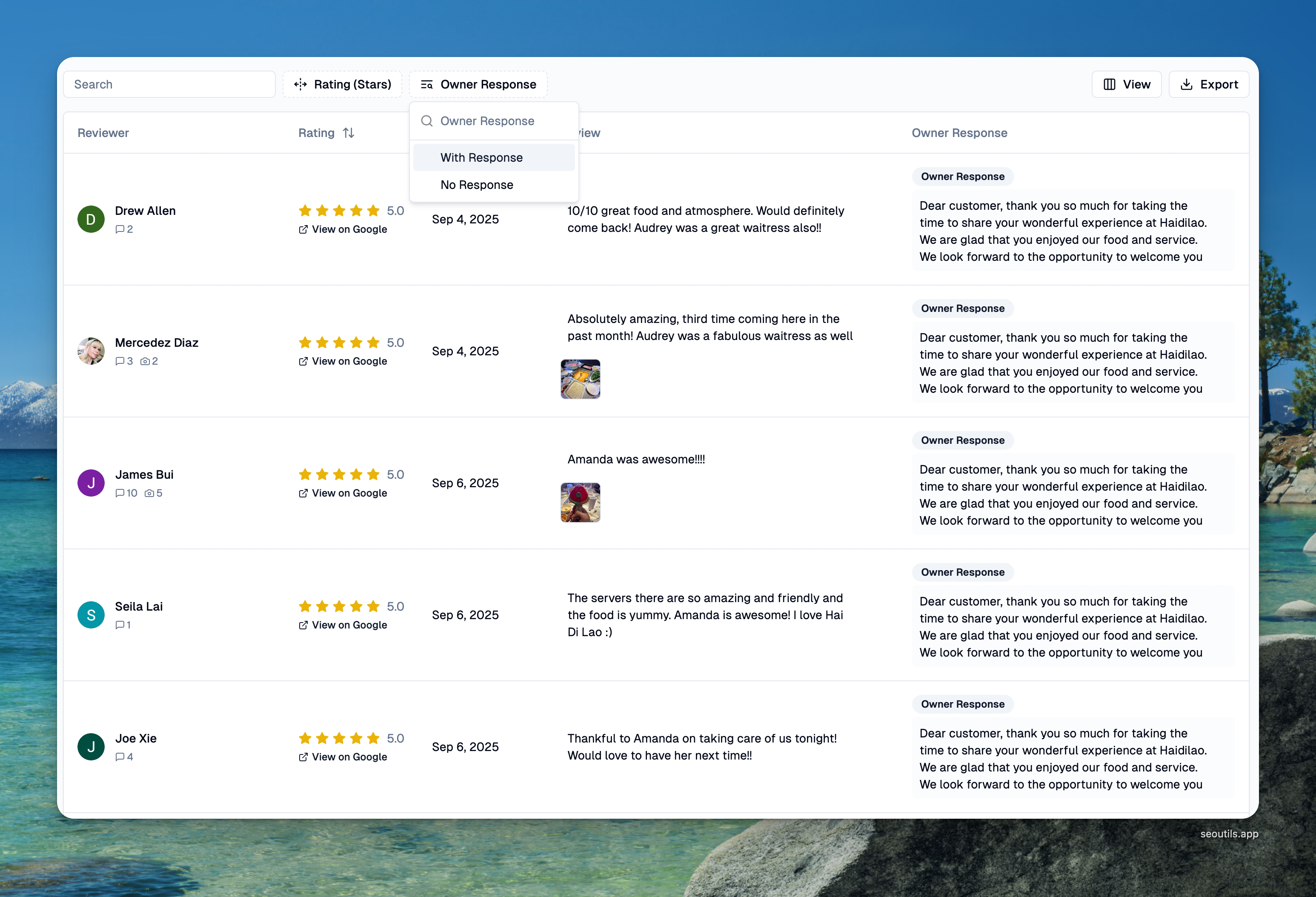
* **Owner Response**: Business reply to the review
* Shows if owner has responded
* Full response text
* **Status**: Review visibility status (see below)
#### Review Visibility Tracking
The tool can detect when reviews disappear from Google and when they come back. Every review carries a visibility status:
| Status | Description |
| -------------- | ------------------------------------------------------------------------------------- |
| **New** | First time discovered for this business |
| **Visible** | Currently visible on Google |
| **Missing** | Was visible before but no longer on Google (deleted by reviewer or removed by Google) |
| **Reinstated** | Was missing but has reappeared on Google |
**When missing reviews are checked**
To keep costs down, a regular fetch pulls only your most recent reviews. That means it cannot tell a removed review apart from one that simply sits below the depth limit — so missing reviews are reported only when a run has seen **every** review the business has.
Turn on **Track disappearing reviews** in the business settings to make each run fetch the complete list and compare it against everything collected previously.
When a run could not check, the snapshot says so instead of reporting numbers that cannot be trusted:
| Why the check was skipped | What to do |
| ------------------------------------------------------------ | ---------------------------------------------------------------------- |
| The run covered only part of the review list | Turn on **Track disappearing reviews** so future runs fetch everything |
| There is nothing collected yet to compare against | Run another fetch — the next one can report changes |
| The business has more reviews than a single run can retrieve | Removals cannot be detected for this business |
| Google returned incomplete data for the run | Run the fetch again |
{% hint style="info" %}
**Why do reviews go missing?** Reviews can disappear from Google for several reasons:
* Reviewer deleted their review
* Google removed it for policy violations
* Google's spam filter flagged it (may be reinstated later)
* Temporary Google Maps data issues
{% endhint %}
{% hint style="warning" %}
**Snapshots created before version 1.48.1** show a notice that their missing-review counts are unverified.
Earlier versions counted every review a run had not looked at as missing, so those counts can include reviews that are still live on Google. The data is left in place, but confirm it with a new fetch before acting on it — particularly before raising a case with Google.
{% endhint %}
#### Filters
* **Rating**: Filter by star rating (e.g., show only 1-2 star reviews)
* **Owner Response**: Filter by "With Response" or "No Response"
* **Visibility**: Filter by status (New, Visible, Missing, Reinstated)
* **Search**: Search reviewer names or review text
#### Export
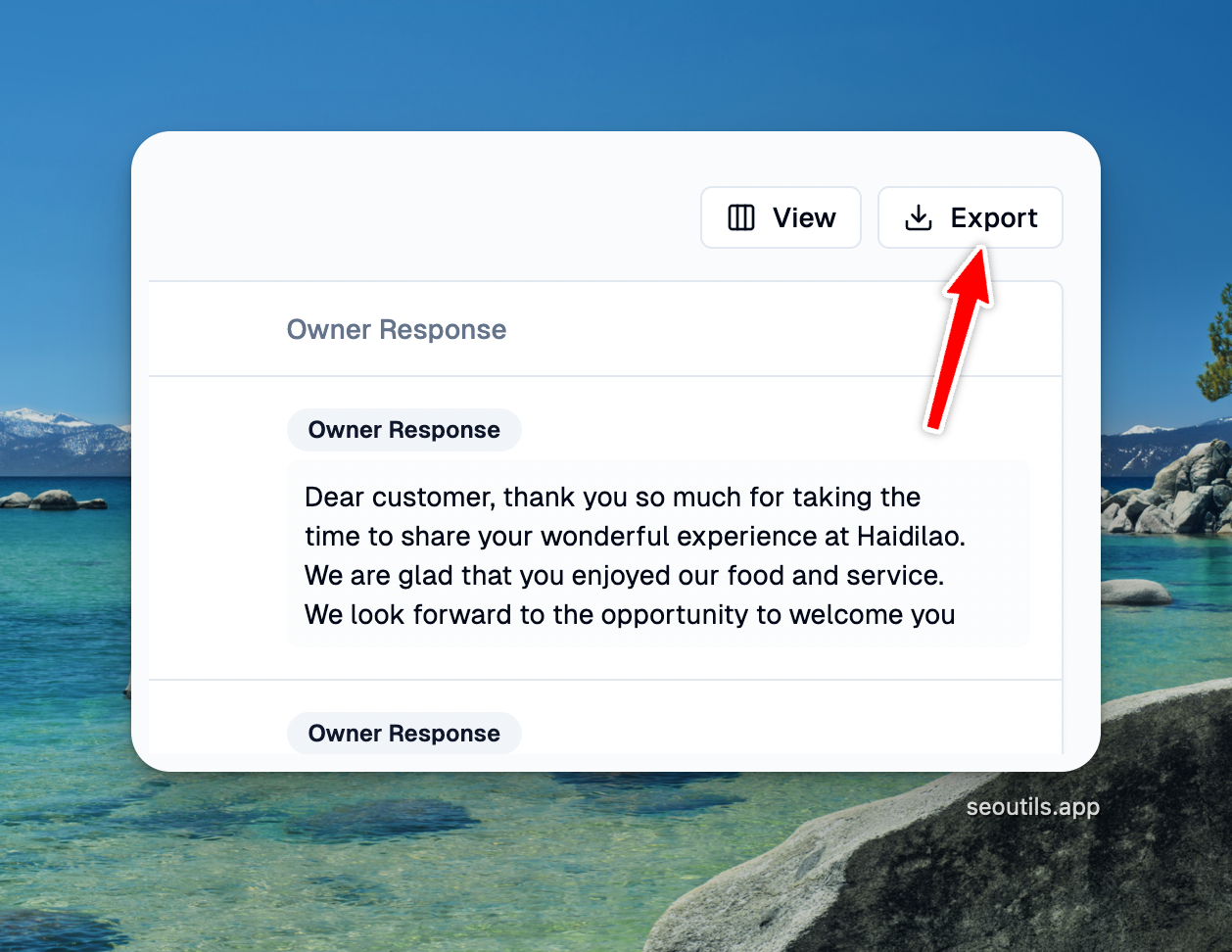
Click **Export** to download reviews as a CSV file.
The export matches what is on screen. It respects the current filters, the search box, and the **"Only show reviews in this snapshot"** toggle — so filtering the table to **Missing** and clicking Export gives you a file containing only the disappeared reviews.
Each row includes a **Visibility Status** column (New, Visible, Missing or Reinstated), along with the reviewer name, rating, date, review text, any owner response, and a direct link to the review on Google.
Use exports for:
* Client reporting
* Analysis in Excel/Google Sheets
* Documenting disappeared reviews when raising a case with Google
* Integration with other tools
* Long-term archiving
### Example Workflows
Workflow 1: New Business Setup
**Goal**: Track reviews for a coffee shop with \~200 total reviews
**Setup:**
```
Business: Blue Bottle Coffee - Ferry Building
Initial Depth: 500 reviews
Subsequent Depth: 0 (automatic)
Schedule: 7 days (weekly)
Priority: Standard Queue
```
**What Happens:**
1. First run: Fetches 500 reviews, finds 187 total
2. Week 1: Auto-fetches \~21 reviews, finds 2 new reviews
3. Week 2: Auto-fetches \~30 reviews (2×2 buffer), finds 3 new
4. Week 3: Auto-fetches \~30 reviews, finds 1 new
5. Ongoing: Adapts based on review frequency
Workflow 2: High-Volume Business
**Goal**: Track reviews for busy restaurant getting 5-10 reviews/day
**Setup:**
```
Business: Popular Restaurant Downtown
Initial Depth: 4,490 reviews (max)
Subsequent Depth: 0 (automatic)
Schedule: 3 days
Priority: Priority Queue (faster processing)
```
**What Happens:**
1. First run: Fetches 4,490 reviews (complete history)
2. Day 3: Auto-fetches \~27 reviews, finds 18 new
3. Day 6: Auto-fetches \~36 reviews (18×2), finds 22 new
4. Day 9: Auto-fetches \~44 reviews (22×2), finds 15 new
5. Ongoing: Automatically adjusts to review volume
Workflow 3: Manual Monitoring
**Goal**: Fetch reviews only when needed (e.g., before monthly reports)
**Setup:**
```
Business: Consulting Firm
Initial Depth: 100 reviews
Subsequent Depth: 50
Schedule: 0 (manual only)
Priority: Standard Queue
```
**What Happens:**
1. First run: Manual click, fetches 100 reviews
2. Month 1: Manual click, fetches 50 reviews
3. Month 2: Manual click, fetches 50 reviews
4. Ongoing: You control when to fetch
Workflow 4: Monitoring Disappearing Reviews
**Goal**: Build evidence that reviews are being removed from a business with \~90 reviews
**Setup:**
```
Business: Local Dental Practice
Initial Depth: 100 reviews
Track Disappearing Reviews: On
Schedule: 7 days (weekly)
Priority: Standard Queue
```
**What Happens:**
1. Each run fetches the complete review list rather than just the newest reviews
2. Any review that was present before and is now gone is marked **Missing**
3. The snapshot shows the running total of missing reviews, plus how many disappeared in that run
4. If a review returns later, it is marked **Reinstated**
**To pull the evidence:**
1. Open the snapshot and set the **Visibility** filter to **Missing**
2. Click **Export**
3. The file lists each disappeared review with its reviewer, rating, date, text and Google link
### Setting Up Low-Rating Alerts (Automation)
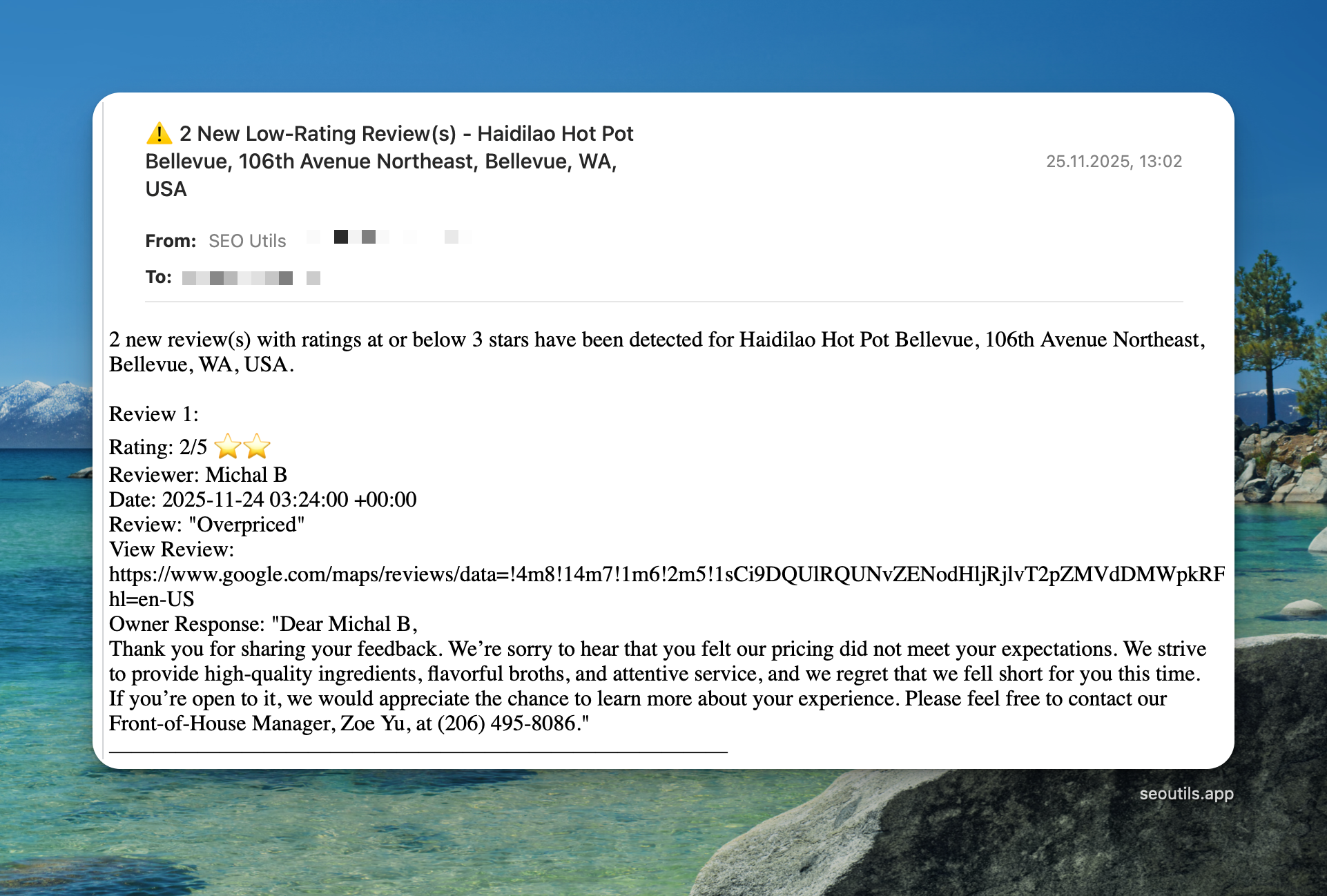
Get notified by email when new reviews below your rating threshold are detected using the [Automations](/guide/automations.md) tool.
#### How It Works
After each fetch completes, the automation system:
1. Checks for NEW reviews in the snapshot
2. Filters reviews by your rating threshold (e.g., 3 stars or lower)
3. Sends email only if matching reviews are found
4. Skips notification if no reviews match criteria
#### Step-by-Step Setup
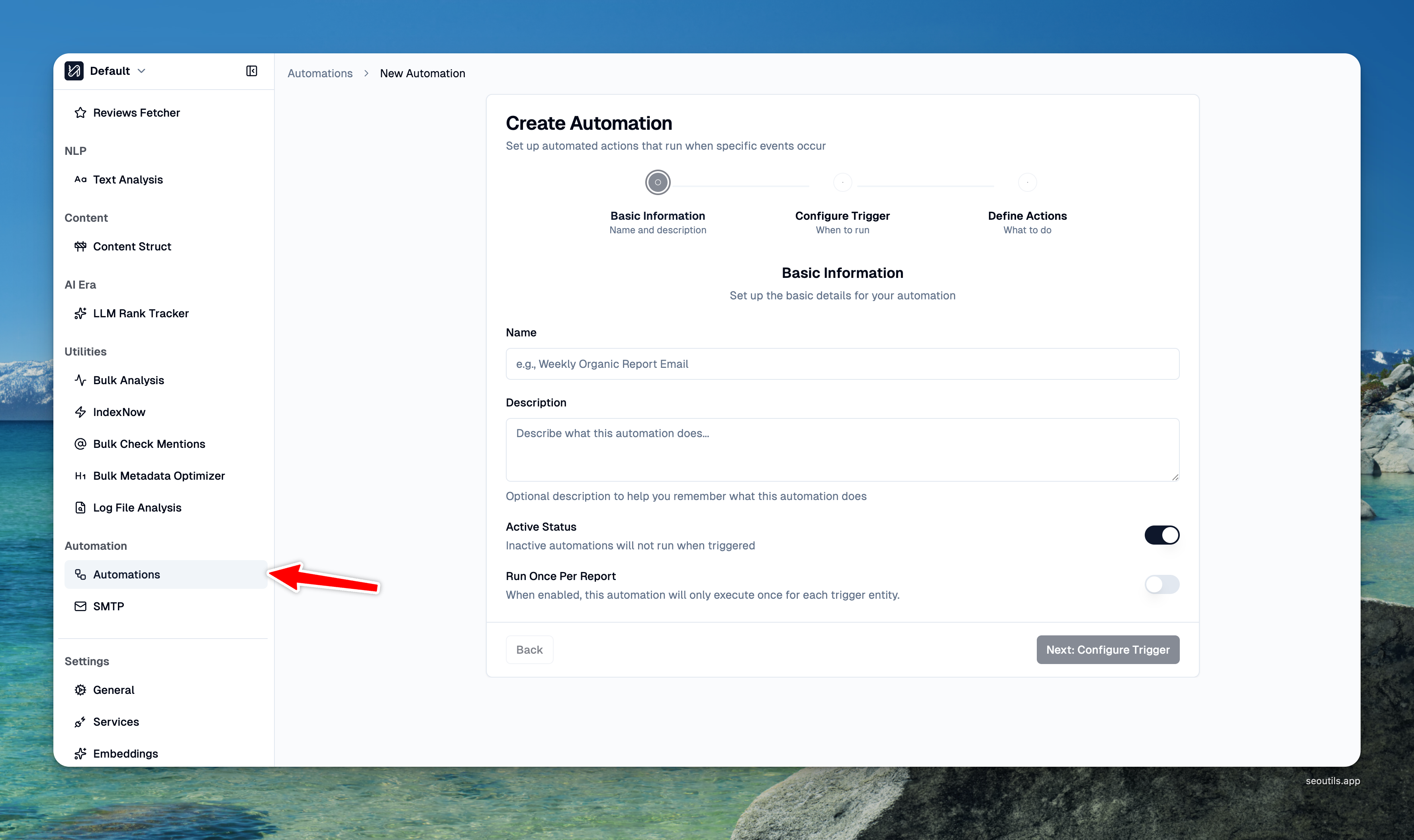
1. Go to **Automations** in the sidebar
2. Click **"Create Automation"**
3. Configure the automation:
**Basic Settings:**
```
Name: Low Rating Alert - [Your Business Name]
Trigger: Google Business Reviews Snapshot
Report: Select your business (or "All Reports" for all businesses)
```
**Trigger Configuration:**
```
Include All Reviews: No (unchecked) - Only sends alerts for reviews at or below threshold
Yes (checked) - Sends alerts for ALL new reviews regardless of rating
Rating Threshold: 3 (triggers for 1, 2, or 3 star reviews) - Only visible when "Include All Reviews" is unchecked
```
**Add Action → Send Email:**
```
To: your-email@company.com
Subject: ⚠️ {{trigger.newReviewsMatchingCount}} New Low-Rating Review(s) - {{trigger.businessName}}
```
**Email Body:**
```
{{trigger.newReviewsMatchingCount}} new review(s) with ratings at or below {{trigger.ratingThreshold}} stars have been detected for {{trigger.businessName}}.
{{trigger.reviewsList}}
━━━━━━━━━━━━━━━━━━━━━━━━━━━━
Business Information:
Name: {{trigger.businessName}}
Address: {{trigger.address}}
Place ID: {{trigger.placeID}}
Summary:
• Total new reviews: {{trigger.newReviewsCount}}
• Matching criteria: {{trigger.newReviewsMatchingCount}}
• Average rating: {{trigger.averageRating}}/5
• Total reviews: {{trigger.totalReviews}}
Action Required:
Please review this feedback and respond promptly to address customer concerns.
---
This is an automated notification from SEO Utils.
Snapshot Date: {{trigger.createdAt}}
```
4. Click **"Save Automation"**
#### Available Template Variables
| Variable | Description | Example |
| ------------------------------------- | ---------------------------------- | -------------------------- |
| `{{trigger.businessName}}` | Business name | "Blue Bottle Coffee" |
| `{{trigger.address}}` | Business address | "123 Main St, Seattle, WA" |
| `{{trigger.placeID}}` | Google Place ID | "ChIJ..." |
| `{{trigger.newReviewsCount}}` | Total new reviews found | 5 |
| `{{trigger.newReviewsMatchingCount}}` | Reviews matching threshold | 2 |
| `{{trigger.ratingThreshold}}` | Configured threshold | 3 |
| `{{trigger.averageRating}}` | Business average rating | 4.2 |
| `{{trigger.totalReviews}}` | Total review count | 847 |
| `{{trigger.reviewsList}}` | Formatted list of matching reviews | (see below) |
| `{{trigger.createdAt}}` | Snapshot date | "2024-01-15" |
#### Example Email Output
```
2 new review(s) with ratings at or below 3 stars have been detected for Blue Bottle Coffee.
Review 1:
Rating: 2/5 ⭐⭐
Reviewer: John D.
Date: 2024-01-15
Review: "Coffee was cold and service was slow. Very disappointed."
View Review: https://maps.google.com/...
━━━━━━━━━━━━━━━━━━━━━━━━━━━━
Review 2:
Rating: 1/5 ⭐
Reviewer: Sarah M.
Date: 2024-01-14
Review: "Worst experience ever. Will not return."
View Review: https://maps.google.com/...
━━━━━━━━━━━━━━━━━━━━━━━━━━━━
Business Information:
Name: Blue Bottle Coffee
Address: 1 Ferry Building, San Francisco, CA
Place ID: ChIJAQDl8...
Summary:
• Total new reviews: 5
• Matching criteria: 2
• Average rating: 4.2/5
• Total reviews: 847
Action Required:
Please review this feedback and respond promptly to address customer concerns.
---
This is an automated notification from SEO Utils.
Snapshot Date: 2024-01-15
```
{% hint style="success" %}
Besides sending emails, you can set up the [Automations tool](/guide/automations.md) to send data view webhooks, so you can perform other analyses or automations.
{% endhint %}