# White-labeled Client Report

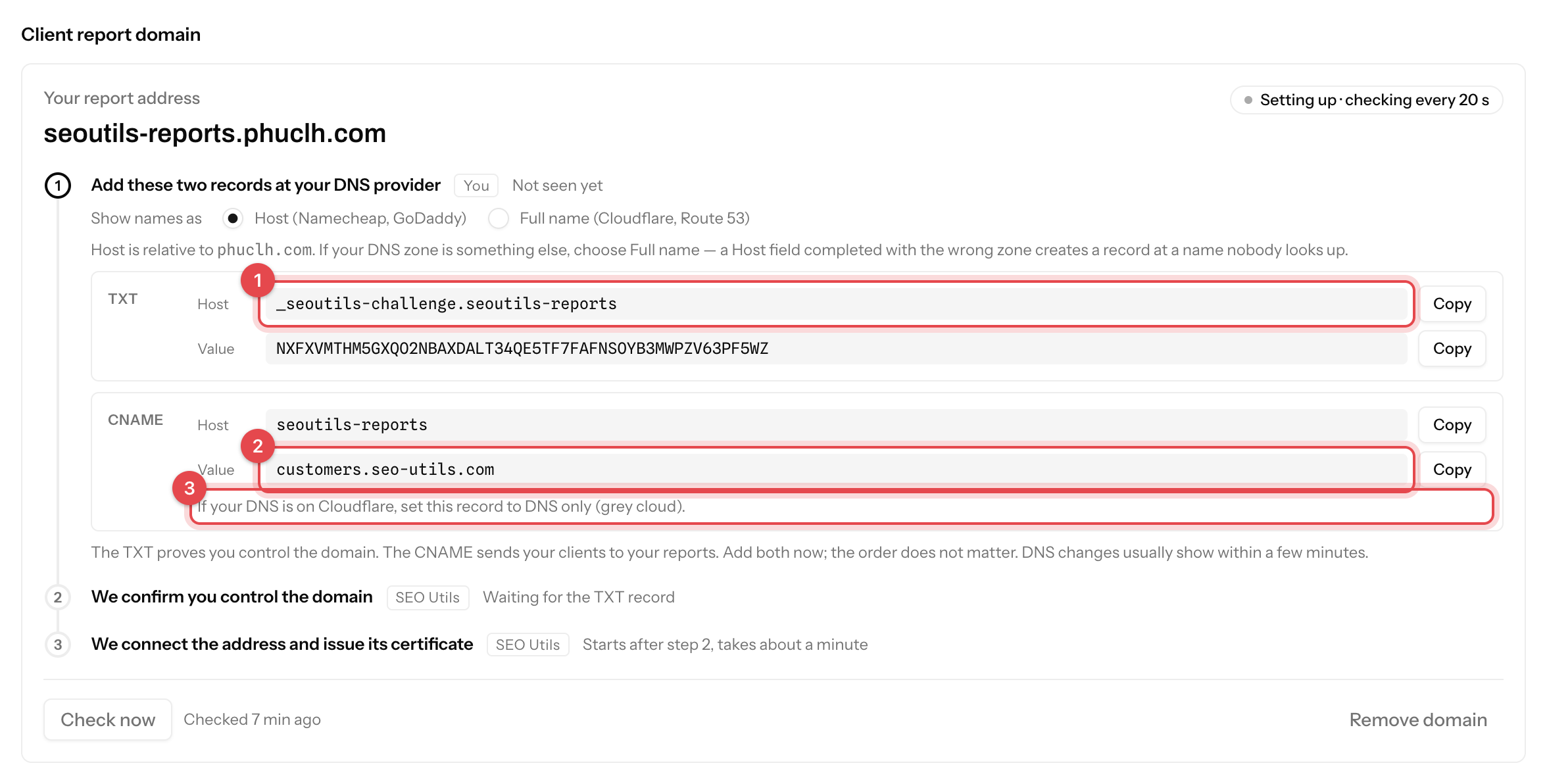
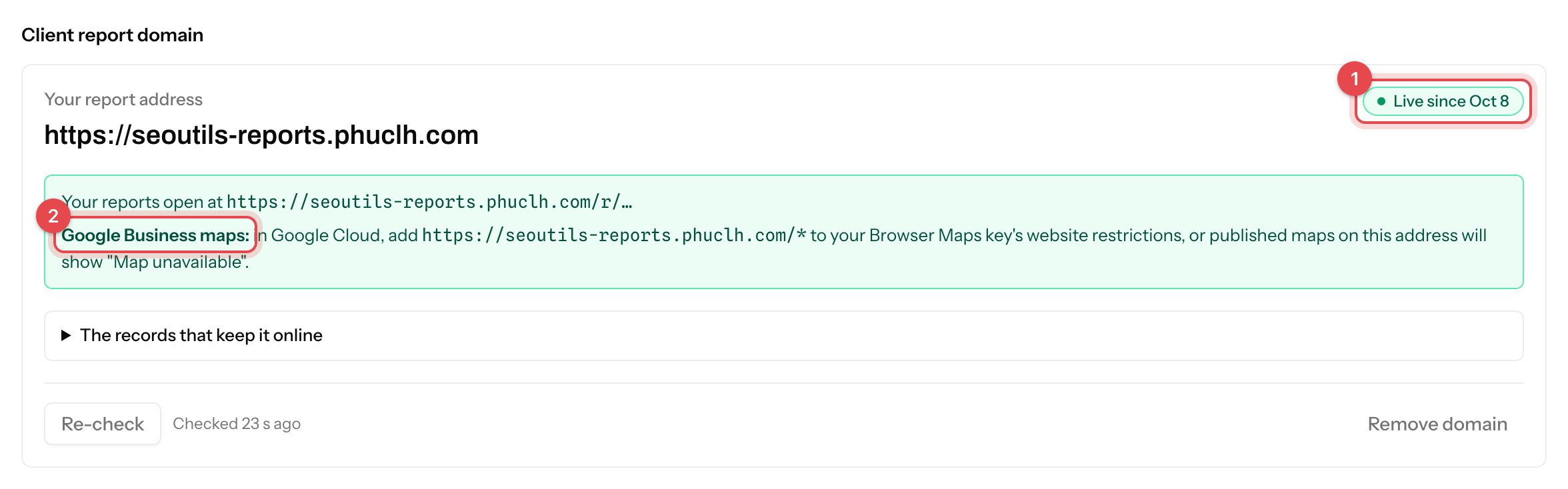
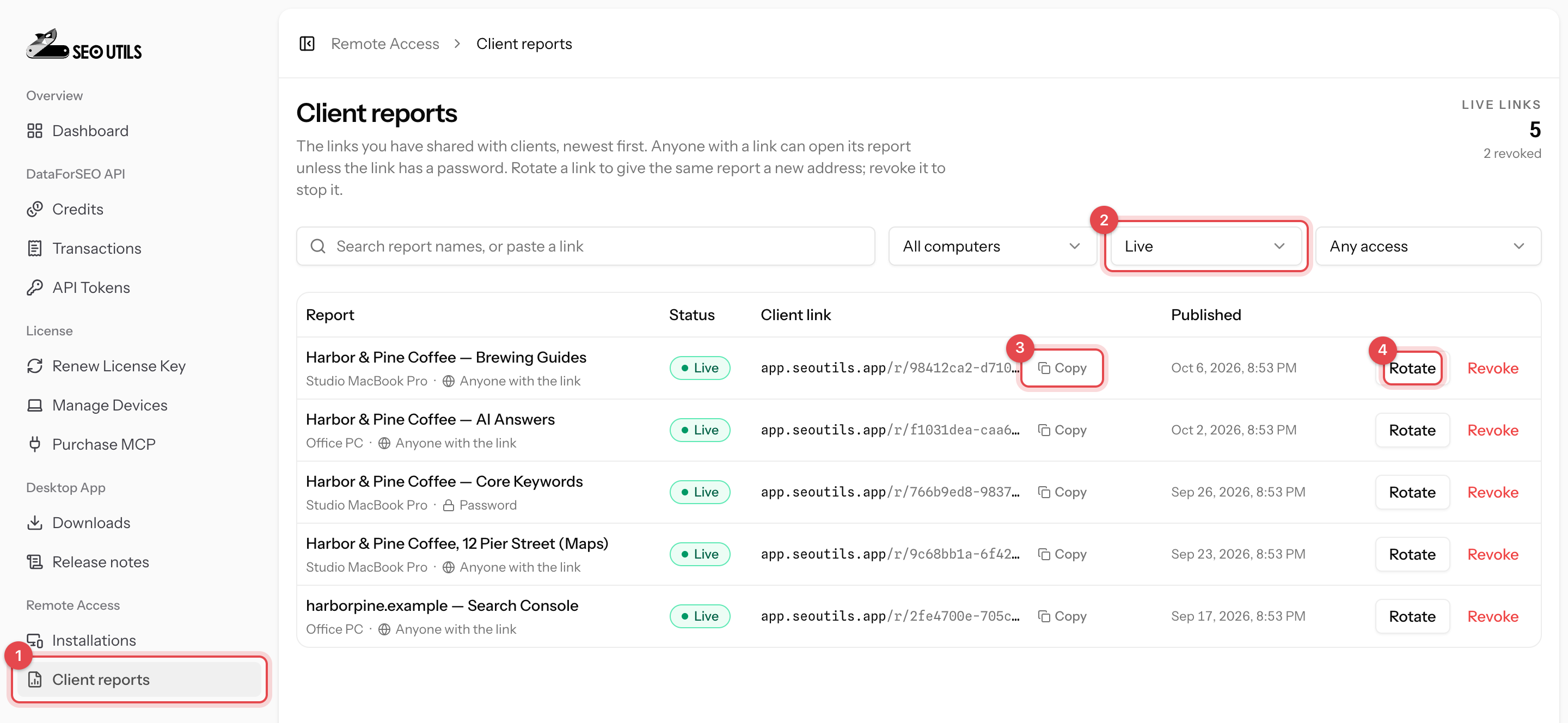
This feature lets you generate a white-labeled client report. You can customize it with your company logo, domain, and even add a password for security. Simply share the link with your client so they can view their ranking data directly.

{% hint style="info" %}
**Note:** *This is an optional feature, available in* [v1.29.0 or above](http://help.seoutils.app/changelog#v1.29.0).
{% endhint %}

{% hint style="success" %}
**Shared report demo:** <https://share.seoutils.app/gb/920d3d27-49b1-4a05-9436-b1087e633ec7/timeline>
{% endhint %}

### How Does It Work?

When you enable sharing on a report, SEO Utils will automatically sync it to the cloud and generate a shareable link. You can send this link to your client or [embed the report](#embed-report) directly on your website or dashboard.

<figure><img src="https://1176579443-files.gitbook.io/~/files/v0/b/gitbook-x-prod.appspot.com/o/spaces%2F2DwV6sJBiKjUHMDggb4d%2Fuploads%2Fgit-blob-240f9b3dae52f2eba6262b899522d85d4e1a1f86%2FXnapper-2025-04-24-10.03.28.png?alt=media" alt=""><figcaption><p>Enable sharing on a report.</p></figcaption></figure>

### Register a Cloud Database

To share reports via the cloud, you’ll need to register a cloud database. Just head over to <http://share.seoutils.app/register> to create an account.

Once you’re registered, go to your [SEO Utils Share Dashboard](https://share.seoutils.app/dashboard) and subscribe to the “Shareable Report Link” plan to enable cloud sharing.

<figure><img src="https://1176579443-files.gitbook.io/~/files/v0/b/gitbook-x-prod.appspot.com/o/spaces%2F2DwV6sJBiKjUHMDggb4d%2Fuploads%2Fgit-blob-27d7bc19e22a71eaf0adb2e436fa9eaf4922f650%2FXnapper-2025-04-24-10.09.22.png?alt=media" alt=""><figcaption><p>Subscribe to the "Shareable Report Link" plan.</p></figcaption></figure>

#### **Why is there an extra monthly fee for this feature?**

This feature is completely optional. You only need it if you want to share cloud-hosted reports with your clients. Without it, you can still use SEO Utils as usual with no limitations.

The extra fee covers the cost of securely storing and delivering your reports from a cloud database. It’s the minimum amount needed to help me maintain the service and cover cloud provider costs.

#### Create an API key

To start sharing your reports, you’ll need to create an API key.

1. Go to API Tokens from the user menu in the left sidebar, or visit: <https://share.seoutils.app/user/api-tokens>

<figure><img src="https://1176579443-files.gitbook.io/~/files/v0/b/gitbook-x-prod.appspot.com/o/spaces%2F2DwV6sJBiKjUHMDggb4d%2Fuploads%2Fgit-blob-371cf5745380d8b6cad342c04c1682a374cc0850%2FXnapper-2025-04-24-10.17.46.png?alt=media" alt=""><figcaption><p>Visit the API Tokens page.</p></figcaption></figure>

2. Enter a name for your API key and click Create.

<figure><img src="https://1176579443-files.gitbook.io/~/files/v0/b/gitbook-x-prod.appspot.com/o/spaces%2F2DwV6sJBiKjUHMDggb4d%2Fuploads%2Fgit-blob-57ac39001b2546ba0f0f292f8398c2578ee13de2%2FXnapper-2025-04-24-10.20.58.png?alt=media" alt=""><figcaption><p>Create an API key</p></figcaption></figure>

3. Copy the generated API token.

Next, open the **SEO Utils desktop app**:

4. Go to the Services page in the left sidebar. Scroll down to **Shareable Report Settings**.
5. Paste the API token into the field labeled “**SEO Utils Shareable API Key**”.

<figure><img src="https://1176579443-files.gitbook.io/~/files/v0/b/gitbook-x-prod.appspot.com/o/spaces%2F2DwV6sJBiKjUHMDggb4d%2Fuploads%2Fgit-blob-f01909e2553b615fd61a5bdf8e0f716f061b4dac%2FXnapper-2025-04-24-10.23.25.png?alt=media" alt=""><figcaption><p>Paste the API key in the SEO Utils app.</p></figcaption></figure>

That’s it! 🎉 You’re now ready to share your reports with clients.

### Share GMB Rank Tracker Reports

To share a GMB Rank Tracker report in the SEO Utils desktop app:

1. Open the report you want to share.

<figure><img src="https://1176579443-files.gitbook.io/~/files/v0/b/gitbook-x-prod.appspot.com/o/spaces%2F2DwV6sJBiKjUHMDggb4d%2Fuploads%2Fgit-blob-f074a36b76482aba996f10be319f2685d92b8d9e%2FXnapper-2025-04-24-10.30.07.png?alt=media" alt=""><figcaption><p>Access the "Share" action.</p></figcaption></figure>

2. Click the Actions dropdown and select the "**Share**" action. This will open the Share Report modal:

<figure><img src="https://1176579443-files.gitbook.io/~/files/v0/b/gitbook-x-prod.appspot.com/o/spaces%2F2DwV6sJBiKjUHMDggb4d%2Fuploads%2Fgit-blob-17aa970f021d95cfedfc82f7988a15514306177a%2FXnapper-2025-04-24-10.37.41.png?alt=media" alt=""><figcaption><p>Share Report modal</p></figcaption></figure>

Toggle the “**Share Report**” switch to enable or disable sharing for that specific report.

You can also set a password to protect the report. Your client will need to enter this password to view the report.

{% hint style="warning" %}
If password protection is enabled, the [embed code](#embed-report) will be disabled.
{% endhint %}

That’s it! You’re all set. From now on, whenever your report is run or updated, the data will automatically sync to the cloud database.

You can also trigger a manual run by selecting the "**Sync Current Snapshot**" action. It will start the sync for the selected snapshot.

<figure><img src="https://1176579443-files.gitbook.io/~/files/v0/b/gitbook-x-prod.appspot.com/o/spaces%2F2DwV6sJBiKjUHMDggb4d%2Fuploads%2Fgit-blob-4edb520dca9f6763c0ec580f99ff940a1b0a1c4a%2FXnapper-2025-04-24-10.44.41.png?alt=media" alt=""><figcaption><p>Trigger a manual sync for the selected snapshot.</p></figcaption></figure>

#### Add Google Maps API key

To display Google Maps in your shared report, you’ll need to add a **Google Maps API key**.

{% hint style="success" %}
**Important:** You should use a different API key from the one you use in the SEO Utils app. This key will be public, so it’s important to restrict it to prevent unauthorized use.
{% endhint %}

1. Please follow [this guide to enable the **Maps JavaScript API**](https://help.seoutils.app/guide/google-my-business-rank-tracker#setup-the-google-places-api)**.** If you have already enabled it in your project, you can just create a new API key (Step 8).
2. After creating a new API key, please edit it:
   1. Under **Application restrictions**, select **Websites**.
   2. Add `share.seoutils.app` to the list.

{% hint style="info" %}
If you use a [custom domain](#custom-domain), you want to add that domain to the list as well.
{% endhint %}

<figure><img src="https://1176579443-files.gitbook.io/~/files/v0/b/gitbook-x-prod.appspot.com/o/spaces%2F2DwV6sJBiKjUHMDggb4d%2Fuploads%2Fgit-blob-8a73eb30a28a6e200b4db94d872f3c610be58800%2FXnapper-2025-04-24-11.08.01.png?alt=media" alt=""><figcaption><p>Add website restrictions.</p></figcaption></figure>

3. *(Optional but recommended)* Under **API restrictions**, allow access to only the **Maps JavaScript API**. This setup ensures your API key is safe and only used for displaying maps in shared reports.

<figure><img src="https://1176579443-files.gitbook.io/~/files/v0/b/gitbook-x-prod.appspot.com/o/spaces%2F2DwV6sJBiKjUHMDggb4d%2Fuploads%2Fgit-blob-93d68e1d31061ae366b79d99440af32b3dad51cd%2FXnapper-2025-04-24-11.12.01.png?alt=media" alt=""><figcaption><p>Only allow Maps Javascript API.</p></figcaption></figure>

Last step, visit the **Settings** page on <https://share.seoutils.app/> and enter the created API key under the **Google Maps** section.

<figure><img src="https://1176579443-files.gitbook.io/~/files/v0/b/gitbook-x-prod.appspot.com/o/spaces%2F2DwV6sJBiKjUHMDggb4d%2Fuploads%2Fgit-blob-d3128788fa00edf391ab383a33e9cd4d25b5c4cf%2FXnapper-2025-04-24-11.21.36.png?alt=media" alt=""><figcaption><p>Enter the created Google Maps API key.</p></figcaption></figure>

### Share Organic Rank Tracker Reports

Coming soon...

### Embed Report

To get the embed code:

1. Visit <https://share.seoutils.app/> and edit the report you want to embed.

<figure><img src="https://1176579443-files.gitbook.io/~/files/v0/b/gitbook-x-prod.appspot.com/o/spaces%2F2DwV6sJBiKjUHMDggb4d%2Fuploads%2Fgit-blob-6ef4e93e24cb7f61bd74a0b02d05952ec62fd0de%2FXnapper-2025-04-24-10.49.56.png?alt=media" alt=""><figcaption><p>Get the report embed code.</p></figcaption></figure>

2. *Optional:* Choose the snapshot and keyword you’d like to display by default on initial load.
3. Copy the generated embed code and paste it anywhere—your website, dashboard, or client portal.

<figure><img src="https://1176579443-files.gitbook.io/~/files/v0/b/gitbook-x-prod.appspot.com/o/spaces%2F2DwV6sJBiKjUHMDggb4d%2Fuploads%2Fgit-blob-d01f8a6c9c663086eda49ff9f46e3b417e79d9f9%2FXnapper-2025-04-24-10.51.04.png?alt=media" alt=""><figcaption><p>Copy the embed code.</p></figcaption></figure>

{% hint style="warning" %}
The embed code doesn't work if you enable the password protection for the report.
{% endhint %}

### Add Your Custom Logo & Company Website

You can personalize your shared reports by adding your company logo and website. Just head over to the **Company Settings** page on <https://share.seoutils.app/>

<figure><img src="https://1176579443-files.gitbook.io/~/files/v0/b/gitbook-x-prod.appspot.com/o/spaces%2F2DwV6sJBiKjUHMDggb4d%2Fuploads%2Fgit-blob-ecde6dd8845ea4d33e55881c17b5bf81f048ecc2%2FXnapper-2025-04-24-11.28.14.png?alt=media" alt=""><figcaption><p>Add your own logo and website URL.</p></figcaption></figure>

{% hint style="success" %}
SEO Utils will use your company logo and website URL for all shared reports by default. If you’d like to **customize the logo and website URL for a specific report**, simply edit that report and upload a custom logo or enter a different website URL.
{% endhint %}

### Custom Domain

Coming soon...