# Log File Analysis

Track which bots — Googlebot, Bingbot, GPTBot, ClaudeBot, PerplexityBot, ChatGPT-User and more — are crawling your site, what they're fetching, and whether they respect your robots.txt. The tool reads raw server access logs and turns them into an AEO/GEO-focused dashboard.

## Creating a report

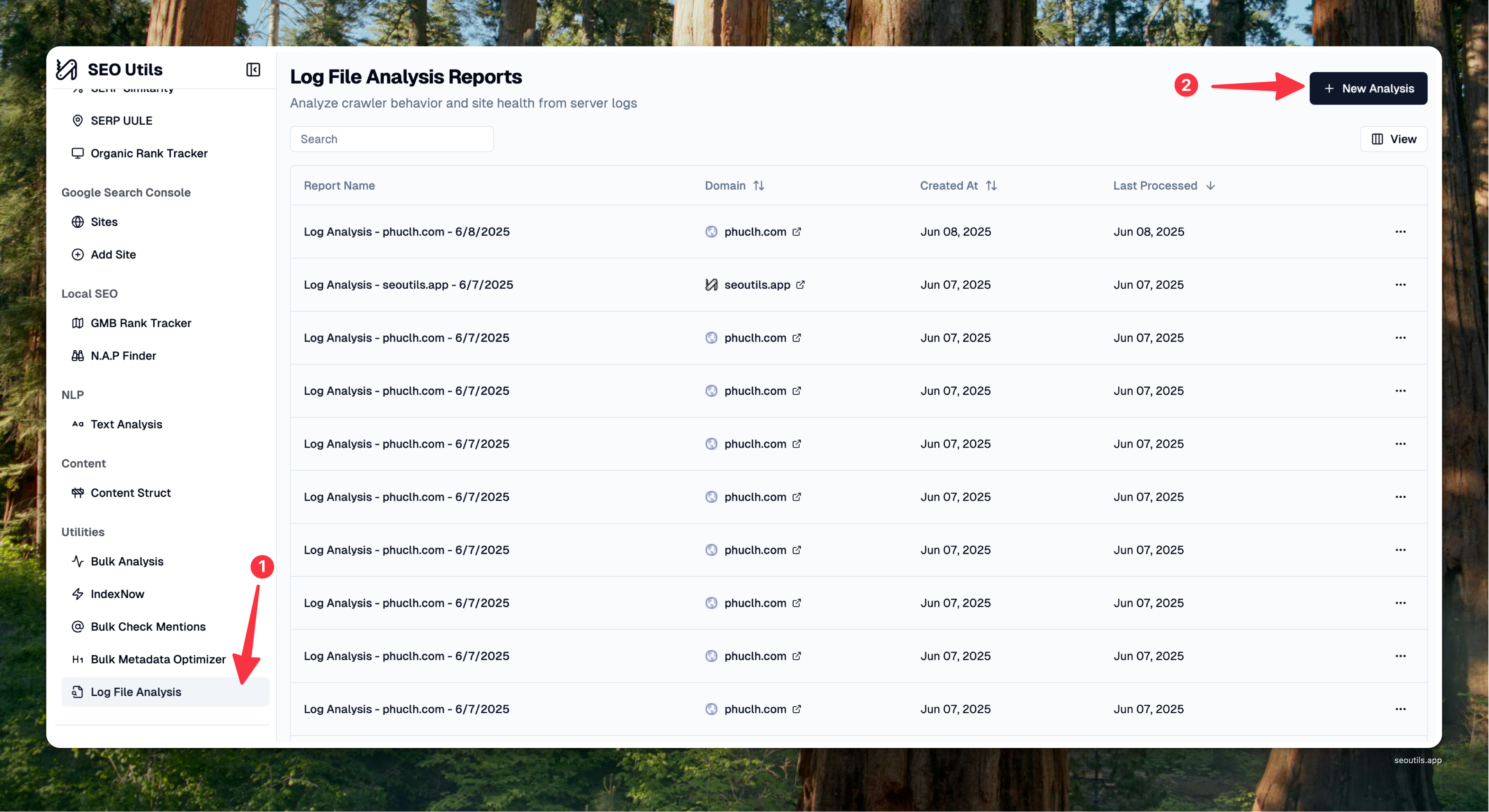
Open **Log File Analysis** in the sidebar and click **Create New Analysis**. Enter a report name and domain, then pick how SEO Utils should get your logs:

<figure><img src="/files/60XSb43Tf24oIvITFBL1" alt=""><figcaption><p>Log File Analysis in the sidebar</p></figcaption></figure>

<figure><img src="/files/3sOv5ossI0wZrH7guuP8" alt=""><figcaption><p>Create form</p></figcaption></figure>

{% tabs %}
{% tab title="Upload files manually" %}
Best for one-off analyses, historical archives, or servers without SSH/FTP access.

Drag `access.log` / `.gz` archives into the create form and submit. Apache Combined and Nginx Combined formats are auto-detected; compressed `.gz` archives work without unzipping.

**Where to find logs:**

| Server                 | Path                          |
| ---------------------- | ----------------------------- |
| Apache (Ubuntu/Debian) | `/var/log/apache2/access.log` |
| Apache (CentOS/RHEL)   | `/var/log/httpd/access_log`   |
| Nginx                  | `/var/log/nginx/access.log`   |
| cPanel                 | Metrics → Raw Access          |
| Plesk                  | Websites & Domains → Logs     |

Re-uploading is safe. SEO Utils fingerprints the first 20 lines of each file, so the same file twice is a no-op, and an extended file imports only the new entries.

To add more files later, open the report and click **Add Log Files** — same dedup rules apply.

<figure><img src="/files/WRRum0Tgs0HbAL98FeIg" alt=""><figcaption><p>Add Log Files dialog on an existing report</p></figcaption></figure>
{% endtab %}

{% tab title="Connect a server source" %}
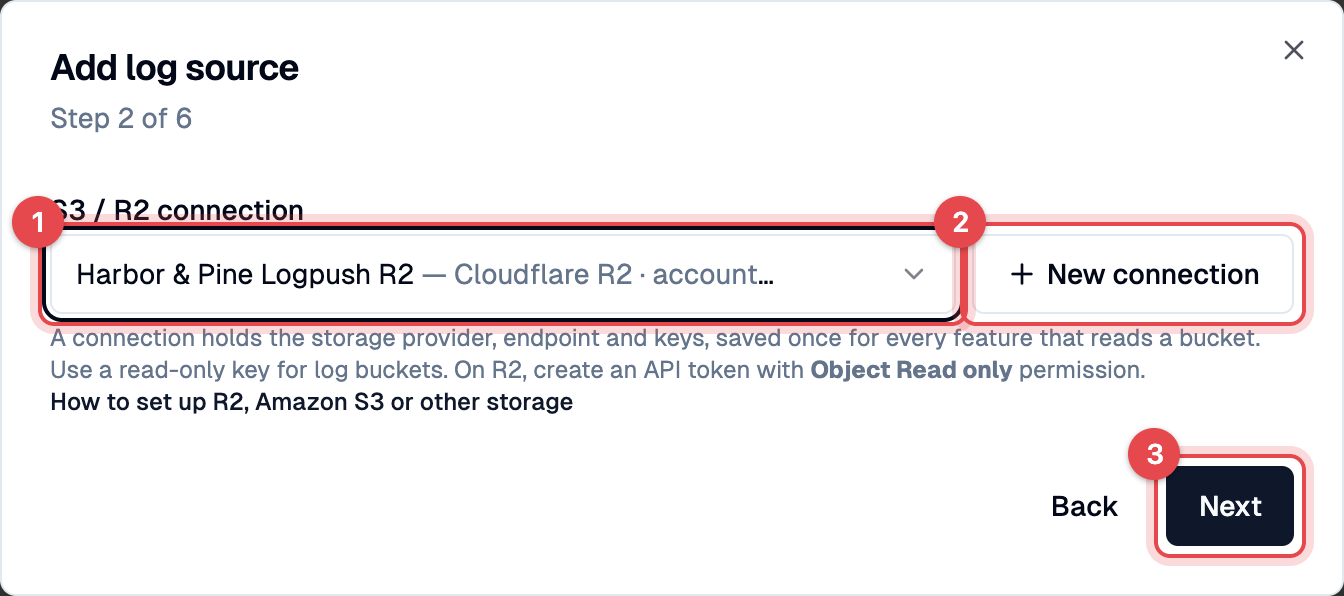
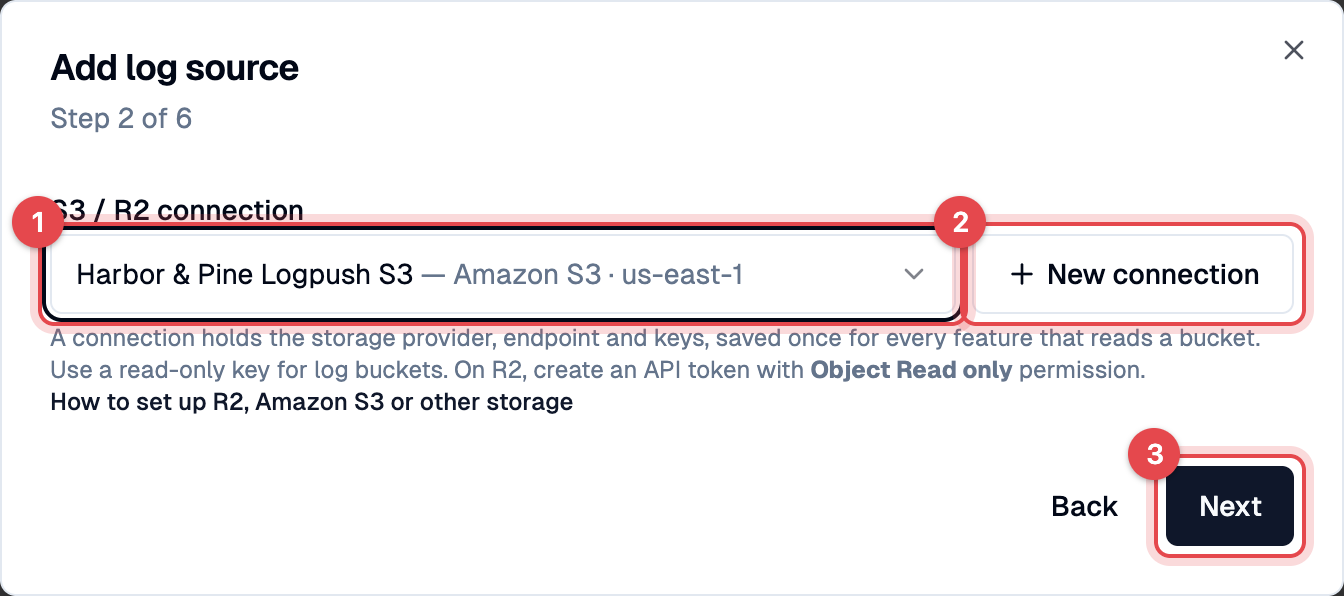
Best for continuous monitoring. Give SEO Utils SFTP, FTP, or FTPS access once and it pulls new logs on a schedule. After submitting the create form, the Add Source dialog opens automatically.

{% hint style="info" %}
**Is this for me?** If your site runs on **cPanel, shared hosting, Wix, Squarespace, or Webflow**, automated log access is usually disabled — use **Upload files manually** instead. SFTP/FTP is common on VPS providers (Laravel Forge, Hetzner, DigitalOcean, AWS Lightsail) and managed-WordPress hosts that advertise SFTP support (Kinsta, WP Engine, Pressable).
{% endhint %}

**What you'll need before you start:**

* The server's **hostname or IP** (e.g. `45.63.38.207` or `logs.example.com`)
* A **username** with read access to the log directory
* Either a **password** or a **private key file** — your host or developer gave you one of these when they set up the server
* The **folder path** where access logs live on that server (we'll list the common ones below)

If any of those are unfamiliar, ask your developer or host for "SFTP credentials and the path to the access log directory" — that one sentence covers it.

{% hint style="info" %}
The scheduler runs in-process — sources fetch only while SEO Utils is open, with a catch-up pass on every launch.
{% endhint %}

{% stepper %}
{% step %}
**Connection details**

* **Source name** — any label, e.g. "production web1".
* **Protocol** — leave as **SFTP** unless your host specifically told you otherwise. SFTP is the same secure protocol as the `ssh` command and is what nearly every modern VPS uses. Pick FTP or FTPS only if your host instructed you to.
* **Host / Port / Username** — the port auto-fills to the standard for each protocol (22 for SFTP, 21 for FTP, 990 for FTPS implicit). Only change it if your host uses a non-standard port.

{% hint style="warning" %}
If Test connection later returns `lookup HOST: no such host` for an IP address you typed, the Host field has trailing whitespace from copy-paste. Re-type it.
{% endhint %}
{% endstep %}

{% step %}
**Authentication**

Pick whichever your host gave you:

* **Password** — type the SFTP/FTP password they supplied. Simplest if you have it.
* **Private key** *(SFTP only)* — paste the entire contents of your private key file, including the `-----BEGIN…-----` and `-----END…-----` header/footer lines. On macOS/Linux the file is typically `~/.ssh/id_rsa` or `~/.ssh/id_ed25519`; on Windows look in `C:\Users\<you>\.ssh\`. If the key is protected with a passphrase, a passphrase field appears — fill it in.

For **FTPS** specifically, your host will tell you Explicit mode (port 21, the common case) or Implicit (port 990, rare).

{% hint style="info" %}
Credentials never touch the SEO Utils database. They live in your OS keychain (macOS Keychain, Windows Credential Manager, Linux Secret Service); the report row only stores an opaque pointer.
{% endhint %}
{% endstep %}

{% step %}
**File selection**

**Remote directory** — the folder on the server that contains your access logs.

| Server / Host            | Common path                                       |
| ------------------------ | ------------------------------------------------- |
| Nginx (default)          | `/var/log/nginx/`                                 |
| Apache (Ubuntu/Debian)   | `/var/log/apache2/`                               |
| Apache (CentOS/RHEL)     | `/var/log/httpd/`                                 |
| Laravel Forge (per-site) | `/home/forge/<your-site>/` *or* `/var/log/nginx/` |
| Plesk (per-site)         | `/var/www/vhosts/system/<your-site>/logs/`        |

Not sure? Ask your host or developer "where do my access logs live?" and paste their answer here.

**File glob** — a simple wildcard pattern that picks which files to fetch.

| If you want…                                         | Pattern                   |
| ---------------------------------------------------- | ------------------------- |
| The active log plus rotated archives *(recommended)* | `access.log*`             |
| Just one site on a multi-site server                 | `example.com-access.log*` |
| Anything Nginx writes that mentions access           | `*access*`                |

The trailing `*` is what catches the rotated archives (`access.log.1`, `access.log.2.gz`, …).
{% endstep %}

{% step %}
**Schedule and backfill**

* **Interval** — Hourly / Every 6 hours / Daily *(default Daily)*. Daily is enough for most sites; pick Hourly if you need near-realtime AEO monitoring.
* **Initial backfill** — Last 7 days, **Last 30 days** *(recommended)*, Last 90 days, or Everything available. This decides how far back the first run looks; later runs only pick up new entries.

{% hint style="warning" %}
The backfill cutoff is **permanent for this source**. Files older than the cutoff are never fetched, even on a future "Run now". If you need older history later, upload those archives manually instead.
{% endhint %}
{% endstep %}

{% step %}
**Test connection and save**

Click **Test connection**. SEO Utils opens the connection, lists matching files, and samples the newest one to confirm the format is supported.

A green "Found N files… Detected format: nginx\_combined" panel means you're good to **Save**. The source then appears in the report's **Sources** tab and the scheduler picks it up within a minute.

<figure><img src="/files/NGYU5Rb8iK3va3DjKJZO" alt=""><figcaption><p>Successful Test connection result with file count and detected format</p></figcaption></figure>

**If Test connection fails, the error usually maps to one of these:**

| Error                    | What it usually means                                            |
| ------------------------ | ---------------------------------------------------------------- |
| `lookup …: no such host` | Trailing whitespace in Host (re-type), or DNS can't resolve it   |
| `i/o timeout`            | Wrong port, or the server's firewall is blocking your IP         |
| `permission denied`      | Wrong password/key, or the username doesn't match the credential |
| `no files matched`       | Remote directory is wrong, or the glob pattern doesn't match     |

{% hint style="info" %}
**About the host-key check (SFTP only):** on first connect SEO Utils records the server's SSH fingerprint. If that fingerprint changes on a future run (unusual), SEO Utils blocks the run as a safety measure — that pattern can indicate someone intercepting your connection. If you legitimately rebuilt the server, delete and re-add the source.
{% endhint %}
{% endstep %}
{% endstepper %}
{% endtab %}
{% endtabs %}

## Managing sources

Each source row has a status badge and three actions.

| Badge                 | Meaning                                  |
| --------------------- | ---------------------------------------- |
| **Pending first run** | Saved but never run yet                  |
| **Running**           | Actively fetching (with a spinner)       |
| **OK**                | Last run succeeded                       |
| **Failing (N)**       | N consecutive failures. Auto-pauses at 5 |
| **Paused**            | Disabled                                 |

* **Run now** — fire immediately, ignoring the schedule.
* **Pause / Resume** — toggle on/off. Resuming clears the failure counter.
* **Delete** — removes the config and its keychain credentials. Historical imports stay; aggregates aren't touched.

<figure><img src="/files/5YiljNv5nh3sLDQIC49d" alt=""><figcaption><p>Sources tab with status badges and per-source actions</p></figcaption></figure>

## Switching between upload and source modes

You can mix both modes on the same report. One thing to know:

* **Rotated archives are safe.** Both paths key dedup on `(report_id, SHA256 of first 20 lines)`. A manual upload of `access.log.5.gz` plus the source scanning the same file → second one is skipped.
* **The growing `access.log` is the trap.** It uses byte-offset watermarking with a synthetic per-run identifier, so it can't dedup against a manual snapshot of the same content. Uploading a tail of the live file AND connecting a source to the same path will double-count the overlap.

Practical rule: **let the source own the live file.** Use manual uploads for one-off historical archives.

## The report dashboard

Each report has six tabs.

| Tab                     | What it shows                                                            |
| ----------------------- | ------------------------------------------------------------------------ |
| **AI View** *(default)* | AEO/GEO panels — see below                                               |
| **Overview**            | Summary metrics, daily activity timeline, status/file-type/device donuts |
| **Bot Details**         | Per-bot activity, error rates, device breakdown                          |
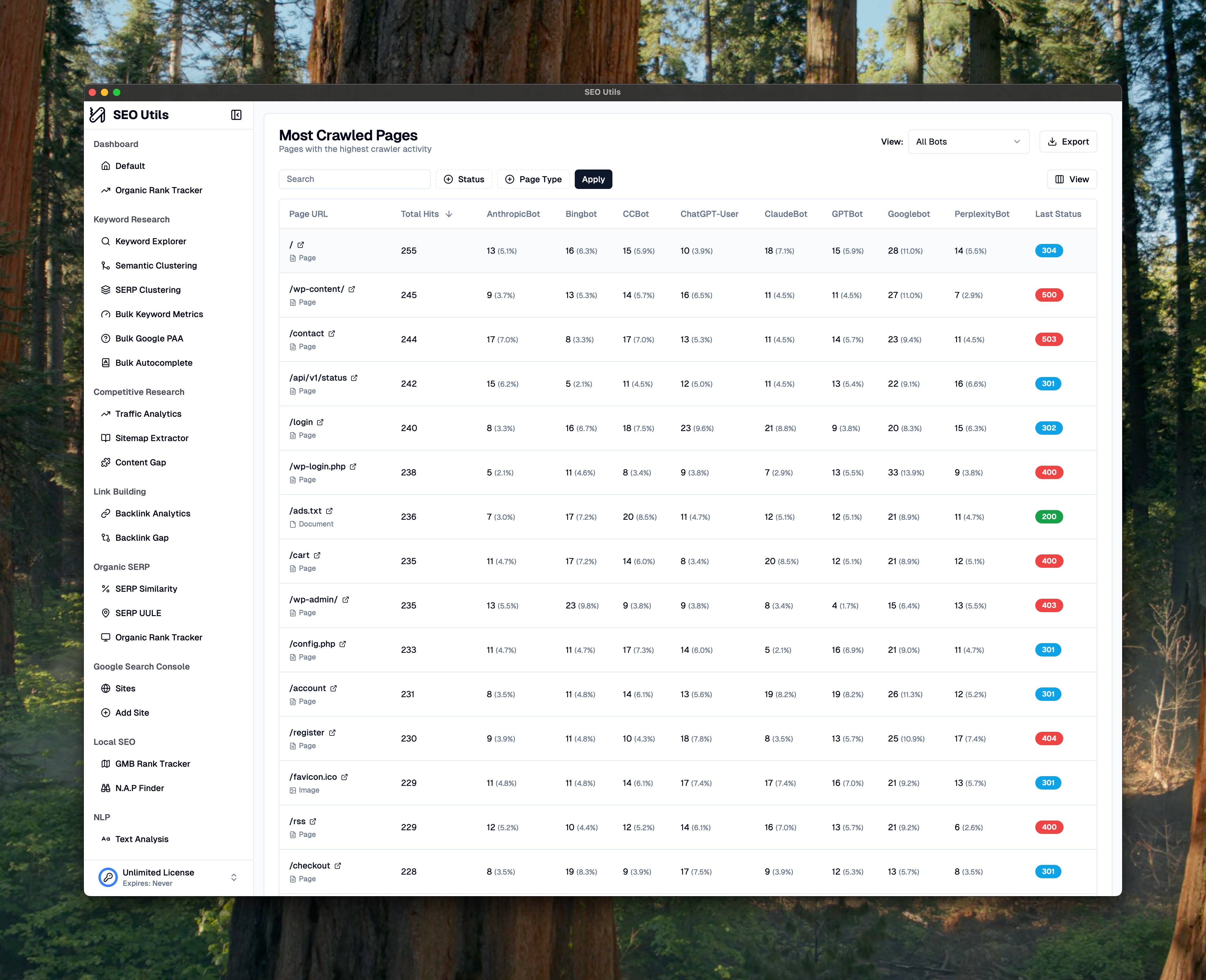
| **Pages**               | Most-crawled pages with per-bot hit counts                               |
| **Sources**             | Connected SFTP/FTP sources (see above)                                   |
| **Advanced**            | Maintenance — see below                                                  |

### AI View

The default tab. A range picker in the report header (default: Last 30 days) drives the windowed panels; two are all-time by design.

<figure><img src="/files/ekVyDTvwTnLqRLGLMCnT" alt=""><figcaption><p>AI View tab with the six AEO/GEO panels</p></figcaption></figure>

#### AI vs Search traffic

Stacked area chart of daily hits by bucket — AI Answer (PerplexityBot, ClaudeBot, OAI-SearchBot…), AI Assistant (ChatGPT-User, Claude-User, Gemini-User), AI Training (GPTBot, CCBot, Google-Extended, Bytespider…), Search (Googlebot, Bingbot…). Watch the AI Answer line growing relative to Search — that's the AEO story.

#### Pages fetched by AI answer engines

URLs hit by `ai_answer` bots, with per-bot breakdown, last AI visit, and an expandable "top queries" cell. Sortable by total hits, last hit, or error rate.

#### Top queries routing AI to your site

Grouped by extracted query string, with the dominant bot and top landing pages per query.

<figure><img src="/files/SxEUEtHpreqgqBme9ig7" alt=""><figcaption></figcaption></figure>

{% hint style="info" %}
**Why this list might look short:** SEO Utils can only extract queries from bots that share them in the `Referer` header — Perplexity, You.com (YouBot), Phind. ChatGPT-User, Claude-User, and Gemini-User intentionally strip prompt data, so their hits never produce a query row. A low total is normal if your AI traffic is mostly OpenAI/Anthropic assistants.
{% endhint %}

#### Stale for AI / AI-only interest *(all-time)*

<figure><img src="/files/7sYupfubUpFydcWwTJ6E" alt=""><figcaption></figcaption></figure>

* **Stale for AI** — pages Googlebot has crawled recently where AI bots are 7+ days behind or have never visited. Content AI engines may be missing.
* **AI-only interest** — pages AI bots crawl that Googlebot rarely touches. Long-tail content AI is finding that traditional search is deprioritising.

#### Per-bot error rates

<figure><img src="/files/Ti4UukmJ9yxyxvkg8Utw" alt=""><figcaption></figcaption></figure>

Status-class matrix per AI bot: 2xx / 3xx / 4xx / 5xx + computed error rate. A 4xx/5xx spike means AI engines are seeing broken pages — those errors poison their answers about your site.

#### Robots.txt compliance

<figure><img src="/files/ofMlInHNt4v68ggInRzQ" alt=""><figcaption></figcaption></figure>

Per-AI-bot table showing whether each bot is allowed at `/`, total hits in the window, and how many of those hits violated a `Disallow` rule.

| `allowed` | `violations` | Meaning                                    |
| --------- | ------------ | ------------------------------------------ |
| true      | 0            | Welcome and behaving                       |
| false     | 0            | Opted out and respecting it ✓              |
| false     | > 0          | **Ignoring your `Disallow`** — investigate |

Your `robots.txt` is fetched from `https://{your-domain}/robots.txt` once per 24h and cached on the report.

### Overview, Pages, Bot Details

The classic dashboard, broken across three tabs.

#### Summary cards

Total requests, unique bots, error rate, and average response time. Response time is "N/A" if your server isn't logging it — add `%D` to Apache `LogFormat` or `$request_time` to Nginx `log_format`.

<figure><img src="/files/CVY5Ww0ROWPK9pDhXUu3" alt=""><figcaption><p>Summary cards</p></figcaption></figure>

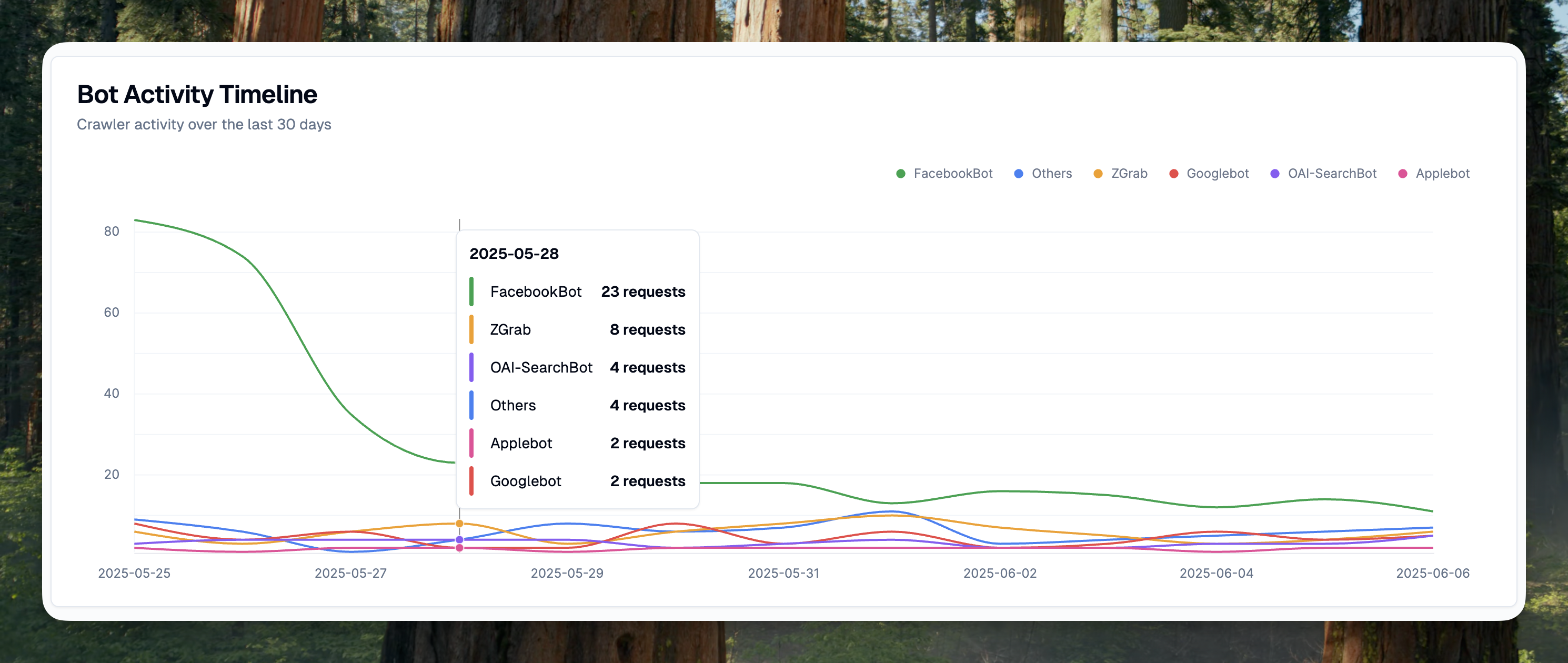
#### Bot activity timeline

Daily volume per bot — useful for spotting crawl-rate changes after a content update or robots.txt change.

<figure><img src="/files/rSzDn9Z5up03Qrx6JKyl" alt=""><figcaption><p>Bot activity timeline</p></figcaption></figure>

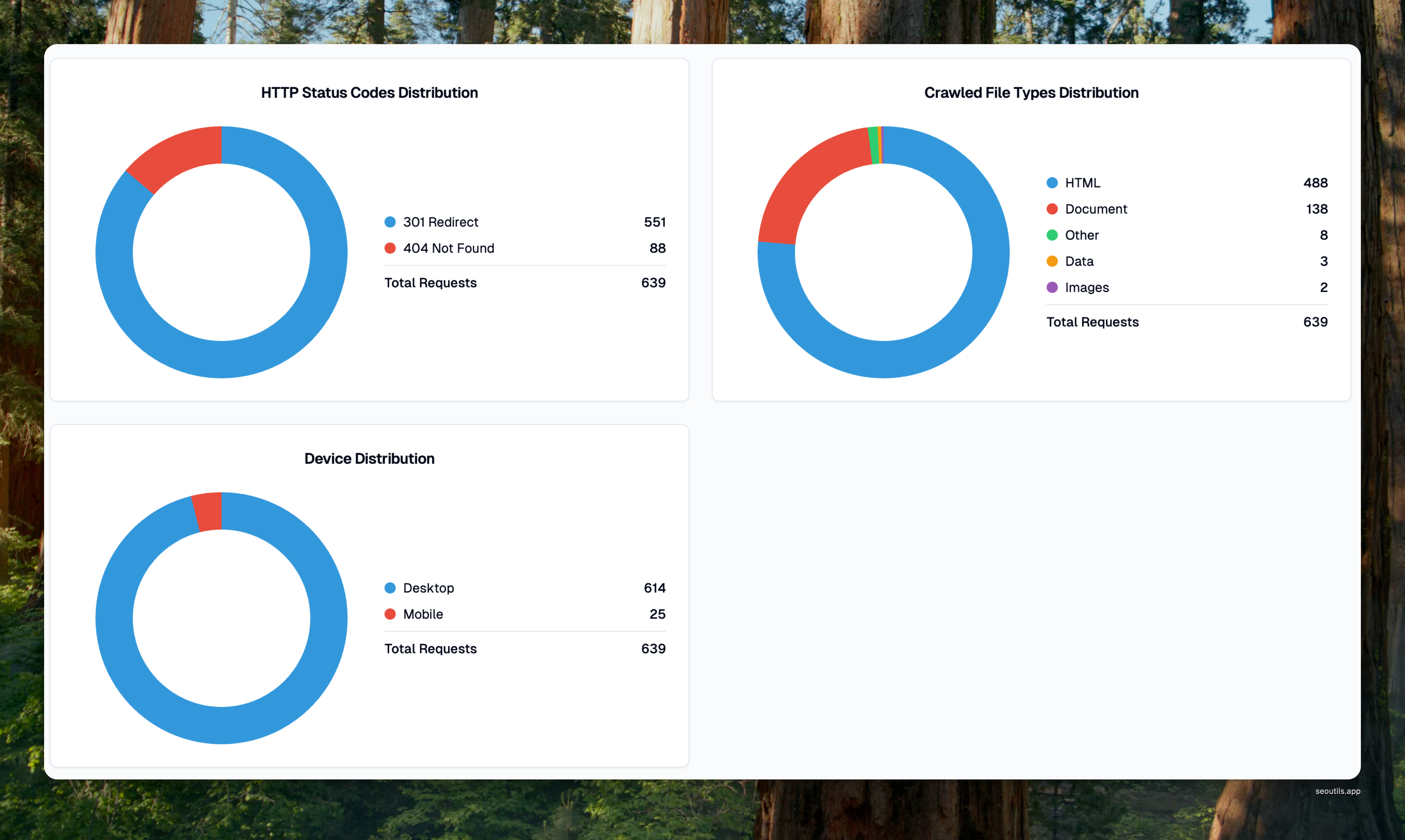
#### Distribution donuts

Status codes, file types, and devices at a glance. If images / CSS / JS dominate file types, your crawl budget is being burned on assets — block them in `robots.txt` for AI bots.

<figure><img src="/files/kq5V3NcmVVuHW4uwbGy3" alt=""><figcaption><p>Status / file type / device donuts</p></figcaption></figure>

#### Most crawled pages *(Pages tab)*

Sorted by crawl frequency, with per-bot hit columns and "Every N minutes" cadence labels. High-frequency pages are your most valuable surface — make sure AI bots are in the per-bot mix.

<figure><img src="/files/v20fqCS3k0u5BfrmPCGr" alt=""><figcaption><p>Most crawled pages</p></figcaption></figure>

#### Per-bot detail *(Bot Details tab)*

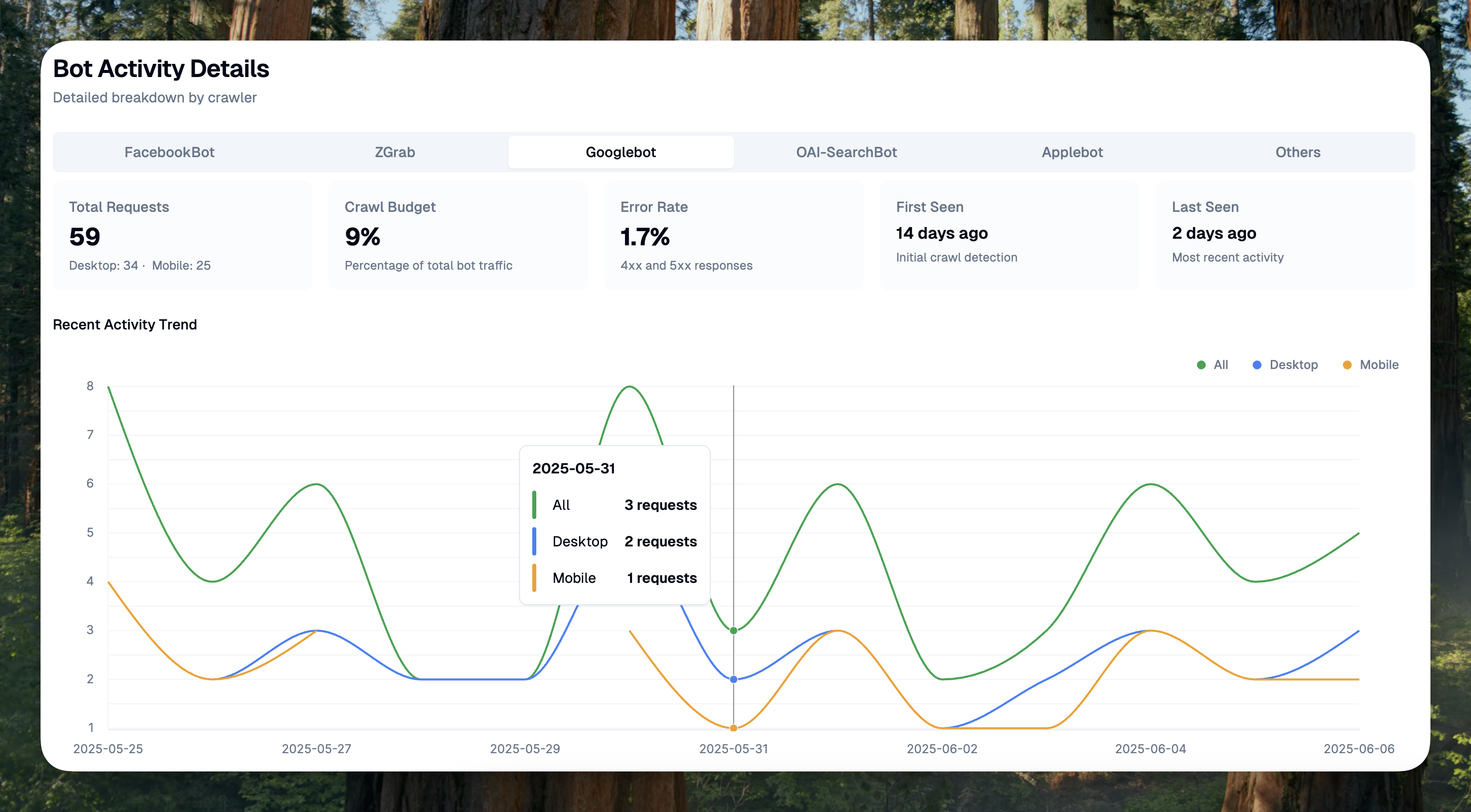
Pick any bot to see its requests, status-class breakdown, devices, and a per-day trend.

<figure><img src="/files/2Zx8L0oZdBjt2Pefmd6S" alt=""><figcaption><p>Per-bot detail</p></figcaption></figure>

#### Inconsistent status alerts

If a page returns different status codes across requests, an alert appears with a "View Details" link. Common causes: load-balancer or CDN misconfiguration, intermittent 503s under load, dynamic 404/200 conflicts. Fix the root cause, then re-import to confirm.

<figure><img src="/files/1cMFTuH43yMD7odvOiiQ" alt=""><figcaption><p>Inconsistent status code alert</p></figcaption></figure>

### Advanced

Two cards.

* **Optimize historical data** — visible only on reports created before the AI/LLM upgrade (`bucket_schema_version = 0`). Click **Rebuild bucket columns** to backfill the denormalised AI Answer / Assistant / Training / Search hit columns. The AI View works without this — it falls back to a live join — but rebuilding is faster on long date ranges. Idempotent; the button disappears once complete.
* **Danger zone — Delete report** — removes the report and everything attached: aggregates, log import history, sources, AI-request rows, and the keychain credentials those sources used. Cannot be undone.

## Exporting tables to CSV

Most analytical tables have an **Export CSV** button in their header. Exports honour the active date range and the table's current sort. Paginated tables export every row, not just the visible page. Filenames default to `{domain}-{table}-{YYYY-MM-DD}.csv`.

| Tab     | Tables with Export CSV                                                                                                      |
| ------- | --------------------------------------------------------------------------------------------------------------------------- |
| AI View | Pages fetched by AI answer engines, Top queries, Per-bot error rates, Robots.txt compliance, Stale for AI, AI-only interest |
| Pages   | Most Crawled Pages                                                                                                          |

## Tips for LLM SEO

* Aim for an overall error rate under 5%. AI bots don't retry as aggressively as search engines.
* Keep response times under 500ms — slow servers shrink crawl budget.
* Don't block AI bots in `robots.txt` unless you mean to. Once blocked, your content can't influence their answers.
* If AI Answer traffic is flat while Search keeps growing, something on your site is blocking AI specifically — check `robots.txt`, firewall rules, and bot user-agent allowlists.
* Re-import logs weekly so trends and freshness signals stay fresh. Or connect a source and forget about it.


---

# Agent Instructions: Querying This Documentation

If you need additional information that is not directly available in this page, you can query the documentation dynamically by asking a question.

Perform an HTTP GET request on the current page URL with the `ask` query parameter:

```
GET https://help.seoutils.app/guide/log-file-analysis.md?ask=<question>
```

The question should be specific, self-contained, and written in natural language.
The response will contain a direct answer to the question and relevant excerpts and sources from the documentation.

Use this mechanism when the answer is not explicitly present in the current page, you need clarification or additional context, or you want to retrieve related documentation sections.