> For the complete documentation index, see [llms.txt](https://help.seoutils.app/llms.txt). Markdown versions of documentation pages are available by appending `.md` to page URLs; this page is available as [Markdown](https://help.seoutils.app/guide/data-sharing-with-s3.md).
# S3 Cache for DataForSEO Data
SEO Utils can cache DataForSEO API responses using S3-compatible storage, so your teammates can access the same data without paying any extra fees.
For example, if you check the backlink data of site A, SEO Utils will upload that data to your S3 bucket. When your teammate also checks the backlink data for that site, it will pull data from S3 instead of requesting the DataForSEO API.
{% hint style="info" %}
S3 cache supports **AWS S3** (Recommended), **Cloudflare R2**, **DigitalOcean Spaces**, **MinIO**, and any other S3-compatible storage service.
{% endhint %}
{% hint style="success" %}
**S3 is the third of three cache tiers.** Each search first checks your in-memory cache, then your local SQLite database, then S3, and only then calls the DataForSEO API. See [Recent Searches & Cache](/guide/recent-searches-and-cache.md) for details on the local tiers and the search history list.
{% endhint %}
## Setting Up S3 Cache
{% stepper %}
{% step %}
**Create a Bucket**
{% tabs %}
{% tab title="AWS S3 (Recommended)" %}
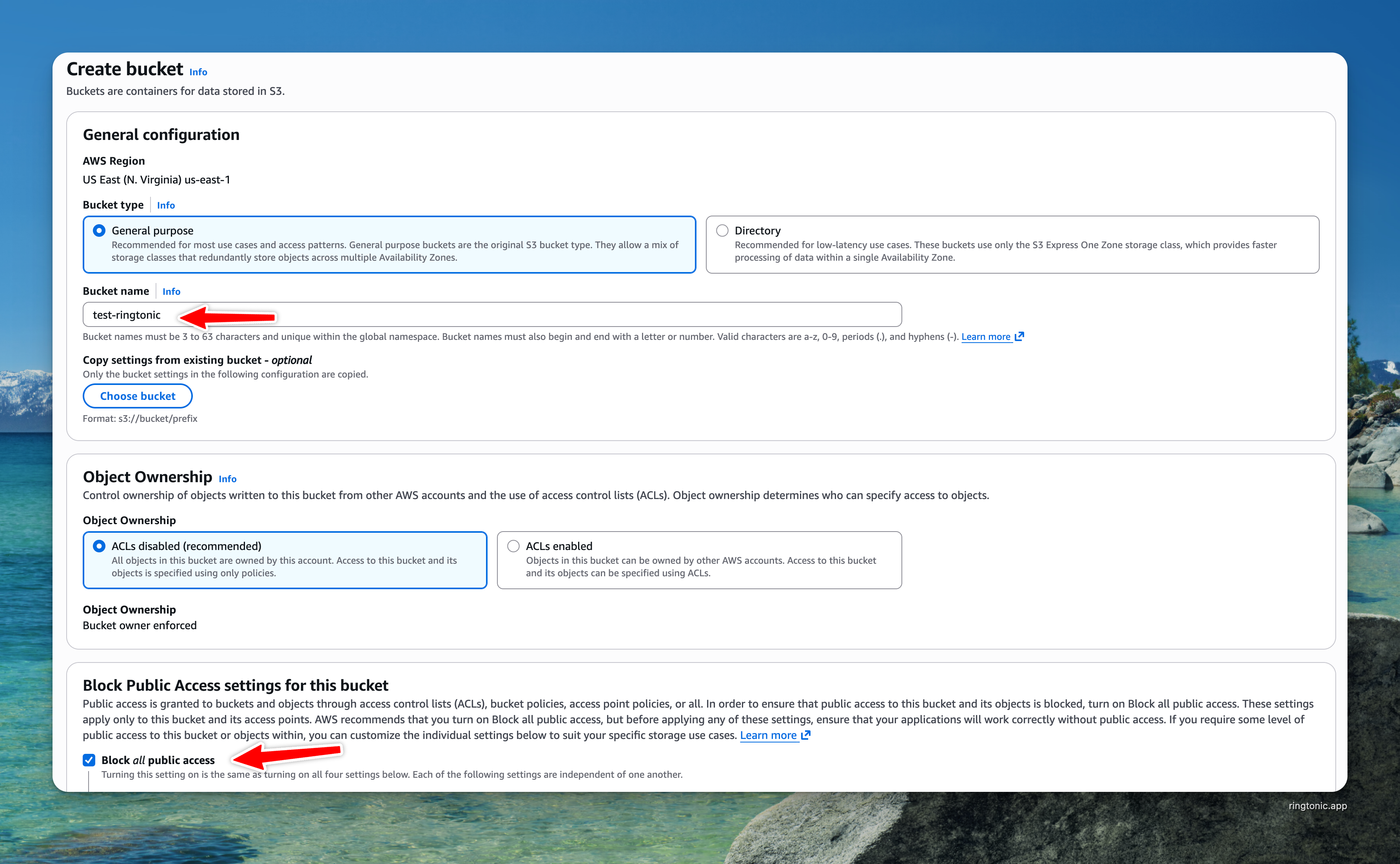
1. Log in to [AWS Console](https://console.aws.amazon.com/)
2. Go to **S3** → **Create bucket** (search "S3" in the header search bar if you can't find it)
3. Enter a bucket name (e.g., `my-seo-cache`)
4. Select your preferred region (e.g., `us-east-1`)
5. Keep **Block all public access** enabled
6. Click **Create bucket**
Create a S3 bucket on AWS
{% endtab %}
{% tab title="Cloudflare R2" %}
1. Go to your Cloudflare dashboard
2. Navigate to **R2** and click **Create Bucket**
3. Enter a bucket name and select a location
{% endtab %}
{% tab title="DigitalOcean Spaces" %}
1. Go to your DigitalOcean dashboard
2. Navigate to **Spaces** and click **Create Space**
3. Select a region and enter a name
{% endtab %}
{% tab title="MinIO" %}
Run `mc mb myminio/my-seo-cache` from the MinIO client.
{% endtab %}
{% endtabs %}
{% hint style="warning" %}
The bucket should be **private**. SEO Utils authenticates using Access Key and Secret Key — no public access is needed.
{% endhint %}
{% endstep %}
{% step %}
**Get Your Access Credentials**
You'll need an **Access Key ID** and **Secret Access Key** with read/write permissions to the bucket.
{% tabs %}
{% tab title="AWS S3 (Recommended)" %}
**Create an IAM Policy**
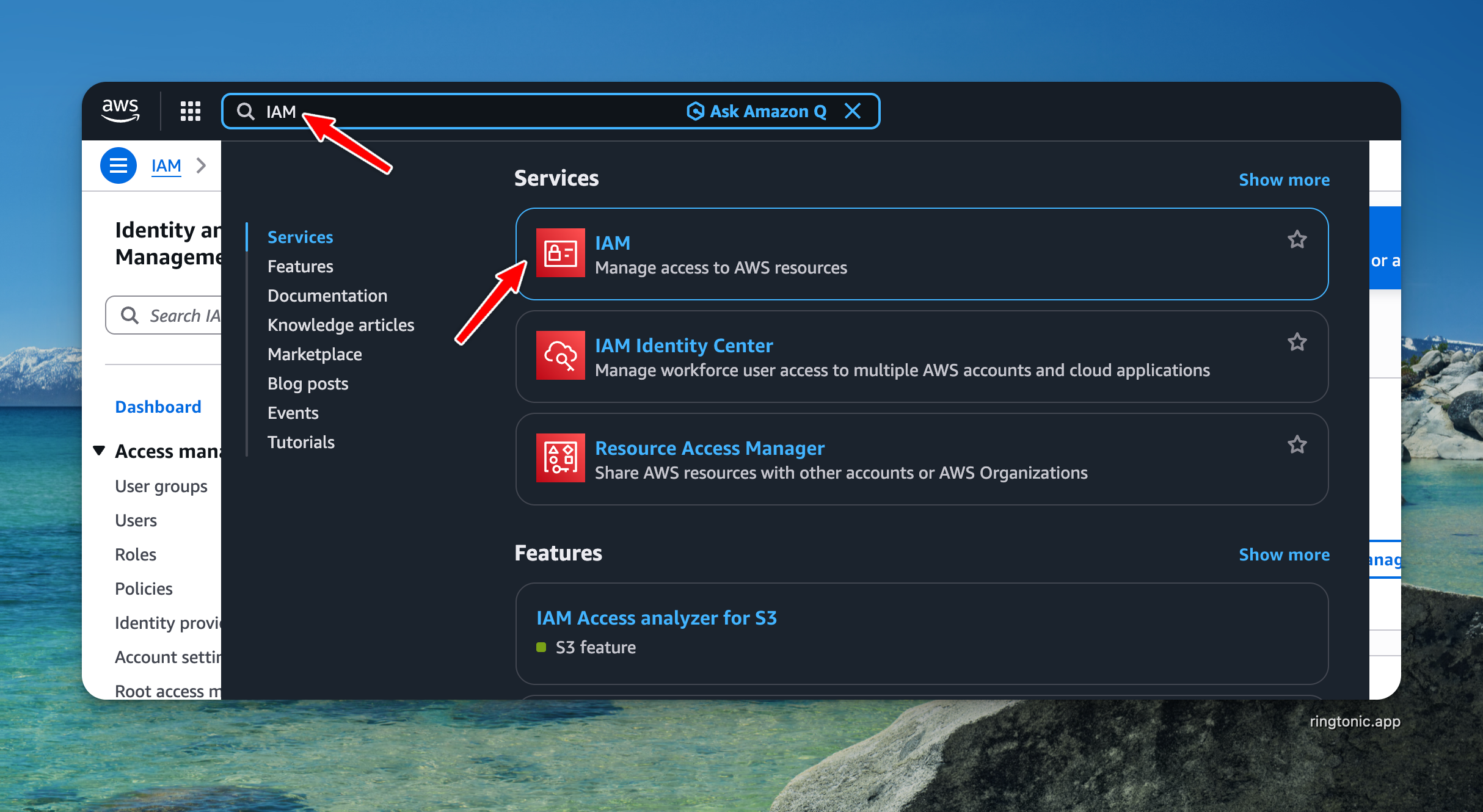
1. Go to **IAM** in the AWS Console (search "IAM" in the header search bar)
Search for IAM in the AWS Console
2. Go to **Policies** → **Create policy**
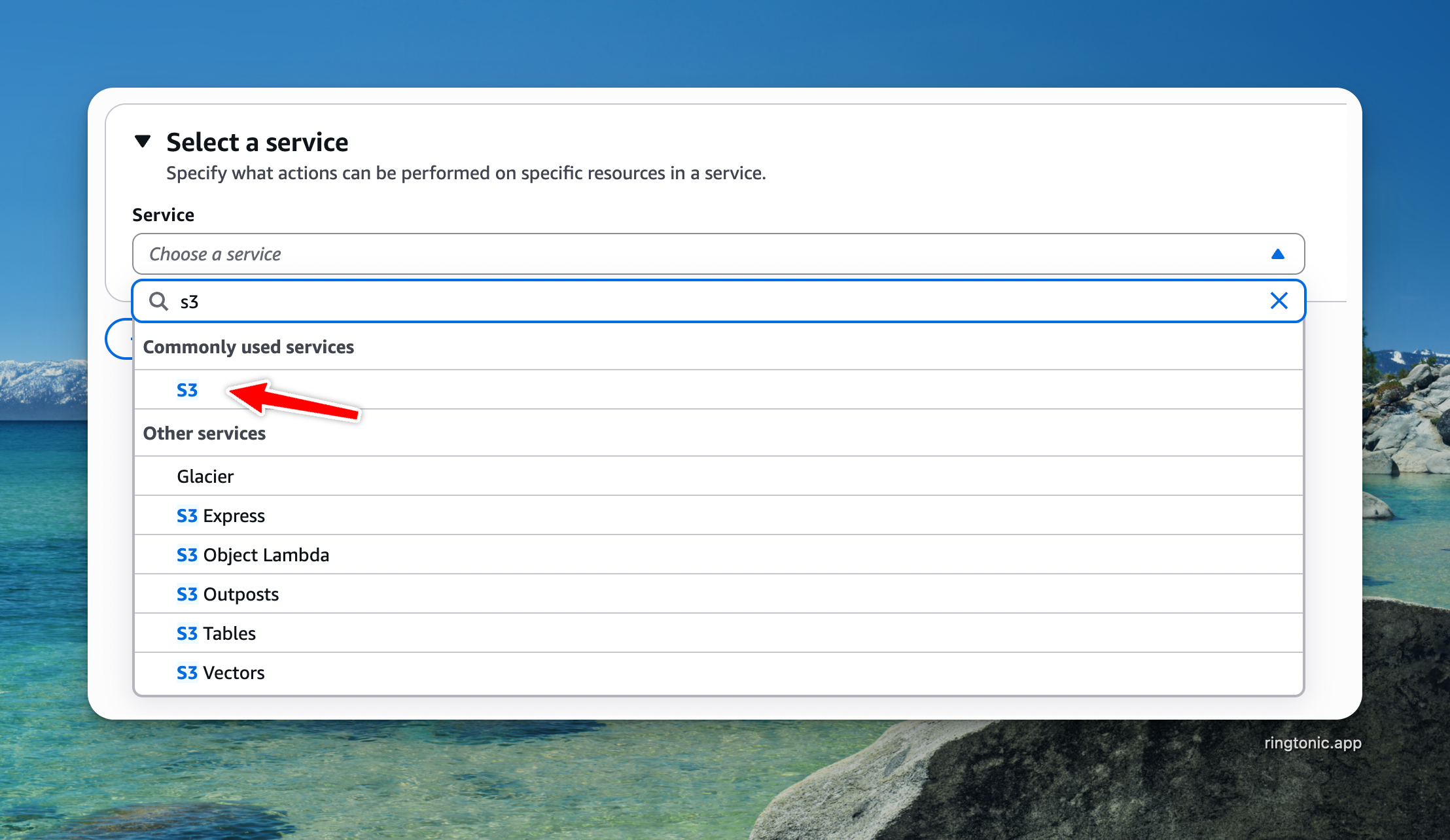
3. Select **S3** as the service
Select S3 as the service
4. Click the **JSON** tab and paste:
```json
{
"Version": "2012-10-17",
"Statement": [
{
"Effect": "Allow",
"Action": [
"s3:GetObject",
"s3:PutObject",
"s3:DeleteObject",
"s3:ListBucket"
],
"Resource": [
"arn:aws:s3:::YOUR-BUCKET-NAME",
"arn:aws:s3:::YOUR-BUCKET-NAME/*"
]
}
]
}
```
5. Replace `YOUR-BUCKET-NAME` with your actual bucket name
6. Click **Next** → Name it `SEOUtilsS3Access` → **Create policy**
**Create an IAM User**
1. Go to **IAM** → **Users** → **Create user**
2. Enter a name: `seo-utils-s3` → Click **Next**
3. Select **Attach policies directly**
4. Search for `SEOUtilsS3Access` and check the box
5. Click **Next** → **Create user**
6. Open the user → **Security credentials** tab
7. Click **Create access key** → Select **Third-party service**
8. Click **Create access key** → **Save both keys**
{% hint style="warning" %}
**Save your keys now.** The Secret Access Key is only shown once. Store it in a password manager.
{% endhint %}
{% endtab %}
{% tab title="Cloudflare R2" %}
1. Go to **R2 > Manage R2 API Tokens** in your Cloudflare dashboard
2. Click **Create API Token**
3. Select **Object Read & Write** permission
4. Copy the **Access Key ID** and **Secret Access Key**
{% endtab %}
{% tab title="DigitalOcean Spaces" %}
1. Go to **API > Spaces Keys** in your DigitalOcean dashboard
2. Click **Generate New Key**
3. Copy the **Key** and **Secret**
{% endtab %}
{% endtabs %}
{% endstep %}
{% step %}
**Configure S3 Cache in SEO Utils**
Open SEO Utils and go to **Settings > Services > Storage & Sharing**.
1. In **S3 / R2 Connections**, click **Add connection** and enter the keys from the previous step. Choose **Amazon S3** with the bucket's region, **Cloudflare R2** with your account ID, or **Other S3-compatible storage** with the endpoint (DigitalOcean Spaces, MinIO). See [S3 / R2 Connections](/guide/s3-r2-connections.md) for each field.
2. In **S3 Cache Settings**, choose that **Connection** and enter the **Bucket Name**.
The S3 cache uses a connection and its own bucket
{% hint style="info" %}
Keys you entered in S3 Cache Settings before connections existed move to a connection named **DataForSEO cache** automatically, and the cache keeps working.
{% endhint %}
{% endstep %}
{% step %}
**Test the Connection**
Click the **"Test Connection"** button to verify that SEO Utils can connect to your bucket. You should see a success message.
{% hint style="info" %}
You don't need to save the settings before testing. The Test Connection button uses the values currently entered in the form.
{% endhint %}
{% endstep %}
{% step %}
**Save Settings**
Click the **"Save"** button to save your S3 cache settings.
From now on, every time you pull data from DataForSEO, it will automatically upload the data to your S3 bucket.
{% endstep %}
{% endstepper %}
## Sharing with Your Team
To share cached data with your teammates:
1. Share the **Access Key ID**, **Secret Access Key**, **Bucket Name**, and the region or endpoint with your team
2. Each teammate adds an [S3 / R2 connection](/guide/s3-r2-connections.md) with the same keys, then chooses it and the same bucket in **S3 Cache Settings**
Once configured, everyone on the team will read from and write to the same S3 bucket, avoiding duplicate DataForSEO API requests.
## Automatic Cache Cleanup
SEO Utils automatically deletes cached data older than **7 days**, so you always get fresh data. If you want fresh data sooner, you can:
* Click the **"Purge Cache"** button in S3 Cache Settings to delete all cached data from your S3 bucket immediately
* Or delete specific files directly from your S3 bucket
* Click **Refresh** on any DataForSEO result page — this invalidates that specific search's cache on all three tiers (memory, local DB, **and S3**) so teammates also see fresh data on their next visit
{% hint style="info" %}
**Purge Cache vs. Clear Cache & History.** The **"Purge Cache"** button here only affects the shared S3 bucket. The **"Clear Cache & History"** button in the **DataForSEO Local Cache** settings card only affects your local machine. They're intentionally separate so one user can't wipe the team's shared cache by accident. See [Recent Searches & Cache](/guide/recent-searches-and-cache.md) for the local version.
{% endhint %}
{% hint style="warning" %}
If you delete the S3 bucket or revoke the access credentials, click **Turn off the cache** in S3 Cache Settings to avoid errors.
{% endhint %}
## Migrating from Google Drive Cache
If you were previously using Google Drive to cache DataForSEO data, simply configure your S3 cache settings as described above. SEO Utils will start using S3 for all new cache operations. Your old Google Drive cache data will no longer be used.
{% hint style="info" %}
The Google Drive settings in SEO Utils are now only used for [exporting content outlines to Google Docs](/guide/content-struct.md#setup-google-drive-api-integration). If you don't use that feature, you can remove your Google Drive settings.
{% endhint %}