> For the complete documentation index, see [llms.txt](https://help.seoutils.app/llms.txt). Markdown versions of documentation pages are available by appending `.md` to page URLs; this page is available as [Markdown](https://help.seoutils.app/guide/saved-serp-pages-storage.md).
# Saved SERP Pages Storage
Every SERP check keeps a copy of the Google results page: the **HTML** tab of a SERP and the ranked-page captures of the Organic Rank Tracker. Over months of rank tracking these copies can take tens of gigabytes. You can move them to an external drive, another folder, or an S3 / R2 bucket, and keep using them as before.
{% hint style="success" %}
**Saved pages are now compressed.** New pages are saved compressed, and pages saved before are compressed once in the background, even if you never move them. On a sample of saved pages this made them about 73% smaller.
{% endhint %}
## Before You Start
Choose where the pages will go:
* **Folder or external drive** — any folder outside the SEO Utils data folder, for example on a USB or network drive. Keep the drive connected while SEO Utils runs.
* **S3 / R2 bucket** — a bucket and an [S3 / R2 connection](/guide/s3-r2-connections.md) whose key can read, write and delete in that bucket. The connection needs an `https://` endpoint.
Your rankings, keywords and SERP results stay in the database on this computer. Only the saved page copies move.
## Moving Your Saved Pages
{% stepper %}
{% step %}
#### Open the Saved SERP Pages card
Go to **Settings > Services > Storage & Sharing > Saved SERP Pages**. The card shows how many saved pages are on this computer and how much space they take.
{% endstep %}
{% step %}
#### Choose where to keep them
{% tabs %}
{% tab title="Folder or external drive" %}
1. Select **Folder or external drive**.
2. Click **Choose folder…** and pick a folder on the drive.
3. Check the line below: it shows how much will move and how much space the drive has free.
SEO Utils creates a folder named **SEO Utils saved pages** followed by a short code inside the folder you chose, and keeps the pages there.
Moving the saved pages to an external drive
{% endtab %}
{% tab title="S3 / R2 bucket" %}
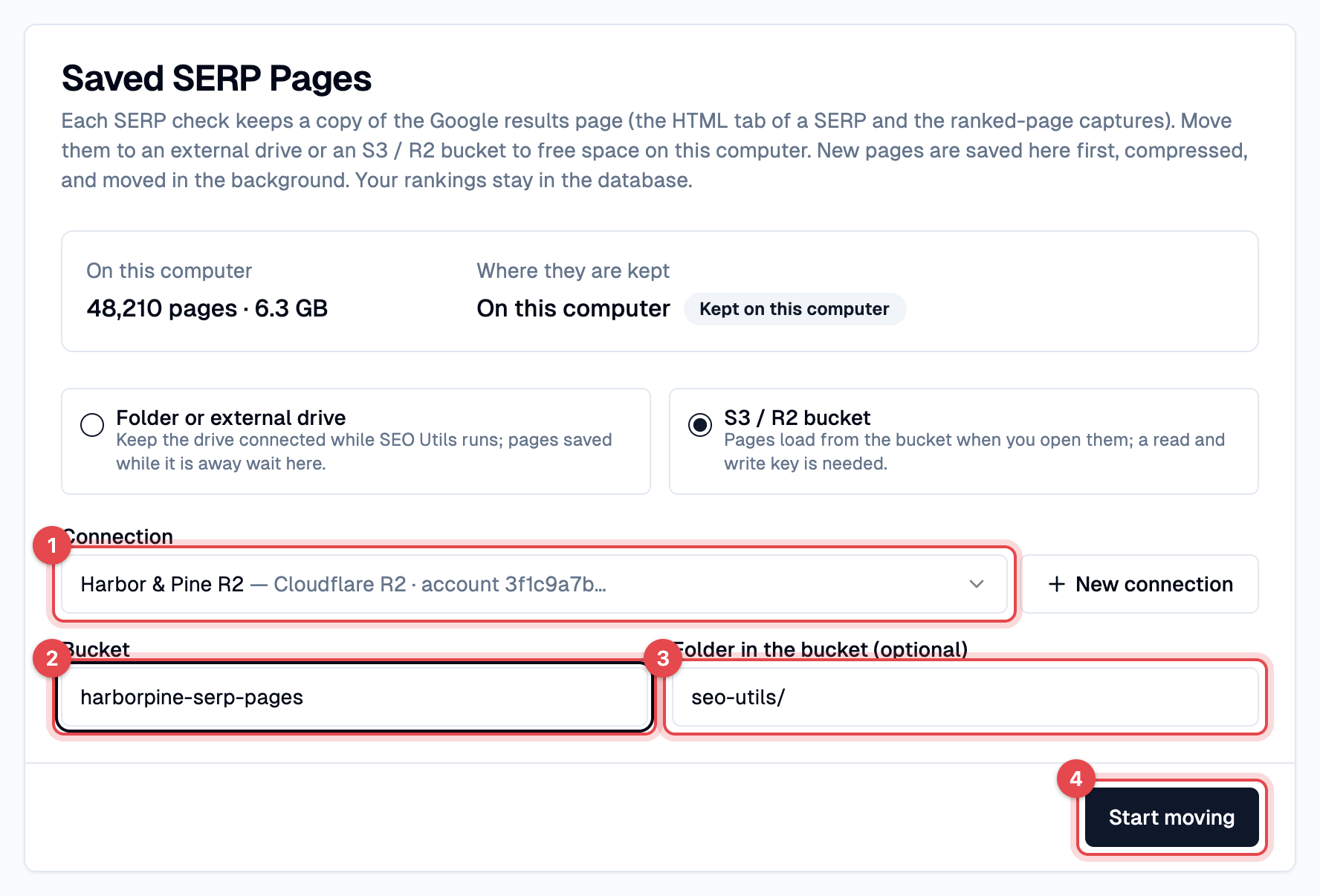
1. Select **S3 / R2 bucket**.
2. **Connection** — choose a connection, or click **New connection** to add one.
3. **Bucket** — the bucket that will hold the pages.
4. **Folder in the bucket (optional)** — the folder inside the bucket, `seo-utils/` by default.
Moving the saved pages to a Cloudflare R2 bucket
{% endtab %}
{% endtabs %}
{% endstep %}
{% step %}
#### Start moving
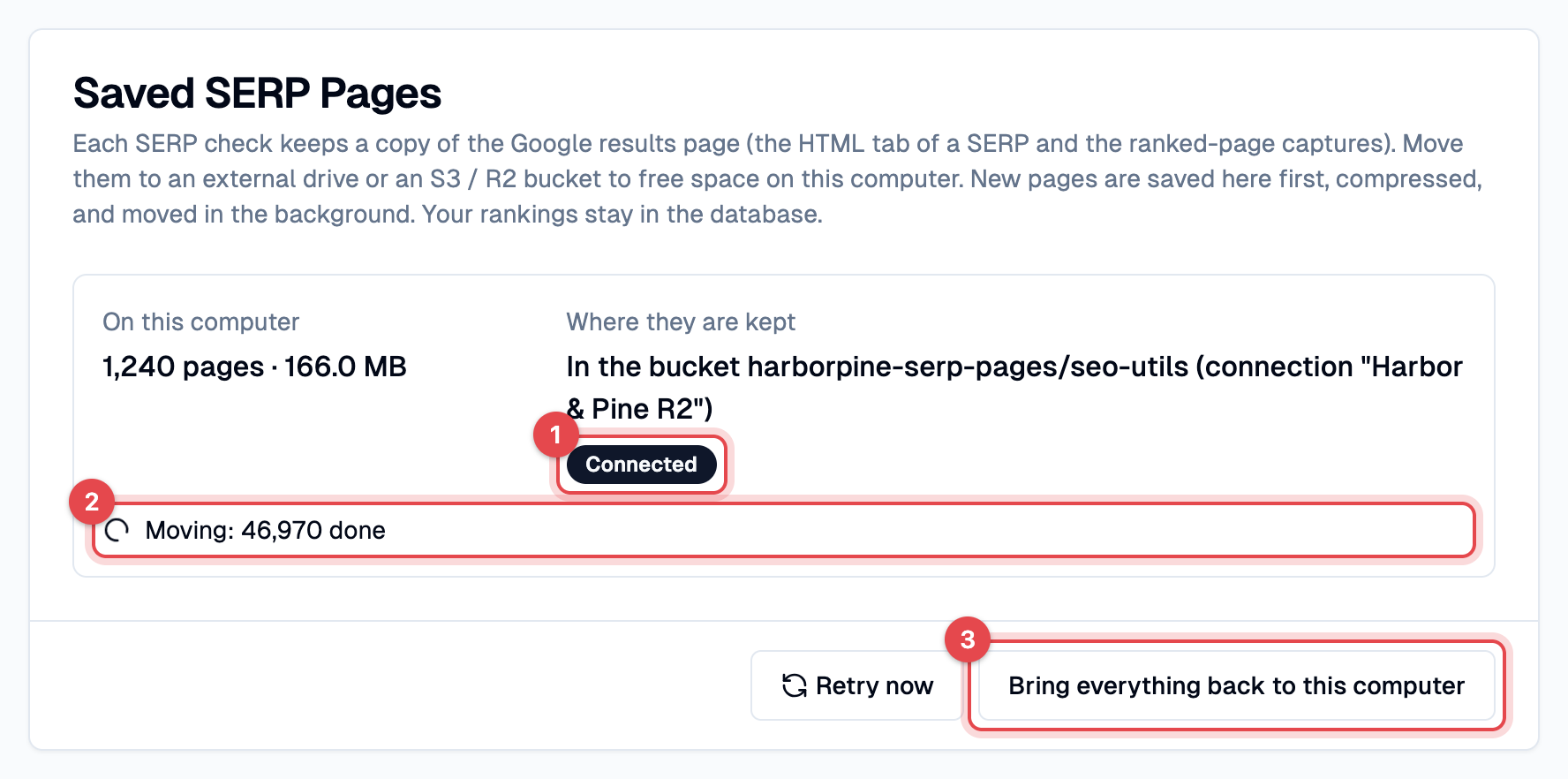
Click **Start moving**. SEO Utils first checks that it can write to the folder or bucket, then moves the pages in the background. The card shows the progress, and you can keep working meanwhile.
Pages moving to the bucket
{% endstep %}
{% endstepper %}
## After the Move
* **New SERP checks** save their page on this computer first. SEO Utils moves it within a few minutes.
* **Opening a saved page** (the HTML tab, a ranked-page capture or its comparison) reads it from wherever it is. From a bucket it can take a moment longer.
* **Retry now** checks the folder or bucket again and moves any waiting pages straight away.
## When the Drive or Bucket Is Not Available
If the drive is unplugged or the bucket cannot be reached, the card shows **Not available** and the reason.
The drive that holds the pages is not connected
SERP checks keep working while it is away: new pages wait on this computer and move once it is back. Pages already moved cannot be opened until then.
To fix it:
* **The drive is unplugged** — connect it and click **Retry now**.
* **The drive has a new name or drive letter** — click **Locate folder…** and pick the **SEO Utils saved pages** folder, or the folder that holds it.
* **The connection is missing**, for example after restoring a database backup — choose the connection, bucket and folder again and click **Use this connection**.
## Bringing Pages Back
To keep every page on this computer again:
1. Click **Bring everything back to this computer** and confirm.
2. SEO Utils checks that this computer has enough free space, then copies the pages back and removes them from the folder or bucket.
3. When the last page is back, the card shows **Kept on this computer**.
You can click **Stop bringing back** at any time. The pages already back move out again.
{% hint style="info" %}
To switch to a different drive or bucket, bring the pages back first, then start a new move.
{% endhint %}
## Backups and Moving to a New Computer
A database backup includes only the saved pages on this computer. The **Database** backup tool shows where the moved pages are kept, so you can back up that drive or bucket separately. See [Migration Tools](/guide/migration-tools.md).
{% hint style="warning" %}
**Moving SEO Utils to another computer?** Bring the saved pages back to this computer before you create the backup, so the backup includes them.
{% endhint %}
## Automatic Cleanup
Once a day, SEO Utils removes saved pages that no SERP record uses any more, for example after you delete a report. It only removes pages that are at least 7 days old, and it waits 14 days after you restore a database backup, so you can still restore a different backup and keep its pages.
## FAQ
Can my team share one bucket for saved pages?
* Yes. Add a connection with the same keys on each computer and choose the same bucket.
* Each computer keeps its pages in its own folder inside the bucket, so computers never read or remove each other's pages.
* To share DataForSEO results with your team, use the [S3 Cache](/guide/data-sharing-with-s3.md) instead.
Does moving the pages change my rankings or reports?
No. Rankings, keywords, SERP results and reports stay in the database on this computer. Only the copies of the Google results pages move.