> For the complete documentation index, see [llms.txt](https://help.seoutils.app/llms.txt). Markdown versions of documentation pages are available by appending `.md` to page URLs; this page is available as [Markdown](https://help.seoutils.app/guide/s3-r2-connections.md).
# S3 / R2 Connections
An S3 / R2 connection holds the address and keys of your cloud storage: Amazon S3, Cloudflare R2, or any S3-compatible service. You enter the keys once, and every feature that uses a bucket picks the connection from a list.
Three features use connections:
| Feature | What it does with the bucket | Access the key needs |
| ----------------------------------------------------------------------------- | ---------------------------------------- | ---------------------- |
| [S3 Cache for DataForSEO Data](/guide/data-sharing-with-s3.md) | Shares DataForSEO results with your team | Read, write and delete |
| [Log File Analysis](/guide/log-file-analysis.md#getting-logs-from-cloudflare) | Reads Cloudflare Logpush files | Read only |
| [Saved SERP Pages Storage](/guide/saved-serp-pages-storage.md) | Keeps your saved Google results pages | Read, write and delete |
Each feature chooses its own bucket, so one connection can serve all three.
## Adding a Connection
{% stepper %}
{% step %}
#### Open the connections card
Go to **Settings > Services > Storage & Sharing > S3 / R2 Connections** and click **Add connection**.
The connections card lists each connection and what uses it
{% endstep %}
{% step %}
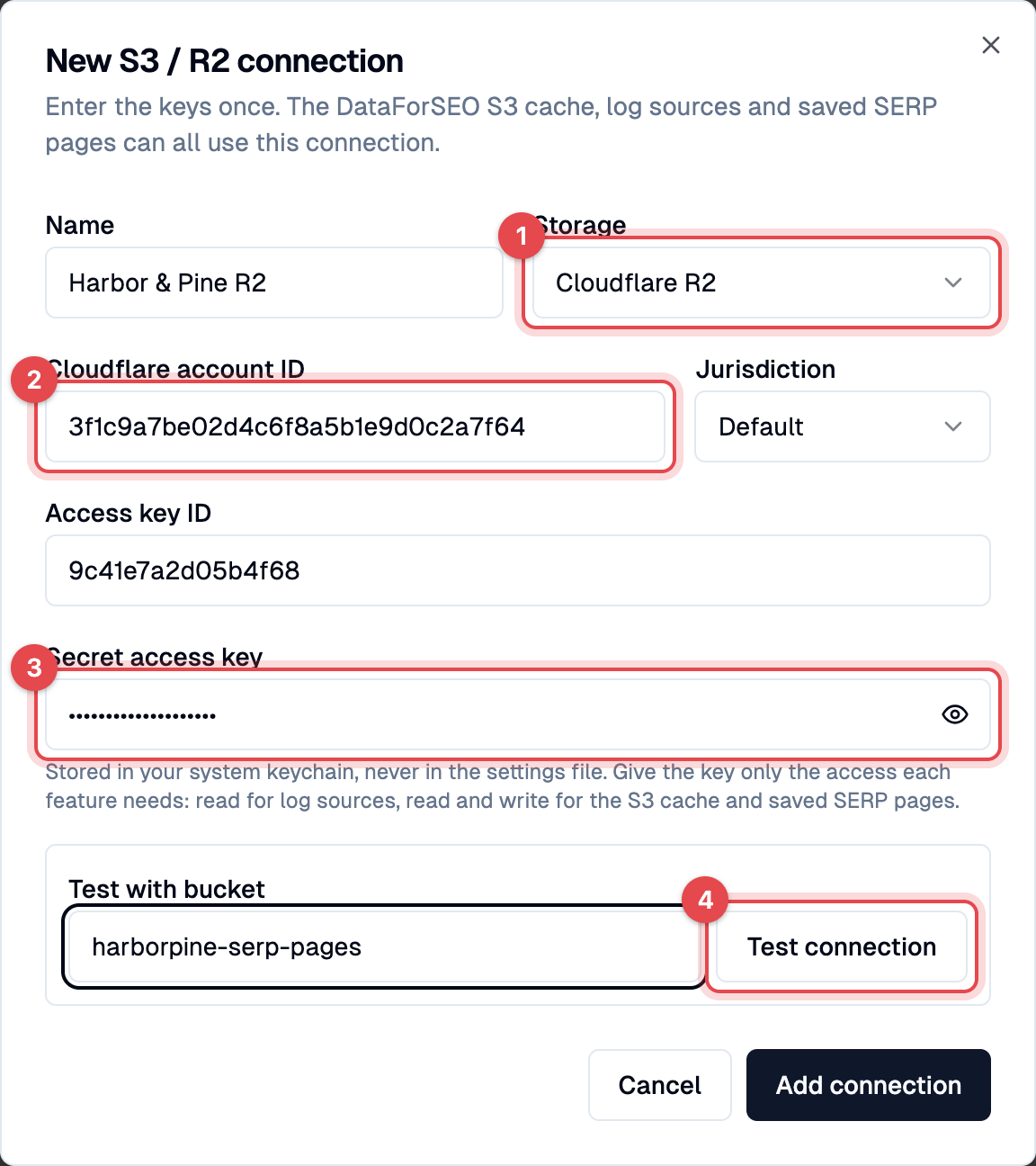
#### Enter the storage and keys
* **Name** — a name you will recognize in the lists, for example `Agency R2`.
* **Storage** — choose your provider, then fill in its fields:
{% tabs %}
{% tab title="Cloudflare R2" %}
* **Cloudflare account ID** — paste the account ID, or the bucket's **S3 API** URL from its settings page.
* **Jurisdiction** — **EU** for a bucket created in the EU jurisdiction, otherwise **Default**. Pasting the bucket's S3 API URL sets it for you.
{% endtab %}
{% tab title="Amazon S3" %}
* **Region** — the bucket's AWS Region, for example `us-east-1`.
{% endtab %}
{% tab title="Other S3-compatible storage" %}
* **Endpoint** — the provider's S3 endpoint, for example `https://s3.example.com`.
* **Region** — the bucket's region. Leave it empty if the provider has none.
{% endtab %}
{% endtabs %}
* **Access key ID** and **Secret access key** — from your provider. See the table above for the access each feature needs.
A new Cloudflare R2 connection
{% endstep %}
{% step %}
#### Test and save
Enter a bucket name under **Test with bucket** and click **Test connection**. SEO Utils checks that the keys can reach that bucket.
Click **Add connection** to save.
{% endstep %}
{% endstepper %}
{% hint style="info" %}
The secret access key is stored in your system keychain (Keychain on macOS, Credential Manager on Windows, Secret Service on Linux), never in SEO Utils' settings file.
{% endhint %}
{% hint style="warning" %}
Log sources and saved SERP pages need an `https://` endpoint. An `http://` endpoint, such as a MinIO server on your local network, works for the S3 cache only.
{% endhint %}
## Editing and Deleting a Connection
* **Edit** (pencil icon) — change the name, storage or keys. Leave **Secret access key** empty to keep the saved secret. Every feature that uses the connection picks up the change.
* **Delete** (trash icon) — removes the connection and its secret. A connection that a feature still uses cannot be deleted; choose another connection in that feature first.
{% hint style="warning" %}
If your saved SERP pages are in a bucket, SEO Utils refuses an edit that would point their connection at a different account or bucket, because the pages would no longer be reachable. You can still rename it. To move the pages somewhere else, [bring them back to this computer](/guide/saved-serp-pages-storage.md#bringing-pages-back) first.
{% endhint %}
## Keys Saved Before Connections
If you entered S3 keys in the **S3 Cache Settings** card or in an S3 / R2 log source before this update, SEO Utils turns them into connections automatically the next time it starts. They are named after their feature, for example **DataForSEO cache** or **R2 my-logs-bucket**, and everything keeps working as before.