> For the complete documentation index, see [llms.txt](https://help.seoutils.app/llms.txt). Markdown versions of documentation pages are available by appending `.md` to page URLs; this page is available as [Markdown](https://help.seoutils.app/guide/google-my-business-rank-tracker/set-up.md). Agents can also search and read this documentation through its [MCP server](https://help.seoutils.app/~gitbook/mcp).

# Set Up

The GMB Rank Tracker needs two things before its first run: a **Google Places API key** and your own **DataForSEO account**. A few optional keys add map layers and interactive exports.

## What you see until it is set up

Open **Local SEO → GMB Rank Tracker**. The page shows what is missing, so you do not have to look for it.

<figure><img src="https://1176579443-files.gitbook.io/~/files/v0/b/gitbook-x-prod.appspot.com/o/spaces%2F2DwV6sJBiKjUHMDggb4d%2Fuploads%2Fgit-blob-7660defd421729e47fbd8abf1f6400d965b085db%2Fgmb-onboarding-setup-panel.png?alt=media" alt="The setup panel with a DataForSEO API card and a Google Places API key card, beside the What a report shows preview"><figcaption><p>Nothing set up and no report yet: the setup panel (1) has a card for each missing step, with <strong>What a report shows</strong> beside it (2). The Google Places API key card also offers <strong>Connect Google</strong> (3)</p></figcaption></figure>

* **Nothing set up and no reports:** **Set up GMB Rank Tracker to start** ("Do it yourself, or let your AI app guide you.") lists the steps that are missing, **DataForSEO API** and **Google Places API key**. Each card has **Open settings**, **Set up with your AI app** and **Read the guide**, and the Google Places API key card also has **Connect Google**. **What a report shows** is a sample grid with three lines on what a report tracks, so you see what the two steps are for. A card disappears when you finish its step, and the page updates when you come back
* **You have reports and a step is missing:** the panel shrinks to **New runs are paused: a setup step needs you** above your reports. The reports and their history stay readable
* **Everything is set up and you have no reports:** the page reads **Create your first report**. See [Your reports](https://help.seoutils.app/guide/google-my-business-rank-tracker/your-reports.md#create-your-first-report)

<figure><img src="https://1176579443-files.gitbook.io/~/files/v0/b/gitbook-x-prod.appspot.com/o/spaces%2F2DwV6sJBiKjUHMDggb4d%2Fuploads%2Fgit-blob-ee555507305a4c21074dc01a40c7c68c78207c14%2Fgmb-onboarding-compact-panel.png?alt=media" alt="The compact panel above the reports with the two step cards"><figcaption><p>With reports, the panel sits above the list. <strong>Open settings</strong> on the DataForSEO API card (1) and <strong>Connect Google</strong> on the Google Places API key card (2) start the two steps</p></figcaption></figure>

**Open settings** opens the settings card for the step and highlights the field to fill. **Set up with your AI app** copies the prompt for that step, ready to paste in your AI app, or opens the page that connects one. **Connect Google** creates the Google key for you.

You can still click **New report** while a step is missing and lay the report out. Running it needs DataForSEO. See [If DataForSEO is not set up](https://help.seoutils.app/guide/google-my-business-rank-tracker/create-a-report.md#if-dataforseo-is-not-set-up).

The report page and the new report form need the Google key to show the map. Without it, the report page shows **Connect Google to see your grid on the map** in place of the map, and the rest of the page keeps working. The new report form shows the same card until the key is set.

<figure><img src="https://1176579443-files.gitbook.io/~/files/v0/b/gitbook-x-prod.appspot.com/o/spaces%2F2DwV6sJBiKjUHMDggb4d%2Fuploads%2Fgit-blob-419d13fb2d6359fca18d788ad06a55085cddd97b%2Fgmb-map-no-key.png?alt=media" alt="The Connect Google to see your grid on the map card with its three buttons: Connect Google automatically, Paste a key and Set up with your AI app"><figcaption><p>The card that stands in for the map, with <strong>Connect Google automatically</strong>, <strong>Paste a key</strong> and <strong>Set up with your AI app</strong></p></figcaption></figure>

**Paste a key** opens the key field in the settings. **How it works** opens [Set Up SEO Utils](https://help.seoutils.app/guide/set-up-seo-utils.md#connect-google-automatically).

## Google Places API key

One key does three jobs: it finds your business, draws the maps and turns addresses into coordinates. Pick one way to create it.

{% tabs %}
{% tab title="With Your AI App" %}
When your AI app is connected to SEO Utils (see [Set Up with Your AI App](https://help.seoutils.app/guide/set-up-seo-utils.md#set-up-with-your-ai-app-recommended)), ask it:

> Set up the Google Places API key for the GMB Rank Tracker.

It checks what is missing, starts **Connect Google** with the Google Maps tools on and explains each step. You sign in to Google and answer its questions in SEO Utils: Google Cloud's terms and, if you want the map to work, a billing account. The key goes straight into SEO Utils, never through the chat.
{% endtab %}

{% tab title="Connect Google (Recommended)" %}
SEO Utils creates the key for you, with the three APIs it needs.

1. Click **Connect Google** on the setup panel, or open **Settings → Services → Google Business Rank Tracker** and click **Create a key automatically** under **Google Places API Key**. Both open **Connect Google** with the **Google Maps tools** switched on
2. Click **Connect Google**, sign in to Google and click **Allow**

It takes about 3 minutes. If SEO Utils asks a question on the way, see [Connect Google Automatically](https://help.seoutils.app/guide/set-up-seo-utils.md#connect-google-automatically).
{% endtab %}

{% tab title="By Hand" %}

1. Go to [console.cloud.google.com](https://console.cloud.google.com/) and choose an existing project or create one
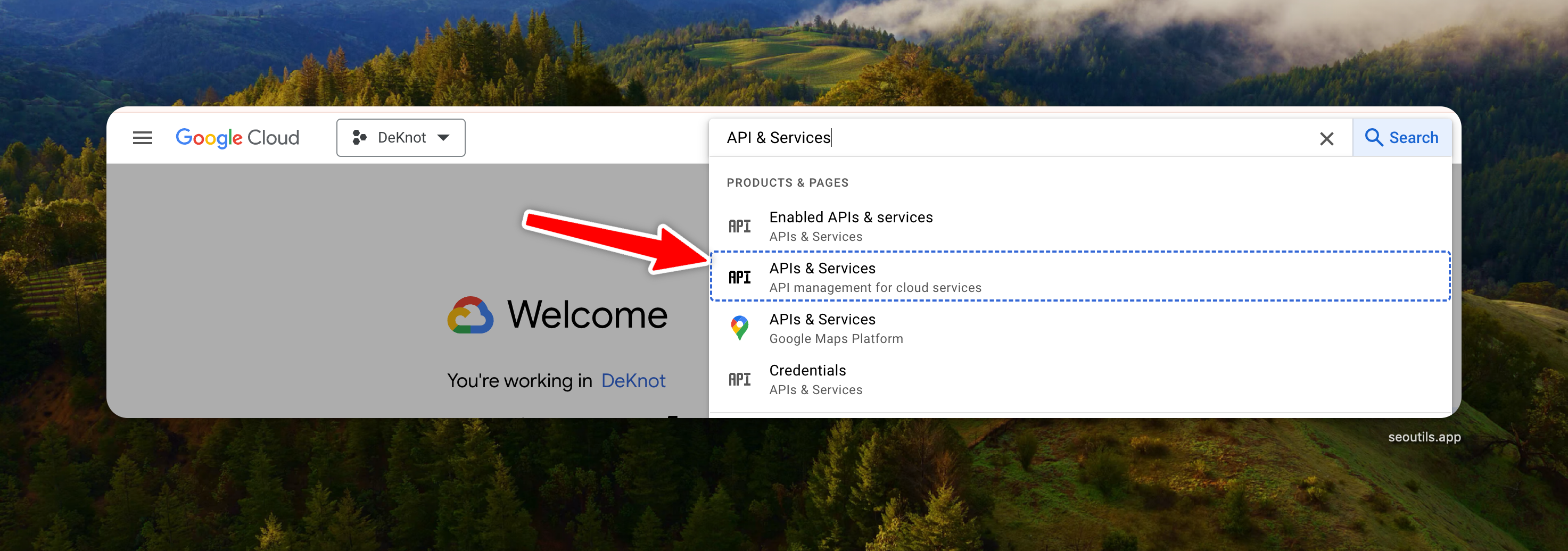
2. Search for "**APIs & Services**" in the top search bar

<figure><img src="https://1176579443-files.gitbook.io/~/files/v0/b/gitbook-x-prod.appspot.com/o/spaces%2F2DwV6sJBiKjUHMDggb4d%2Fuploads%2Fgit-blob-87bc621c15416903c2a82885e722277511e8edc1%2FXnapper-2024-06-07-15.59.02.png?alt=media" alt=""><figcaption><p>Search for "APIs &#x26; Services"</p></figcaption></figure>

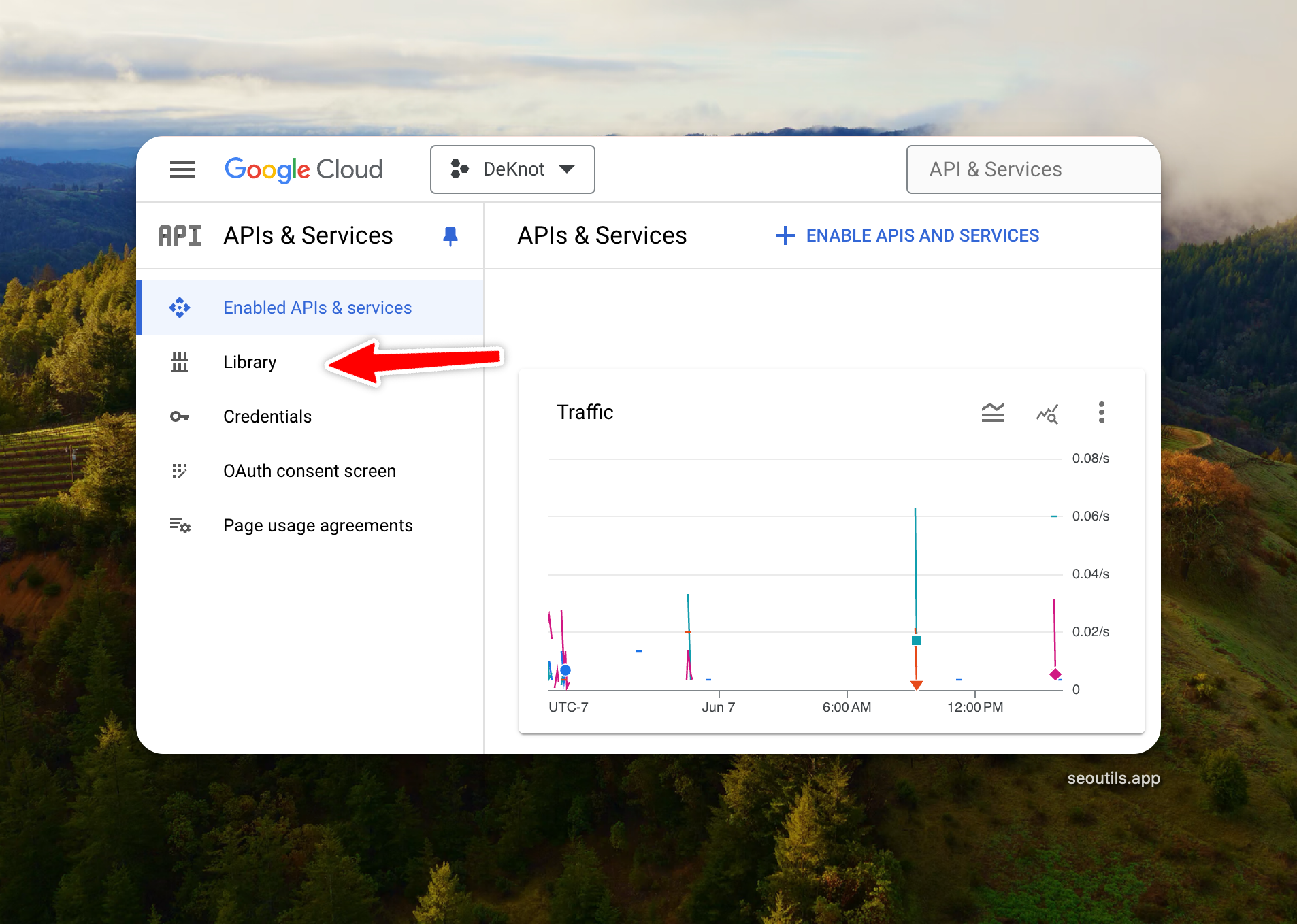
3. Click **Library** in the left sidebar

<figure><img src="https://1176579443-files.gitbook.io/~/files/v0/b/gitbook-x-prod.appspot.com/o/spaces%2F2DwV6sJBiKjUHMDggb4d%2Fuploads%2Fgit-blob-0aa4d95c3a9bd9bb1d4c78366c8c5ab8180b413e%2FXnapper-2024-06-07-16.02.10.png?alt=media" alt="" width="563"><figcaption><p>Select "Library" from the left sidebar</p></figcaption></figure>

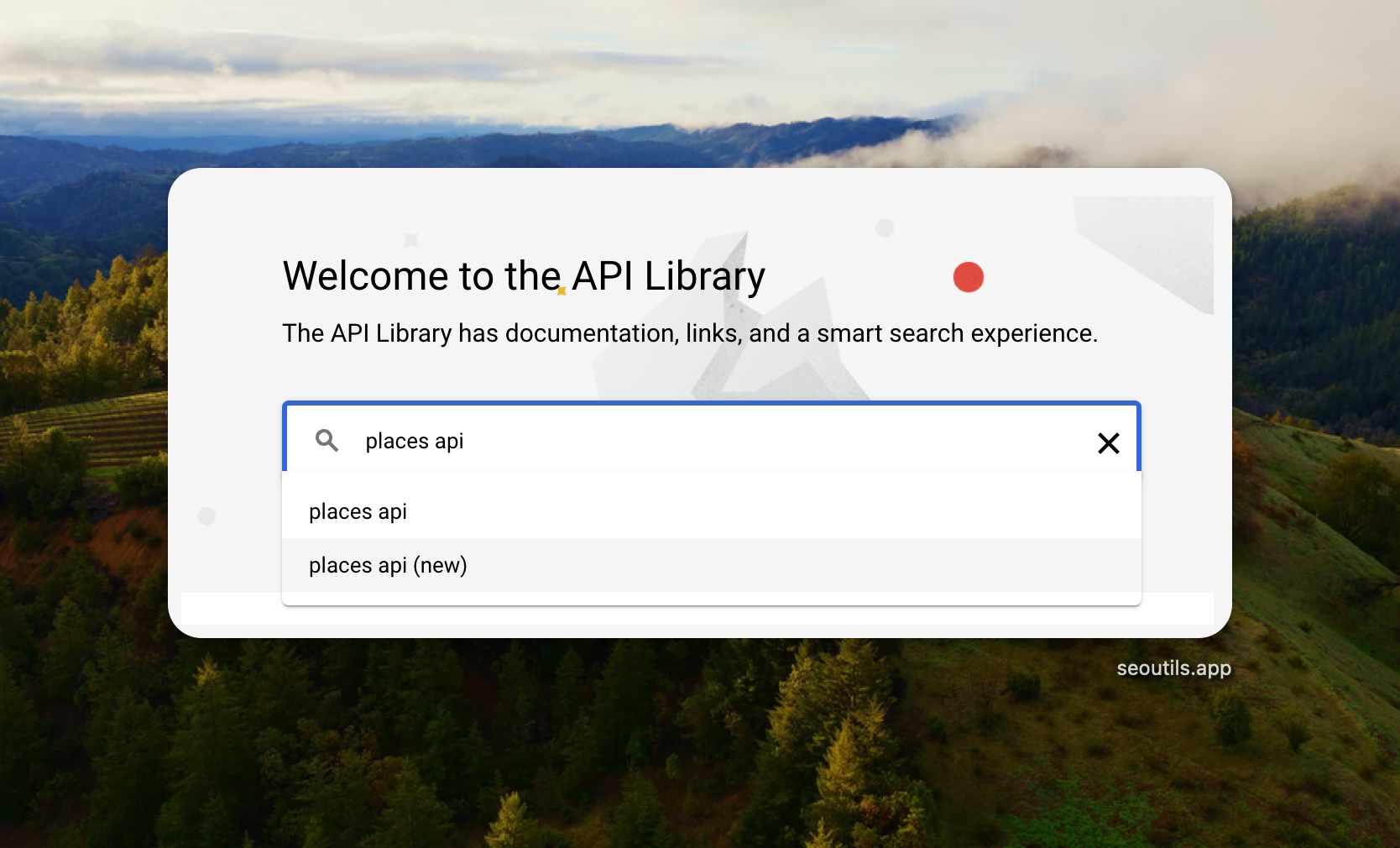
4. Search for "Places API", select **Places API (New)** and enable it

<figure><img src="https://1176579443-files.gitbook.io/~/files/v0/b/gitbook-x-prod.appspot.com/o/spaces%2F2DwV6sJBiKjUHMDggb4d%2Fuploads%2Fgit-blob-817c1bb40e2dfdb9ec11d379b9b1ebac97ae4d15%2FXnapper-2024-06-07-16.09.29.png?alt=media" alt="" width="563"><figcaption><p>Enable Places API (New)</p></figcaption></figure>

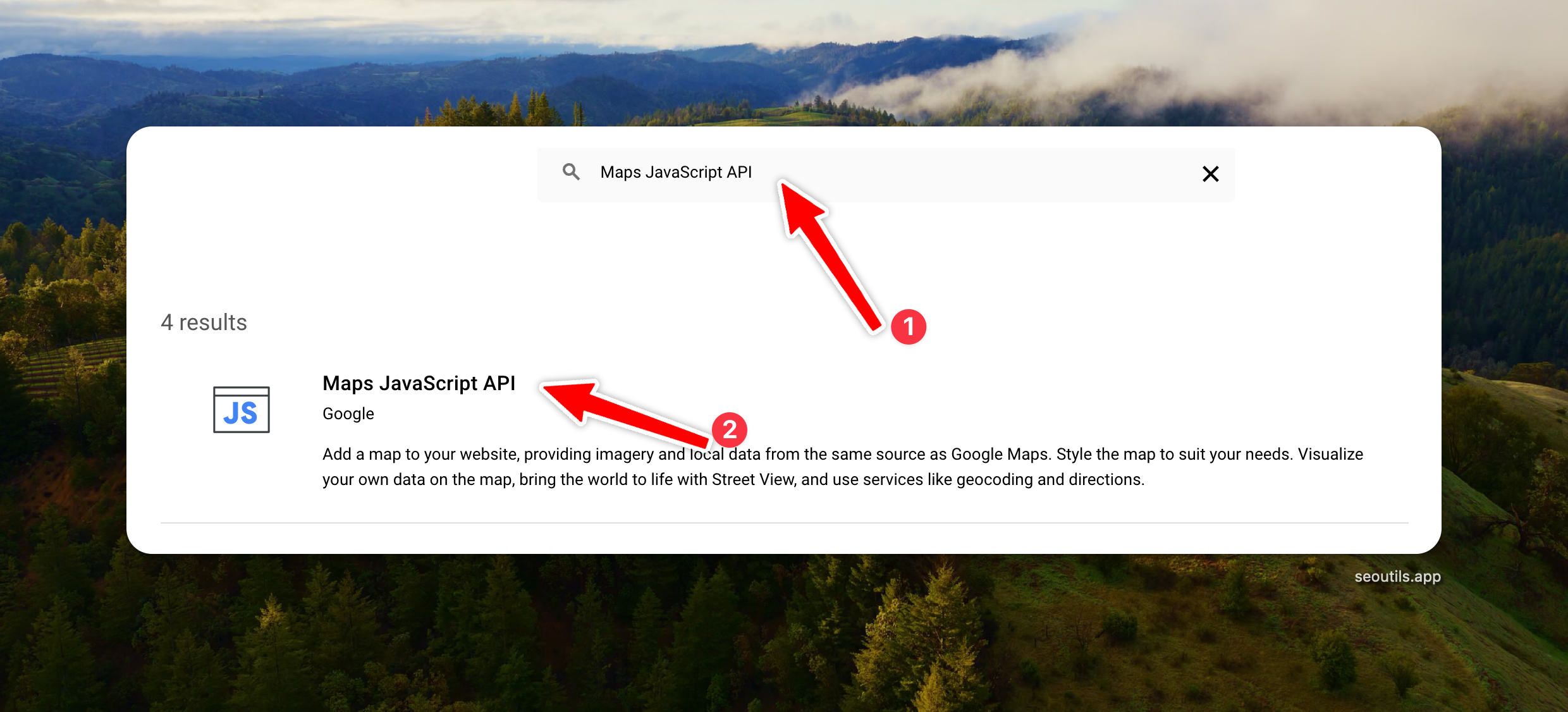
5. Search for "**Maps JavaScript API**" and enable it

<figure><img src="https://1176579443-files.gitbook.io/~/files/v0/b/gitbook-x-prod.appspot.com/o/spaces%2F2DwV6sJBiKjUHMDggb4d%2Fuploads%2Fgit-blob-7b1db15882e576d12b2851fddf47a5b738679b4a%2FXnapper-2024-06-07-22.56.59.png?alt=media" alt="" width="563"><figcaption><p>Enable the Maps JavaScript API</p></figcaption></figure>

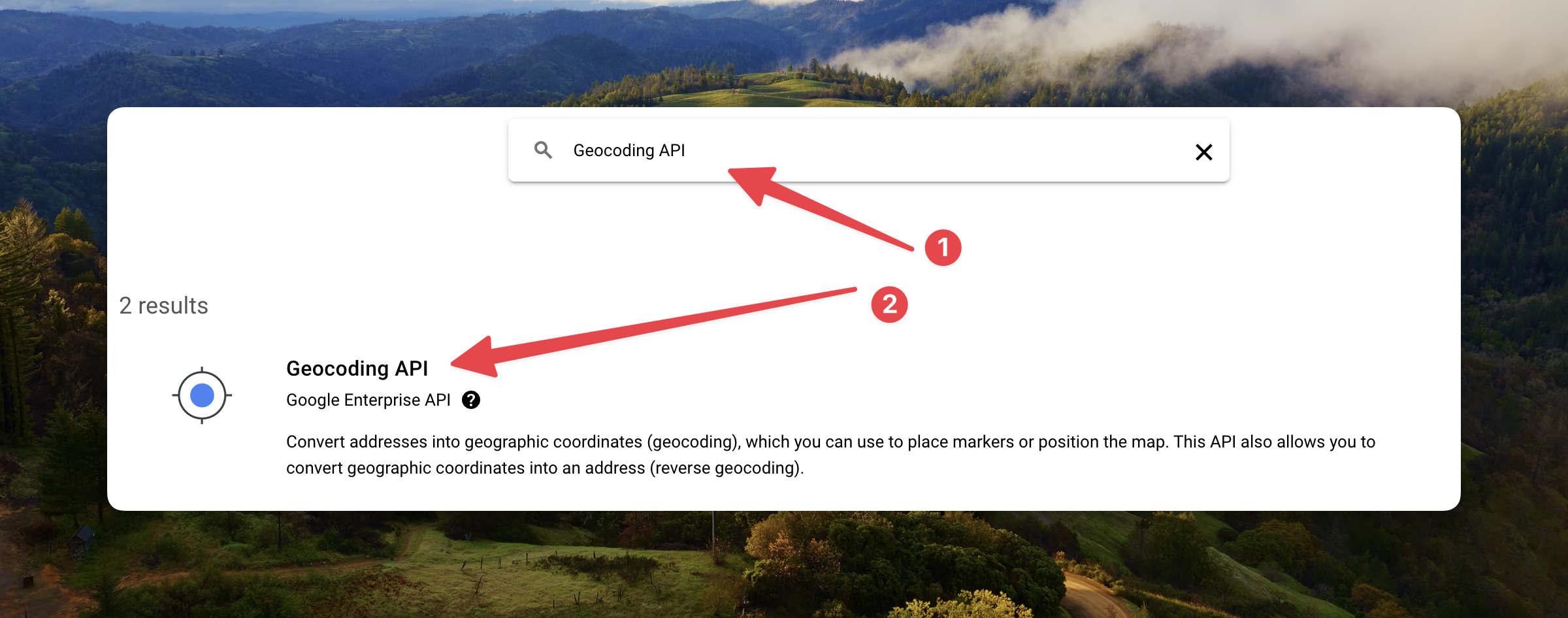
6. Search for "**Geocoding API**" and enable it

<figure><img src="https://1176579443-files.gitbook.io/~/files/v0/b/gitbook-x-prod.appspot.com/o/spaces%2F2DwV6sJBiKjUHMDggb4d%2Fuploads%2Fgit-blob-ef6b32fde953f456f96ffd992970e0a3d50c80b6%2FCleanShot%202024-06-07%20at%2023.22.31%402x.png?alt=media" alt="" width="563"><figcaption><p>Enable the Geocoding API</p></figcaption></figure>

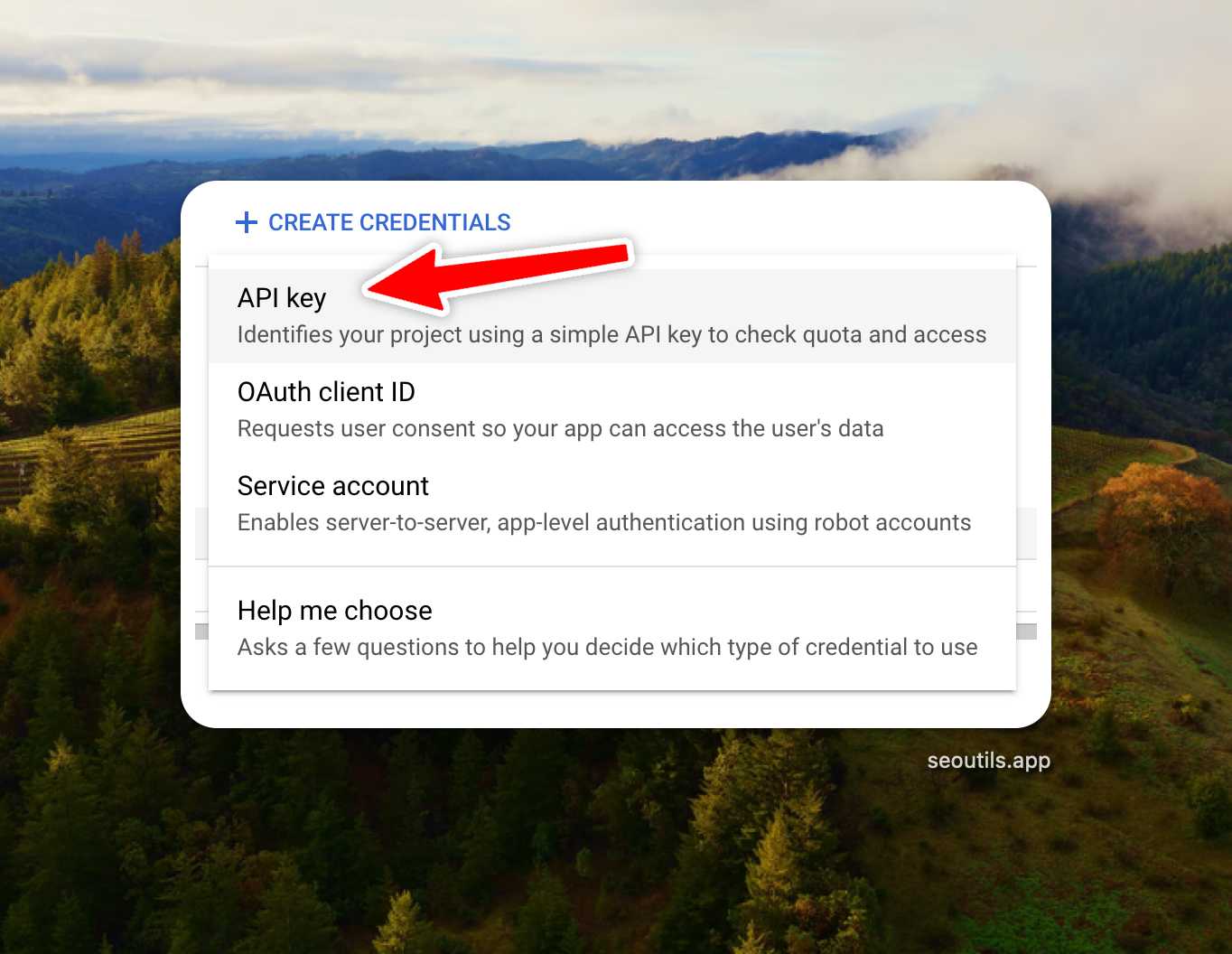
7. Open **Keys & Credentials** from the left sidebar, click **Create Credentials** and choose **API key**

<figure><img src="https://1176579443-files.gitbook.io/~/files/v0/b/gitbook-x-prod.appspot.com/o/spaces%2F2DwV6sJBiKjUHMDggb4d%2Fuploads%2Fgit-blob-b7aac10a096b7a036df741c4eaa17f97ce096678%2FXnapper-2024-06-07-16.08.57.png?alt=media" alt="" width="563"><figcaption><p>Create an API key</p></figcaption></figure>

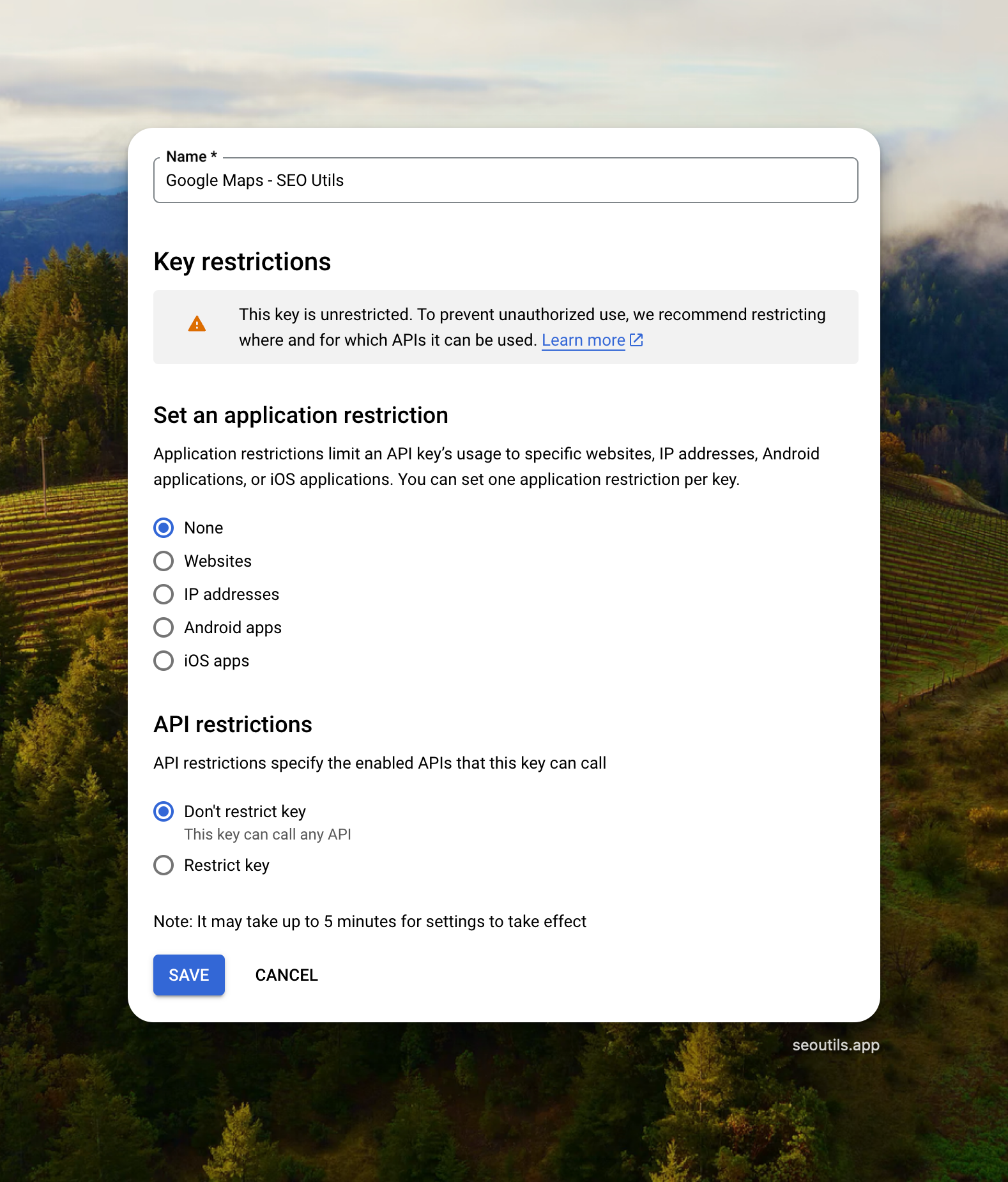
8. Optional: click **Edit API key** to give it a name. You do not need to restrict it, because it stays on your computer. If you do restrict it, restrict it by API to the three above, never by website (HTTP referrer)

<figure><img src="https://1176579443-files.gitbook.io/~/files/v0/b/gitbook-x-prod.appspot.com/o/spaces%2F2DwV6sJBiKjUHMDggb4d%2Fuploads%2Fgit-blob-41c381ee92274f0d6117e52275a52d3ca1c85823%2FXnapper-2024-06-07-16.12.20.png?alt=media" alt="" width="563"><figcaption><p>Name your API key</p></figcaption></figure>

9. Copy the key. In SEO Utils, open **Settings → Services → Google Business Rank Tracker**, paste it in **Google Places API Key** on the **Google My Business Rank Tracker** card and click **Save**. **Paste a key** on the map card and **Open settings** on the setup panel open the same field

<figure><img src="https://1176579443-files.gitbook.io/~/files/v0/b/gitbook-x-prod.appspot.com/o/spaces%2F2DwV6sJBiKjUHMDggb4d%2Fuploads%2Fgit-blob-7a30f54598beab8b30ff1afc5d397bed55f2114e%2Fgmb-settings-places-key.png?alt=media" alt="The Google Places API Key field with a placeholder key and the Create a key automatically button"><figcaption><p>The key goes in the Google Places API Key field (1). The button under it (2) creates a key for you</p></figcaption></figure>

{% hint style="warning" %}
Google may ask for billing details because the Places API is an enterprise API. It includes a free monthly allowance, and SEO Utils uses very little of it.
{% endhint %}
{% endtab %}
{% endtabs %}

## DataForSEO

DataForSEO runs the searches and bills each one, so you need your own account with credit on it. A [rented API key](https://help.seoutils.app/guide/rent-dataforseo-api-key.md) does not work for the GMB Rank Tracker. SERP API: DataForSEO is the only data source for now; your own IP and proxies are not available yet.

{% tabs %}
{% tab title="With Your AI App" %}
Ask your AI app to set up DataForSEO for the GMB Rank Tracker. It explains what a run costs, opens the DataForSEO settings for you and checks again after you save. You paste the API login and password in SEO Utils, never in the chat.
{% endtab %}

{% tab title="By Hand" %}

1. Create an account at DataForSEO and verify your email
2. Top up your credit
3. Copy the **API login** and **API password** from the API Access page of the DataForSEO dashboard. They differ from your dashboard login
4. In SEO Utils, click **Open settings** on the **DataForSEO API** card, or open **Settings → Services → DataForSEO API**. On the **DataForSEO Settings** card, paste the login in **Username** and the password in **Password**, then click **Save**

<figure><img src="https://1176579443-files.gitbook.io/~/files/v0/b/gitbook-x-prod.appspot.com/o/spaces%2F2DwV6sJBiKjUHMDggb4d%2Fuploads%2Fgit-blob-51e1e740882593b6f8131ccfdc8ca8ada30951d7%2Fgmb-settings-dataforseo.png?alt=media" alt="The DataForSEO Settings card with the Username and Password fields and the Sandbox Mode switch"><figcaption><p>The DataForSEO Settings card: the <strong>Username</strong> and <strong>Password</strong> fields and the <strong>Sandbox Mode</strong> switch, which must stay off</p></figcaption></figure>

The full steps are in [SEO Data Source](https://help.seoutils.app/guide/seo-data-source.md#how-to-connect-your-dataforseo-account-to-seo-utils).
{% endtab %}
{% endtabs %}

### Sandbox Mode

The GMB Rank Tracker does not run while **Sandbox Mode** is on in the DataForSEO card. It does not fall back to dummy data: **Run now** is refused, scheduled runs are skipped and a new report cannot be saved and run. The page says so and links to the setting.

<figure><img src="https://1176579443-files.gitbook.io/~/files/v0/b/gitbook-x-prod.appspot.com/o/spaces%2F2DwV6sJBiKjUHMDggb4d%2Fuploads%2Fgit-blob-cdc0b063006a174569744377c40ec36143e2fd30%2Fgmb-onboarding-sandbox-alert.png?alt=media" alt="The alert DataForSEO Sandbox Mode is on, and GMB Rank Tracker cannot run in it, with the link Turn it off in DataForSEO settings"><figcaption><p>With Sandbox Mode on, the alert links to the setting: <strong>Turn it off in DataForSEO settings</strong></p></figcaption></figure>

Click **Turn it off in DataForSEO settings**, switch **Sandbox Mode** off and click **Save**. The new report form shows the same alert, and its **Save and run** button is off, with the tooltip **Turn off DataForSEO Sandbox Mode to run this report**.

## Optional keys

These live on the same settings card as the Google key, **Settings → Services → Google Business Rank Tracker**.

<figure><img src="https://1176579443-files.gitbook.io/~/files/v0/b/gitbook-x-prod.appspot.com/o/spaces%2F2DwV6sJBiKjUHMDggb4d%2Fuploads%2Fgit-blob-0902766b907e46086c4a612a85770949f74c4f01%2Fgmb-settings-other-keys.png?alt=media" alt="The Geoapify, Census, RingTonic and Interactive Maps API key fields"><figcaption><p>The optional keys: Geoapify (1), RingTonic (2) and Interactive Maps (3)</p></figcaption></figure>

| Key                             | What it is for                                                                                                | Guide                                                                                                                                                        |
| ------------------------------- | ------------------------------------------------------------------------------------------------------------- | ------------------------------------------------------------------------------------------------------------------------------------------------------------ |
| **Geoapify API Key**            | The Demographics layer outside the US, Canada, the UK and Australia                                           | [Map tools](https://help.seoutils.app/guide/google-my-business-rank-tracker/map-tools.md#demographics-layer)                                                 |
| **Census API Key**              | Your own US Census key, instead of the built-in one                                                           | [Map tools](https://help.seoutils.app/guide/google-my-business-rank-tracker/map-tools.md#demographics-layer)                                                 |
| **RingTonic API Key**           | The Money Map layer                                                                                           | [Map tools](https://help.seoutils.app/guide/google-my-business-rank-tracker/map-tools.md#money-map)                                                          |
| **Interactive Maps API Key**    | A restricted key for HTML exports whose maps stay clickable                                                   | [Exports and client reports](https://help.seoutils.app/guide/google-my-business-rank-tracker/exports-and-client-reports.md#interactive-maps-in-html-exports) |
| **Browser Maps JavaScript Key** | The map in the remote browser and in published client reports. Anyone who opens a published report can see it | [Exports and client reports](https://help.seoutils.app/guide/google-my-business-rank-tracker/exports-and-client-reports.md#publish-to-a-client)              |

The same card holds the [marker colour, size and glow](https://help.seoutils.app/guide/google-my-business-rank-tracker/map-tools.md#marker-styles) settings.

To see the calls, clicks, searches and reviews of a profile next to its rank, connect Google Business Profile in **Settings → Services → Google Business Profile**. It needs none of the keys above. See [Connect Business Profile](https://help.seoutils.app/guide/google-my-business-rank-tracker/connect-business-profile.md).