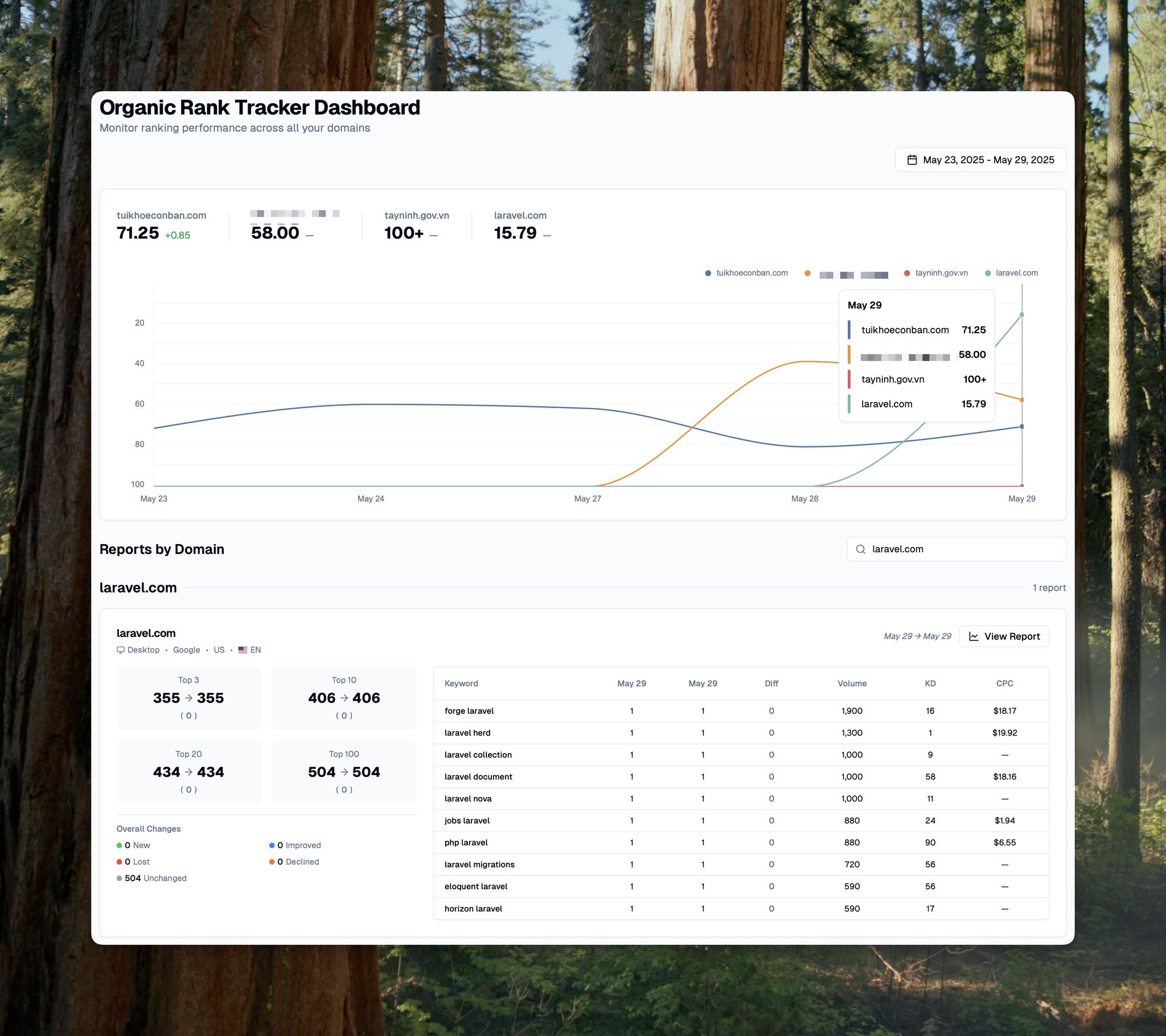
# Organic Rank Tracker

The Organic Rank Tracker Dashboard provides a centralized view of all your rank tracking reports, allowing you to monitor performance across multiple domains, devices, and locations from a single screen.

<figure><img src="/files/MNL5bkrzyu0K402hf5LN" alt=""><figcaption><p>Organic Rank Tracker Dashboard</p></figcaption></figure>

## Accessing the Dashboard

### Via the Left Sidebar Menu

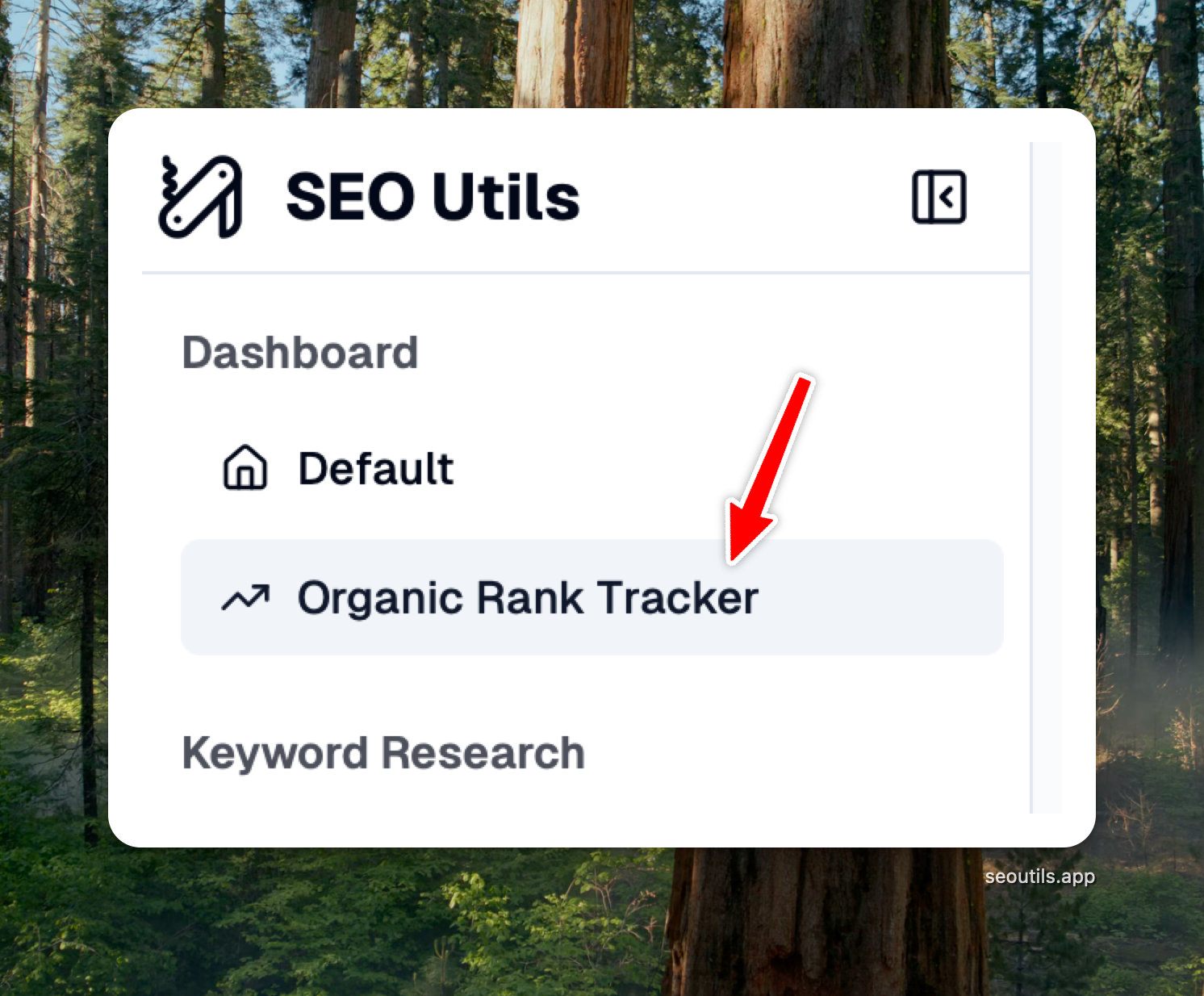
1. Look for the **Dashboard** section in the left sidebar
2. Click on **Organic Rank Tracker** under the Dashboard menu
3. The dashboard will load showing all your rank tracking reports

<figure><img src="/files/Lk4l0KXWVtO3MKVFRxmX" alt="" width="375"><figcaption><p>Access the Organic Rank Tracker Dashboard from the left sidebar</p></figcaption></figure>

### Via the Reports Page

You can also access the dashboard from the [Organic Rank Tracker Reports](/guide/organic-rank-tracker.md) page by clicking the **Dashboard** button in the top right corner.

## Understanding the Dashboard Layout

### Date Range Filter

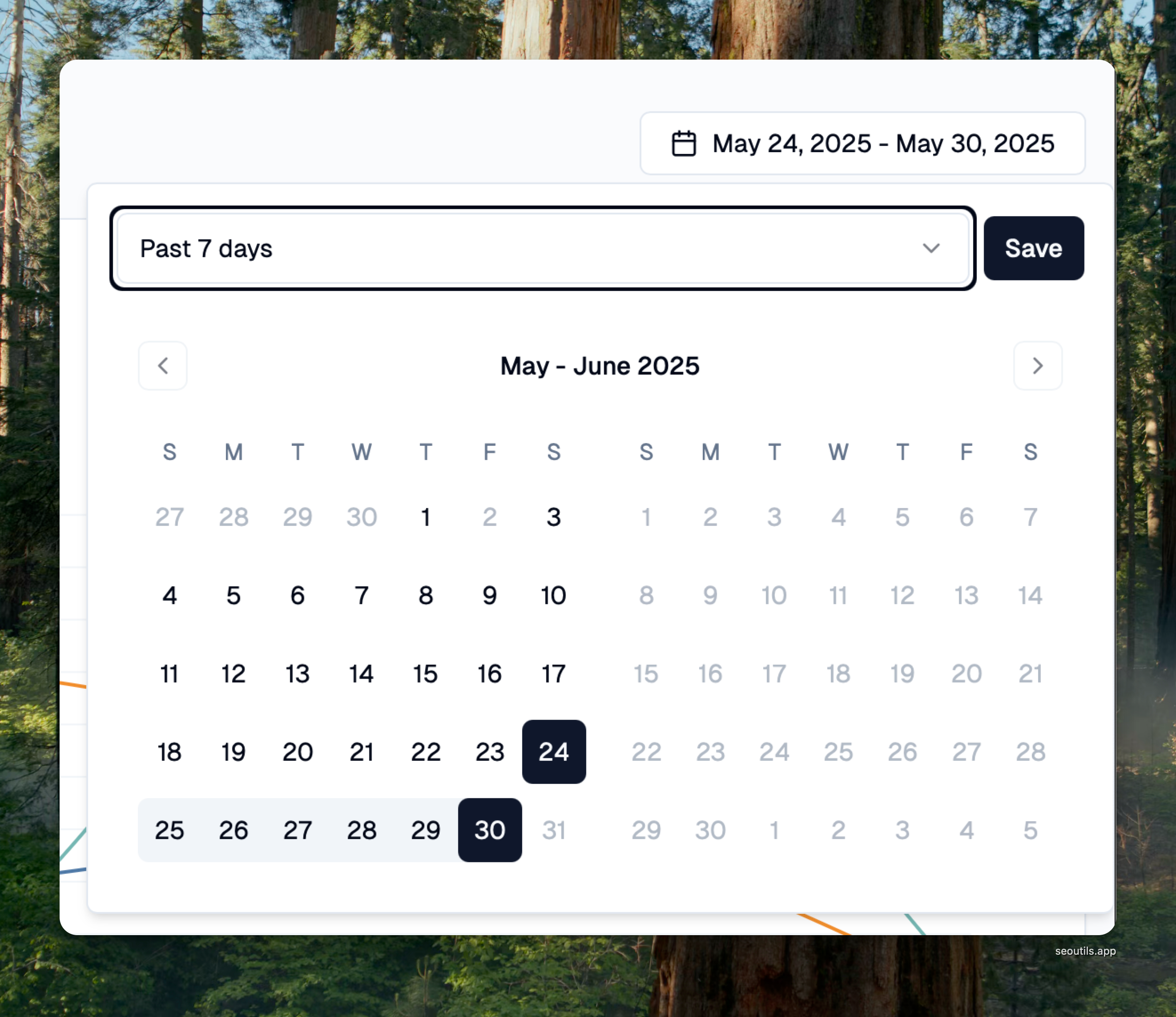
At the top of the dashboard, you'll find the date range filter. This filter controls the time period for all data displayed on the page.

<figure><img src="/files/aXKSzI59mHob5lOLdzoC" alt="" width="375"><figcaption><p>Date range filter with preset options</p></figcaption></figure>

{% hint style="info" %}
**Preset Options Available:**

* Past 2 days
* Past 7 days
* Past 30 days
* Past 60 days
* Past 90 days
* Previous Month
* All Time
  {% endhint %}

### Average Position Chart

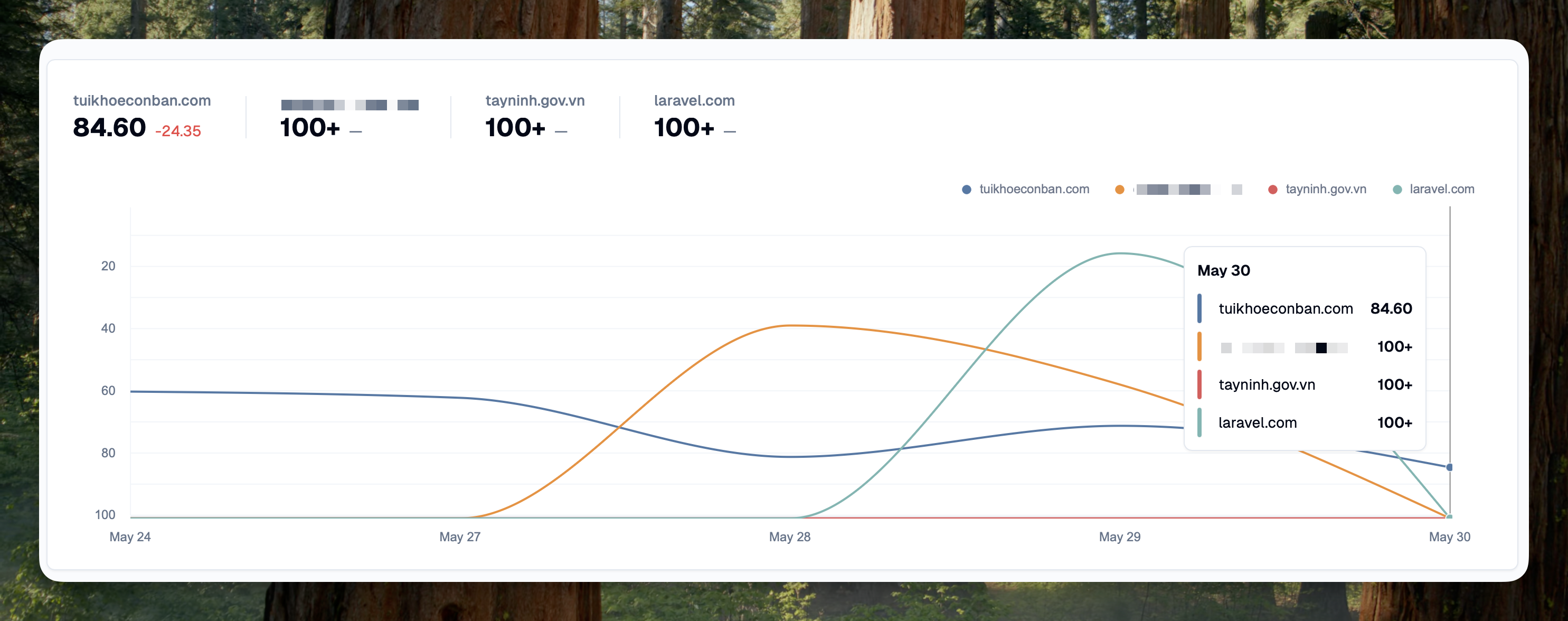
The chart displays average position trends for all your tracked domains. This powerful visualization helps you spot trends across your entire portfolio at a glance.

<figure><img src="/files/o4QFG2KuNOa0rEmwIxUF" alt=""><figcaption><p>Average position trends consolidated by domain</p></figcaption></figure>

**How the Chart Works:**

* **Each line represents one domain** - If you track the same domain across multiple locations or devices, they're combined into a single line
* **Automatic averaging** - When you have multiple reports for one domain (e.g., tracking in US, UK, and Canada), the chart shows the average position across all locations
* **Lower is better** - The Y-axis shows positions, where position 1 is the best
* **Interactive tooltips** - Hover over any point to see exact positions and dates

{% hint style="success" %}
**Example**: If you track "example.com" in 3 different cities, the chart shows one line representing the average performance across all 3 locations, giving you a unified view of your domain's performance.
{% endhint %}

### Reports by Domain

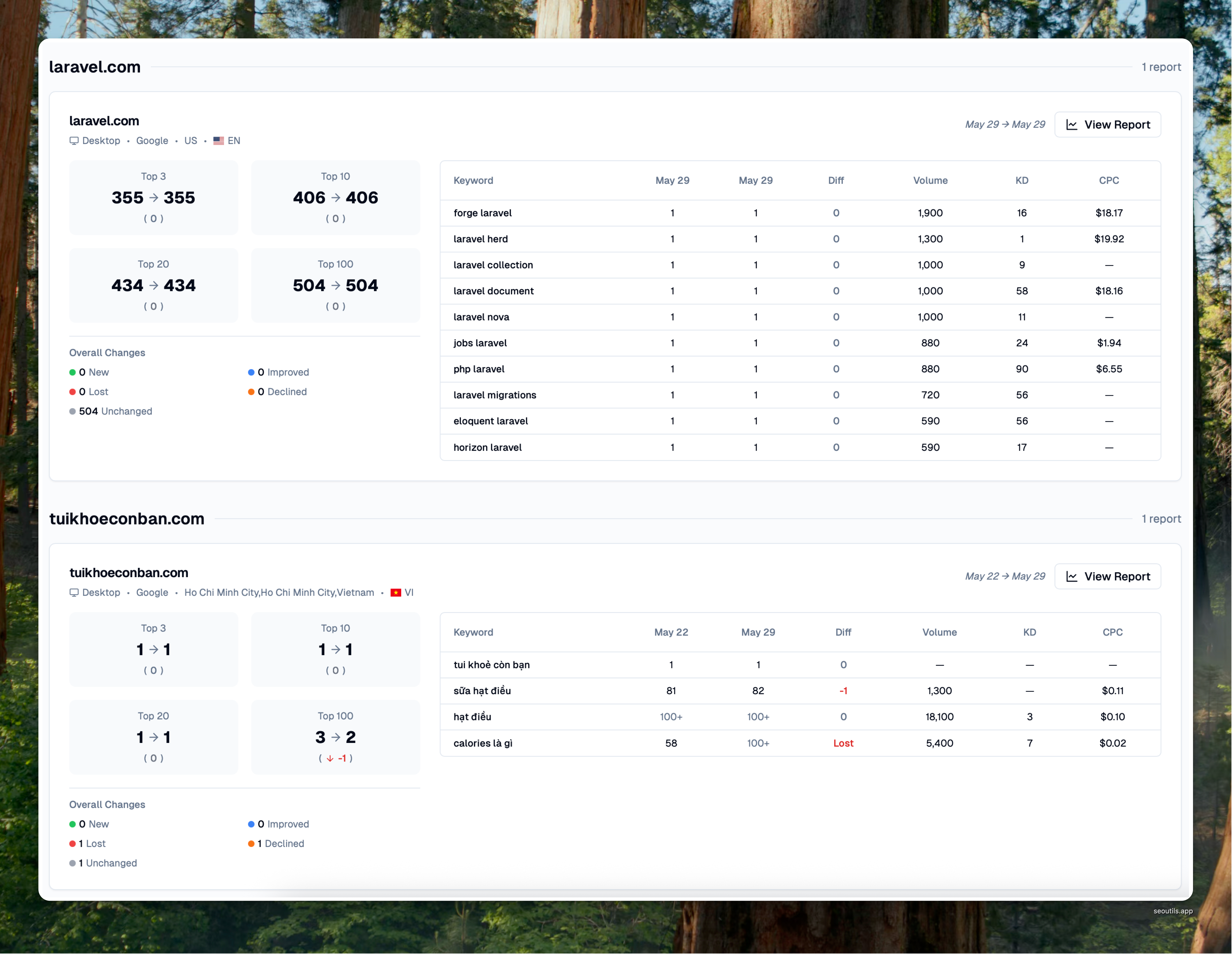
The dashboard intelligently groups your reports by domain, making it easy to monitor performance across different configurations.

<figure><img src="/files/qpu3KKi5xjQTg6wXtKGA" alt=""><figcaption><p>Reports grouped by domain for easy comparison</p></figcaption></figure>

**Benefits of Domain Grouping:**

* **Compare device performance** - See how your mobile vs desktop rankings differ
* **Monitor multiple locations** - Track performance across different countries or cities
* **Unified domain view** - All reports for a domain are visually grouped together

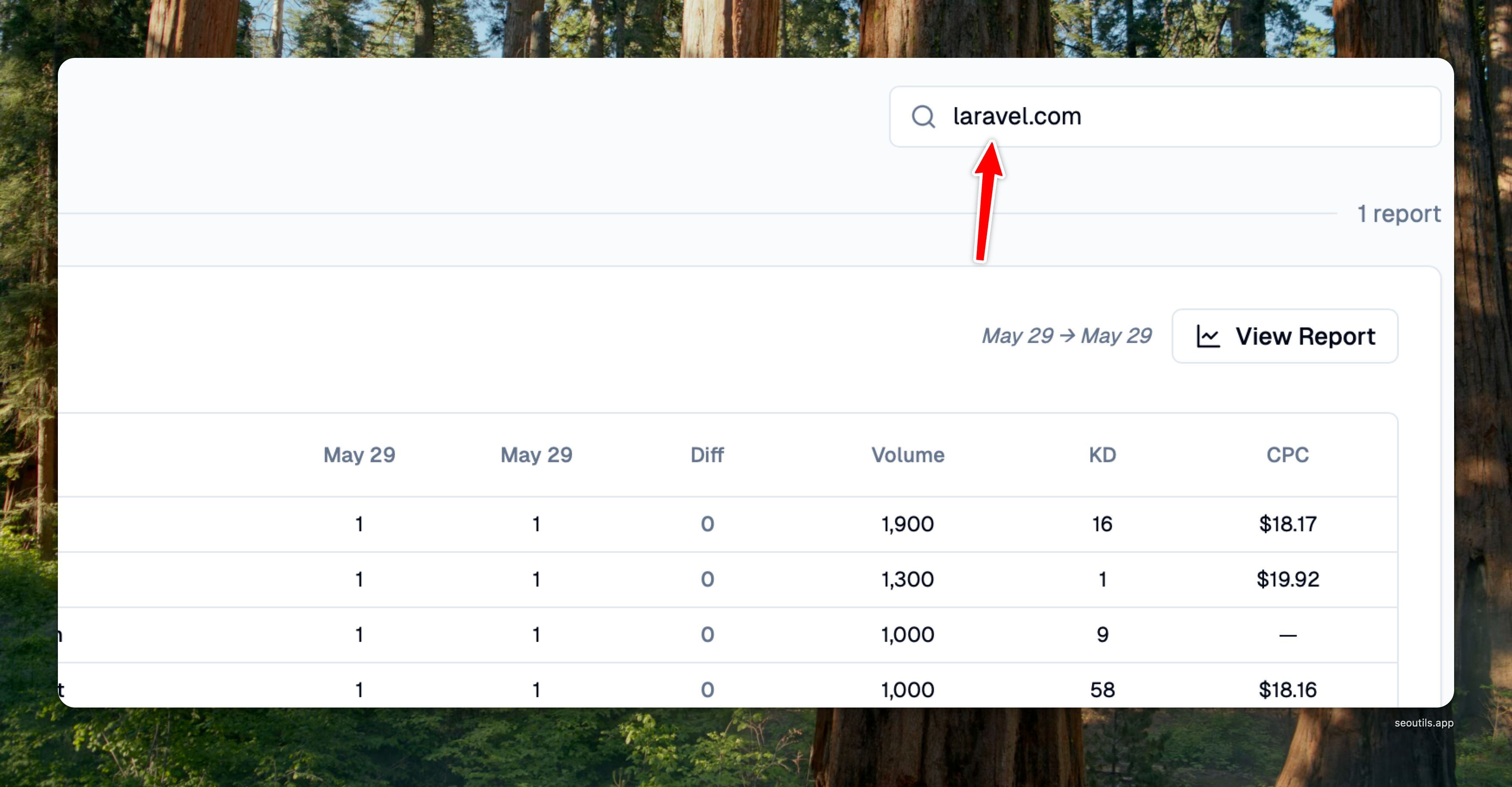
### Domain Search

Quickly find specific domains using the search bar. This is especially helpful when managing many domains.

<figure><img src="/files/WfDzDUJQCdI36rAmptnE" alt=""><figcaption><p>Filter reports by domain name</p></figcaption></figure>

## Understanding Report Cards

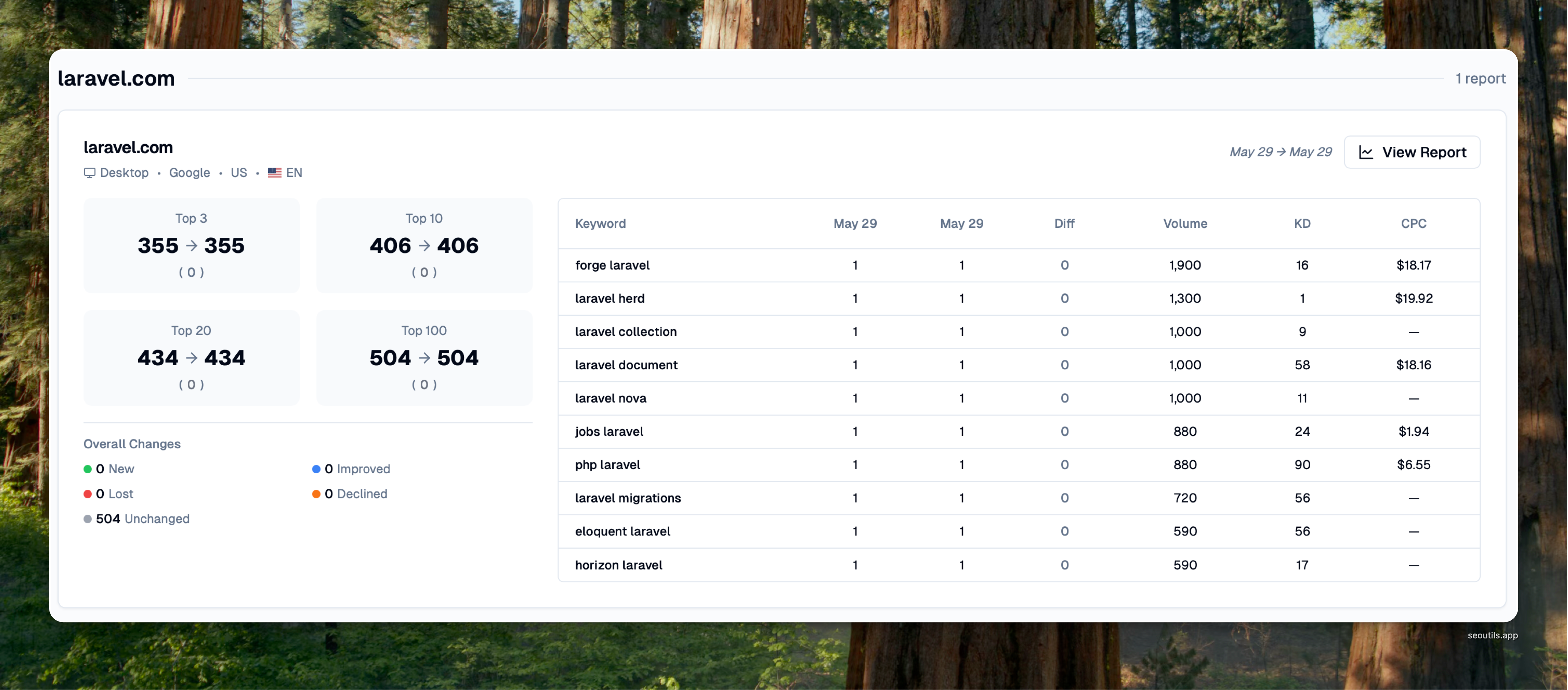
Each report is displayed as a card containing comprehensive ranking data and metrics.

<figure><img src="/files/gN8O8NoWwI6rc1T0rmsm" alt=""><figcaption><p>Report card</p></figcaption></figure>

### Card Header

The card header displays:

* **Domain name** (e.g., laravel.com)
* **Actual comparison dates** (e.g., Feb 20, 2025 → May 29, 2025)
* **Report configuration**: Device type, search engine, location, and language
* **View Report button** to access the full report details

{% hint style="warning" %}
**Important: Closest Available Dates**

The dates shown in the card header (next to the View Report button) are the actual dates being compared, which may differ from your selected date range. The system automatically finds the closest available snapshot dates for each report.

For example:

* You select: May 25-29, 2025
* Report only has data for: Feb 20 and May 29, 2025
* Dashboard shows: Feb 20 → May 29 comparison
  {% endhint %}

### Metrics Section (Left Side)

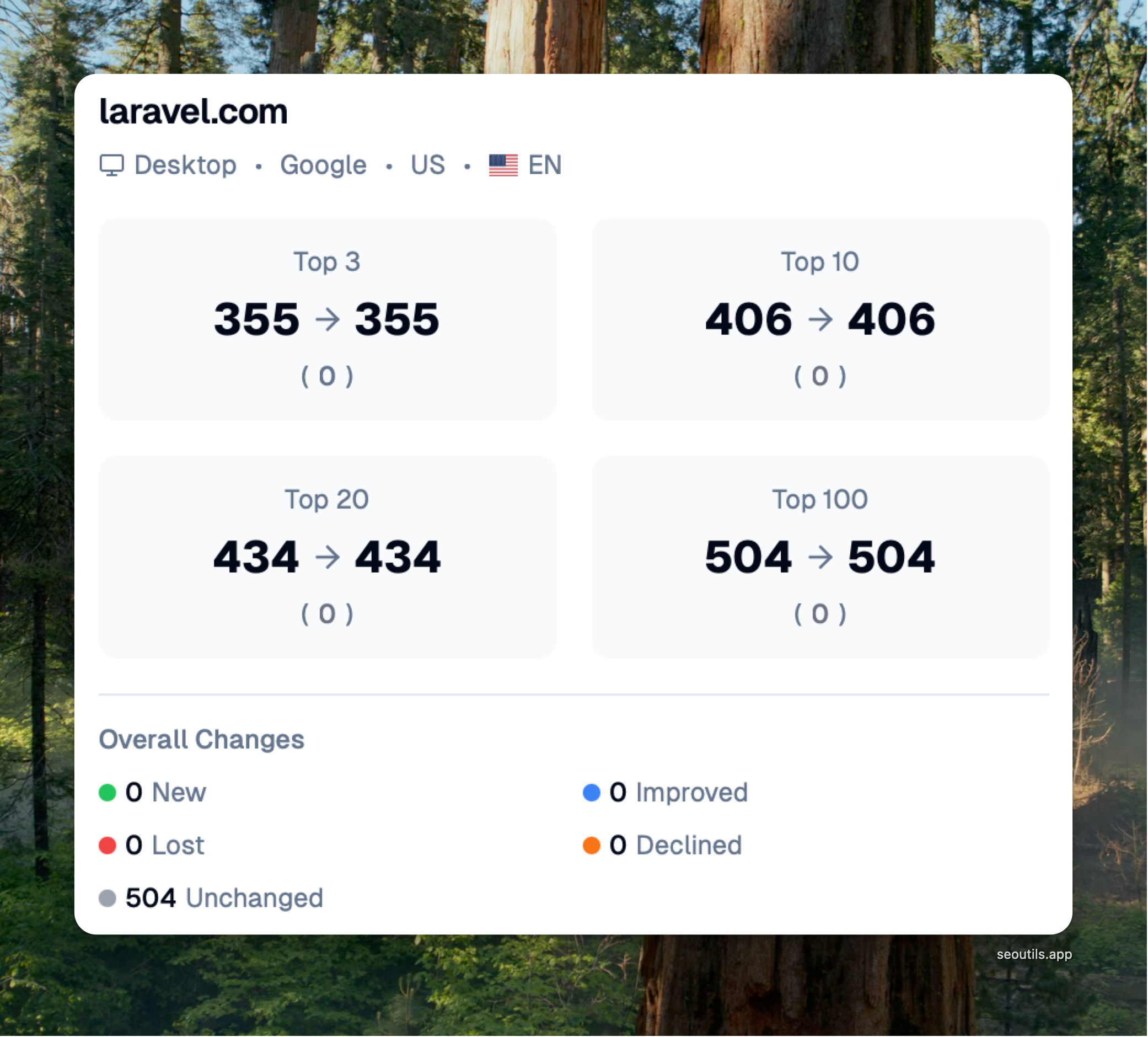
<figure><img src="/files/IhUGgcGBelkLQEQ5dKXM" alt=""><figcaption><p>Metric section</p></figcaption></figure>

The left side of each card displays position distribution metrics:

#### Position Rankings

* **Top 3**: Keywords ranking in positions 1-3
* **Top 10**: Keywords ranking in positions 1-10
* **Top 20**: Keywords ranking in positions 1-20
* **Top 100**: Keywords ranking in positions 1-100

Each metric shows:

* Previous count → Current count
* Change indicator (↑ increase, ↓ decrease)
* Net change value in parentheses

#### Overall Changes

Below the position rankings, you'll find the overall change summary:

* 🟢 **New**: Keywords that started ranking (weren't ranking before)
* 🔵 **Improved**: Keywords that improved their positions
* 🔴 **Lost**: Keywords that stopped ranking (were ranking before)
* 🟠 **Declined**: Keywords that dropped in positions
* ⚪ **Unchanged**: Keywords that maintained their positions

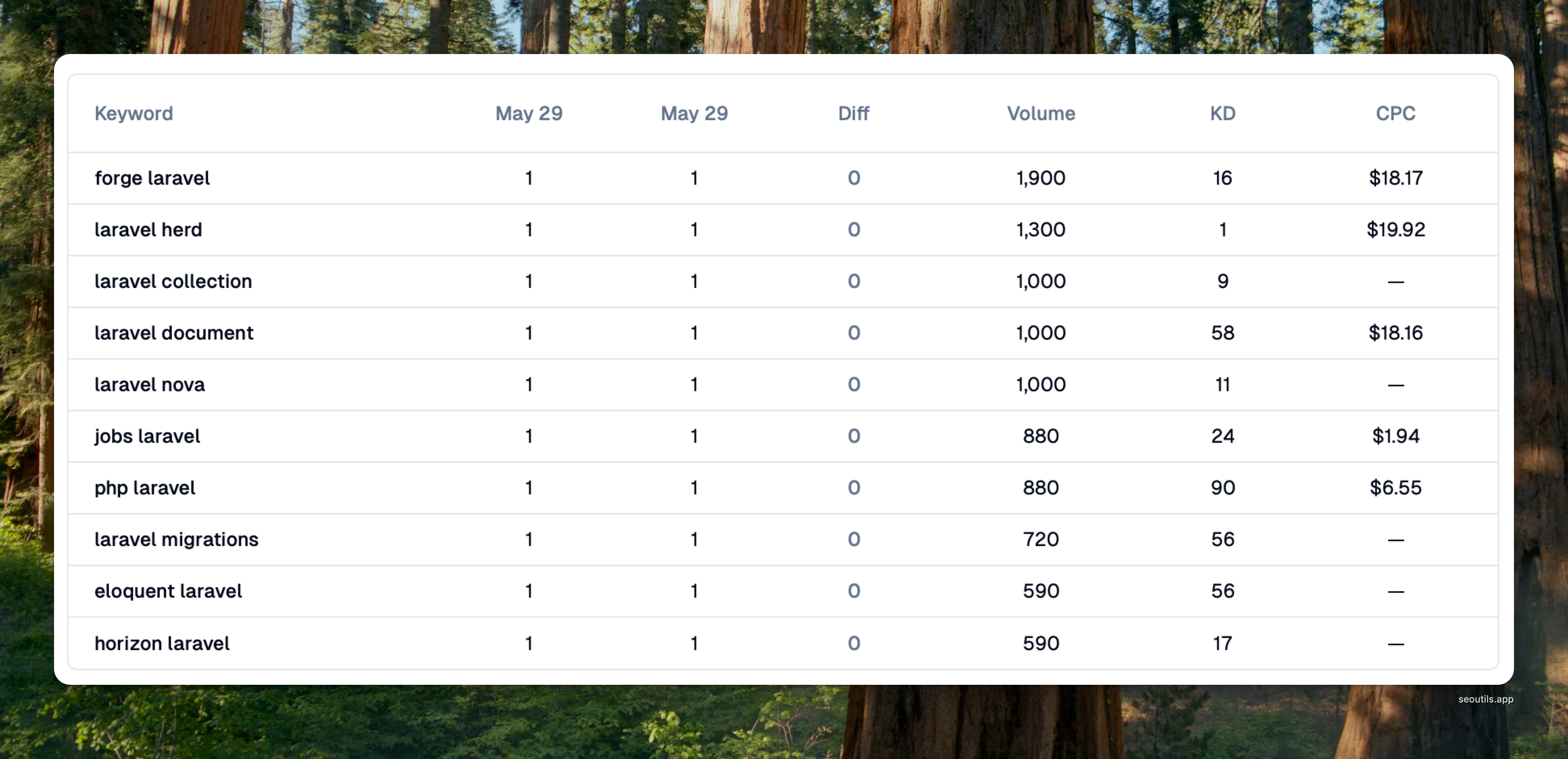
### Keywords Table (Right Side)

<figure><img src="/files/DABIQ39cDArINvLH3vIj" alt=""><figcaption><p>Top 10 performing keywords</p></figcaption></figure>

The right side displays the top 10 performing keywords with:

* **Keyword**: The tracked keyword
* **Position columns**: Shows positions for both comparison dates
* **Diff**: Position change (positive = improvement, negative = decline)
* **Volume**: Monthly search volume
* **KD**: Keyword difficulty score
* **CPC**: Cost per click value

{% hint style="info" %}
**Keyword Sorting**

Keywords are sorted by best current position, with search volume as a secondary sort to ensure consistent ordering when multiple keywords have the same position.
{% endhint %}

## Important Notes

### Understanding Domain Grouping

The dashboard makes it easy to manage multiple reports for the same domain:

* **Visual grouping** - All reports for a domain appear together under a domain header
* **Separate cards** - Each configuration (device/location) gets its own card for detailed analysis
* **Combined chart data** - The average position chart intelligently combines all reports for a domain into one line

{% hint style="success" %}
**Perfect for Multi-Location Tracking**: If you track "mysite.com" for New York, Los Angeles, and Chicago, you'll see:

* 3 separate cards showing detailed metrics for each city
* 1 line in the chart showing the overall average performance
* All 3 cards grouped together under "mysite.com" for easy comparison
  {% endhint %}

## Common Use Cases

**1. Quick Performance Overview**\
Use the dashboard to get a bird's-eye view of how all your tracked domains are performing without opening individual reports.

**2. Identify Trends**\
The average position chart helps you spot overall trends across your portfolio of tracked domains.

**3. Spot Issues Quickly**\
The change metrics (New, Improved, Lost, Declined) help you quickly identify domains that need attention.

**4. Compare Time Periods**\
Use the date filter to compare different time periods and understand how your rankings have evolved.

## Tips for Best Results

### Monitoring Multiple Locations

When tracking the same domain across different locations:

* Each location gets its own detailed card
* The chart combines all locations to show overall trend
* Use this to identify which locations perform best

### Device Comparison

Track both mobile and desktop for comprehensive insights:

* Quickly spot mobile vs desktop ranking differences
* Identify device-specific SEO opportunities
* All device data for a domain stays grouped together

### Using Date Comparisons

The dates shown next to "View Report" button are the actual dates being compared:

* These may differ from your selected range if exact dates aren't available
* The system automatically finds the closest available data
* All metrics in the card use these same dates for accuracy

{% hint style="info" %}
**No data showing?** Check if the report has tracking data within your selected date range. The system needs at least two different dates with data to show comparisons.
{% endhint %}


---

# Agent Instructions: Querying This Documentation

If you need additional information that is not directly available in this page, you can query the documentation dynamically by asking a question.

Perform an HTTP GET request on the current page URL with the `ask` query parameter:

```
GET https://help.seoutils.app/guide/dashboard/organic-rank-tracker.md?ask=<question>
```

The question should be specific, self-contained, and written in natural language.
The response will contain a direct answer to the question and relevant excerpts and sources from the documentation.

Use this mechanism when the answer is not explicitly present in the current page, you need clarification or additional context, or you want to retrieve related documentation sections.