> For the complete documentation index, see [llms.txt](https://help.seoutils.app/llms.txt). Markdown versions of documentation pages are available by appending `.md` to page URLs; this page is available as [Markdown](https://help.seoutils.app/guide/ai-visibility.md).

# AI Visibility

AI Visibility shows how often AI answers (Google AI Overviews and ChatGPT) name your brand compared with your competitors, and where they win instead of you. Every number leads to the real prompts and answers behind it, and to the sites AI cites.

It reads DataForSEO's database of real AI answers, so you don't write a prompt list first. Type a website or brand name and the results arrive in seconds. When you have your findings, [export them as CSV files](#exporting-to-csv) or hand a client a [ready-made report](#client-report).

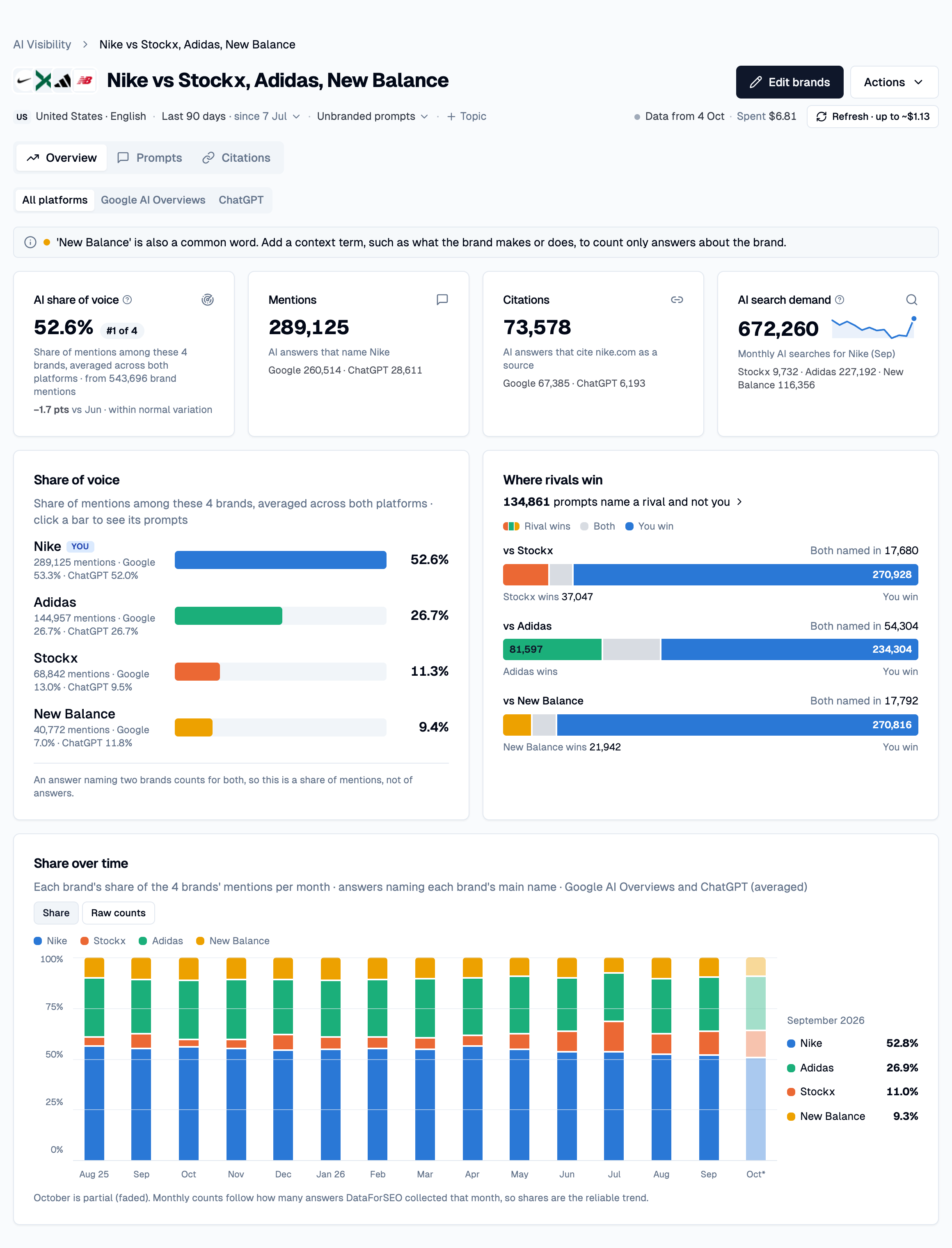
<div data-full-width="true"><figure><img src="https://1176579443-files.gitbook.io/~/files/v0/b/gitbook-x-prod.appspot.com/o/spaces%2F2DwV6sJBiKjUHMDggb4d%2Fuploads%2Fgit-blob-19a62685b5b8059e122dc1e40bf573b9fb31e9aa%2Fai-visibility-overview.png?alt=media" alt=""><figcaption><p>The Overview of an exploration: the four key numbers, share of voice, where rivals win and the share over time</p></figcaption></figure></div>

{% hint style="info" %}
**AI Visibility or** [**LLM Rank Tracker**](/guide/llm-rank-tracker.md)**?** AI Visibility reads answers DataForSEO has already collected. It doesn't run your prompts. The LLM Rank Tracker runs your own prompts on a schedule. Use AI Visibility to find the prompts worth tracking, then [send them across](#track-prompts-in-llm-rank-tracker).
{% endhint %}

## What You Need

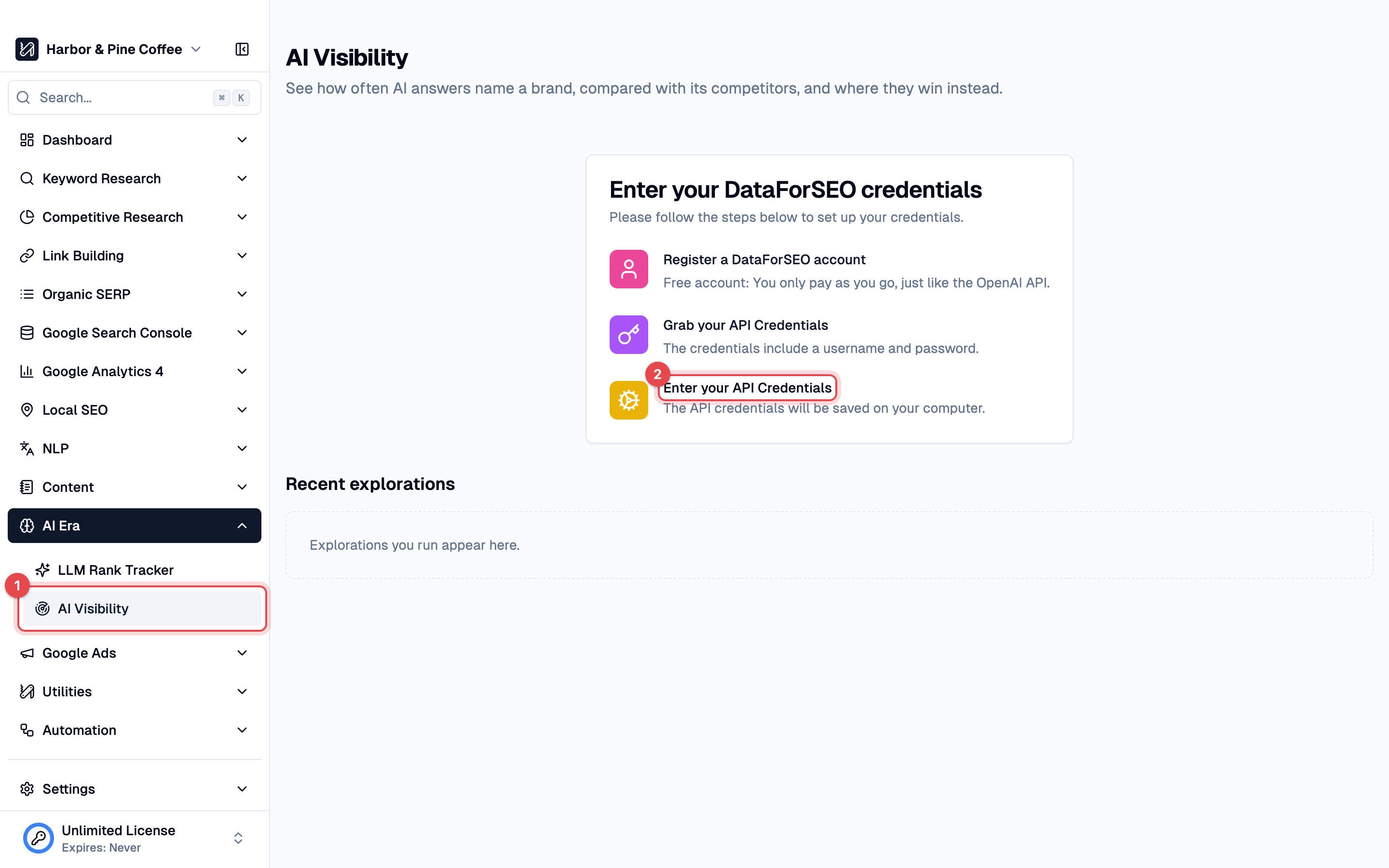
* **A DataForSEO login or an SEO Utils rental key.** Add your own API credentials in **Settings > Services > DataForSEO Settings**. See [SEO Data Source](/guide/seo-data-source.md#how-to-connect-your-dataforseo-account-to-seo-utils). AI Visibility can also run on your SEO Utils rental credits instead of your own login: see [Rent DataForSEO API Key](/guide/rent-dataforseo-api-key.md#use-your-credits-for-ai-visibility). Without either, the AI Visibility page shows the setup steps instead of the form.
* **Sandbox Mode turned off** when you use your own login. Sandbox Mode returns dummy data, so AI Visibility refuses to run while it is on. Turn it off in the same settings.

<figure><img src="https://1176579443-files.gitbook.io/~/files/v0/b/gitbook-x-prod.appspot.com/o/spaces%2F2DwV6sJBiKjUHMDggb4d%2Fuploads%2Fgit-blob-73ed6e20b6e493817d5ecf5bd7b57621fe59c3ad%2Fai-visibility-credentials.png?alt=media" alt=""><figcaption><p>Open <strong>AI Era > AI Visibility</strong> (1). Without credentials, the page lists the setup steps, and the last one (2) opens the settings</p></figcaption></figure>

AI Visibility is available in the desktop app. With [Remote Access](/guide/remote-access.md), the owner can also [use it in the browser](#using-ai-visibility-in-the-browser). Your DataForSEO login or rental key stays on your computer, so you add or change it in the desktop app.

## What It Costs

DataForSEO bills your account about $0.10 per request. On a rental key, the same prices are taken from your rental credits instead. Every price SEO Utils shows is an upper bound: you pay only for the requests that are actually sent.

| What you do                                                                                       | Cost                                                                                                                                                                                           |
| ------------------------------------------------------------------------------------------------- | ---------------------------------------------------------------------------------------------------------------------------------------------------------------------------------------------- |
| Reopen an exploration, switch platform on the Overview, open an answer, open **Sources by brand** | Free                                                                                                                                                                                           |
| Load anything already fetched this week                                                           | Free                                                                                                                                                                                           |
| **Explore** (the first load) or **Refresh**                                                       | Up to the price on the button. For example, six brands in the United States show up to about $1.65, or about $0.43 for a Refresh in the second week ([why](#how-long-share-over-time-is-kept)) |
| Find competitor suggestions                                                                       | About $0.10, not counted in **Spent**                                                                                                                                                          |
| Open **Prompts** or a page list on **Citations**                                                  | The price shows in the toolbar while it loads. Above 10 requests or $1.00 it asks first                                                                                                        |
| **Save changes** in **Edit brands**                                                               | Free. The next load pays only for what is new                                                                                                                                                  |
| **Export shares & gaps CSV**, **Export as HTML**, **Download PDF**, **Print or save as PDF**      | Free                                                                                                                                                                                           |
| **Export citations CSV**, **Export prompts as CSV**                                               | Free for what is already loaded this week. Otherwise the dialog shows the price first                                                                                                          |
| Open the **Client report**                                                                        | Free when its top prompts are already loaded. Otherwise up to the price shown ([details](#client-report))                                                                                      |

**Results are cached per data week.** A data week runs from Monday to Sunday (UTC). Every number you fetch is reused for free by any exploration with the same brands, market and scope, until the next Monday. The first load of a new week pays again.

### How Long Share Over Time Is Kept

**Share over time** is the biggest part of the price, so SEO Utils keeps it in the cache for up to 2 weeks. Numbers fetched in one data week are reused for free through the next one. Everything else still refreshes weekly.

* It is never reused once a new calendar month (UTC) starts, because the new month would have no bar yet.
* A **Refresh** in the second week therefore costs about $0.43 instead of about $1.65 (six brands, United States).
* The note under the chart gives the date of its numbers, for example "Share over time from 9 Oct 2026 · kept up to 2 weeks to save cost". The [client report](#client-report) shows the same note.

To fetch fresh history, go to **Settings > Services > DataForSEO Local Cache**, click **"Clear Cache & History"**, then **Refresh**. This clears the cached answers of every DataForSEO tool, so the next loads in other tools pay again too.

## Starting an Exploration

{% stepper %}
{% step %}

#### Enter a Website or Brand Name

Go to **AI Era > AI Visibility**, type a **website or brand name** (1, for example `nike.com` or `Nike`), choose the **Market** (2), and click **"Continue"** (3).

* The market is one country and language, or **Worldwide**. It starts on your app's default location, else United States.
* Google AI Overviews covers every market in the list. ChatGPT covers the United States (English) only. On Worldwide it is labelled **ChatGPT · US only**. **How the data works** under the form explains the coverage.
* For a website, SEO Utils reads its home page to find the brand's name. You can edit the name on the next screen.

<figure><img src="https://1176579443-files.gitbook.io/~/files/v0/b/gitbook-x-prod.appspot.com/o/spaces%2F2DwV6sJBiKjUHMDggb4d%2Fuploads%2Fgit-blob-d473f98f2c1206ea362eed3af75a16656135edb9%2Fai-visibility-start.png?alt=media" alt=""><figcaption><p>The start page: the website or brand name (1), the market (2) and <strong>Continue</strong> (3). Your latest explorations are listed under <strong>Recent explorations</strong></p></figcaption></figure>
{% endstep %}

{% step %}

#### Review the Brands and Competitors

* **Your brand** (1): the **Brand name**, an optional **Website**, up to two **Other spellings** and an optional **Context term**. A brand without a website works, but its citations show "—".
* **Competitors** (2): SEO Utils suggests competitors found in AI answers, each with a badge (**Cited in your answers** or **Named with you on ChatGPT**) and an answer count. Tick up to five. The counter reads **2 of 5 selected**. Or click **"Add competitor"**. This lookup runs on **Continue** and costs about $0.10 the first time (**Finding competitors · \~$0.10**). It doesn't repeat by itself when you change the brand name or the scope. Click **"Suggest again"** to refresh the suggestions.
* **Market & scope** (3): the **Market**, **Answers collected in the last** 30, 90 (default), 180 days or **All time**, an optional **Topic** (only prompts whose question contains it count), and **Exclude branded prompts** (on by default). With it on, a prompt that already contains a brand's own name doesn't count for that brand.

{% hint style="info" %}
If a name is also a common word (for example "Target") or a phrase of two or three everyday English words ("New Balance", "Best Buy", "Whole Foods"), the review card and the Overview suggest a **Context term**, such as what the brand makes or does. Only answers that also contain the term are counted.

The hint reads, for example, "'New Balance' is also a common phrase. Add a context term, such as what the brand makes or does, to count only answers about the brand." It disappears once the brand has a context term. It checks English names only for now.
{% endhint %}

<figure><img src="https://1176579443-files.gitbook.io/~/files/v0/b/gitbook-x-prod.appspot.com/o/spaces%2F2DwV6sJBiKjUHMDggb4d%2Fuploads%2Fgit-blob-dfd82eaabe32f1601b9e568ccf9fd2b453071fa7%2Fai-visibility-review.png?alt=media" alt=""><figcaption><p>The review card: your brand (1), the suggested competitors (2), the market and scope (3) and <strong>What this costs</strong> (4)</p></figcaption></figure>
{% endstep %}

{% step %}

#### Check the Price and Explore

**What this costs** (4) lists the requests per part (**Share of voice & citations**, **Where rivals win**, **Monthly history**, **AI search demand**) and a total. The button shows the same upper bound, for example **Explore · up to \~$0.11** when most numbers are already cached, or **Explore · free** when all of them are.

Click **"Explore"**. The Overview opens and fills in part by part.
{% endstep %}
{% endstepper %}

<details>

<summary>How names are matched</summary>

* A **mention** is one answer that names the brand, however many times it does.
* Upper and lower case don't matter, but accents do: "Müller" doesn't count "Muller". Add the other spelling under **Other spellings** to count both.
* A name of several words is matched as a phrase, in that order.

</details>

## The Exploration Header

<figure><img src="https://1176579443-files.gitbook.io/~/files/v0/b/gitbook-x-prod.appspot.com/o/spaces%2F2DwV6sJBiKjUHMDggb4d%2Fuploads%2Fgit-blob-83c80303b131c43977414d95a890ae1ca72ffefa%2Fai-visibility-header.png?alt=media" alt=""><figcaption><p>The exploration header: <strong>Edit brands</strong> (1), <strong>Actions</strong> (2), the scope settings (3), the data status and load button (4) and the tabs (5)</p></figcaption></figure>

* **Edit brands** reopens the review card with everything filled in, and the market can change here. **Save changes** spends nothing: the Overview shows **Needs refresh** until you load it, and the card shows what that costs.
* **Actions** has **Export shares & gaps CSV**, **Export citations CSV**, **Client report**, **Rename**, **Duplicate** (same brands, market and report settings, no saved results) and **Delete**. The first three are described under [Exporting to CSV](#exporting-to-csv) and [Client Report](#client-report).
* **The line under the name** holds the scope. The market is read-only. The window menu (**Last 90 days · since 7 Jul**), **Unbranded prompts** / **All prompts** and **Topic** each change the exploration, and each asks you to confirm the price first (**Apply and load**).
* **Data from** is when the saved results were fetched. It dates the parts a Refresh renews and leaves out the reused [Share over time](#how-long-share-over-time-is-kept), which has its own date on the chart. **Needs refresh** means the brands or scope changed since. **Spent** is what this exploration has cost, without competitor suggestions.
* The load button reads **Refresh · up to \~$X** when everything is current, and fetches every number again, cached ones included, except the Share over time that is still kept. When a part is missing or out of date it reads **Load · up to \~$X** and fetches only those parts.

While a load runs, the Overview shows its progress and a **Stop** button. Requests already sent still finish, and **Edit brands** and the scope settings wait.

## Overview

The platform control at the top is **All platforms**, **Google AI Overviews** or **ChatGPT**. ChatGPT only appears for the United States and Worldwide. Under **All platforms**, share of voice is the average of the platforms, and **Mentions** and **Citations** show each platform's count.

* **AI share of voice**: your share of the brand mentions among the brands in the exploration, with your rank (**#1 of 4**) and the change against three months earlier when there is enough data. An answer that names two brands counts for both, so it is a share of mentions, not of answers. **Low data** appears below 30 brand mentions.
* **Mentions**: answers that name you. **Citations**: answers that cite your website as a source ("—" without a website). **AI search demand**: monthly AI searches for your brand name (hidden on Worldwide).
* **Share of voice**: one bar per brand.
* **Where rivals win**: how many prompts name a rival and not you, then one strip per competitor with **They win**, **Both** and **You win**.
* **Share over time**: each brand's share per month. **Raw counts** shows mentions instead. Monthly counts follow how many answers DataForSEO collected that month, so the shares are the reliable trend. A note under the chart dates its numbers, because they are [kept for up to 2 weeks](#how-long-share-over-time-is-kept).
* **Countries** (Worldwide only): your top 10 countries. **Explore this market** asks for the price first.

With few mentions, **Try 180 days**, **Try all time** or **Try Worldwide** offers a wider scope with its price. With none, **Not in AI answers yet** shows the top prompts where the leading competitor appears and you don't (a small extra load of about $0.11, with its price shown) and the domains AI cites for your competitors.

Every number is a link. It opens the prompts or sources behind it.

## Prompts

The **Prompts** tab lists the real prompts behind a number, with the answer AI gave.

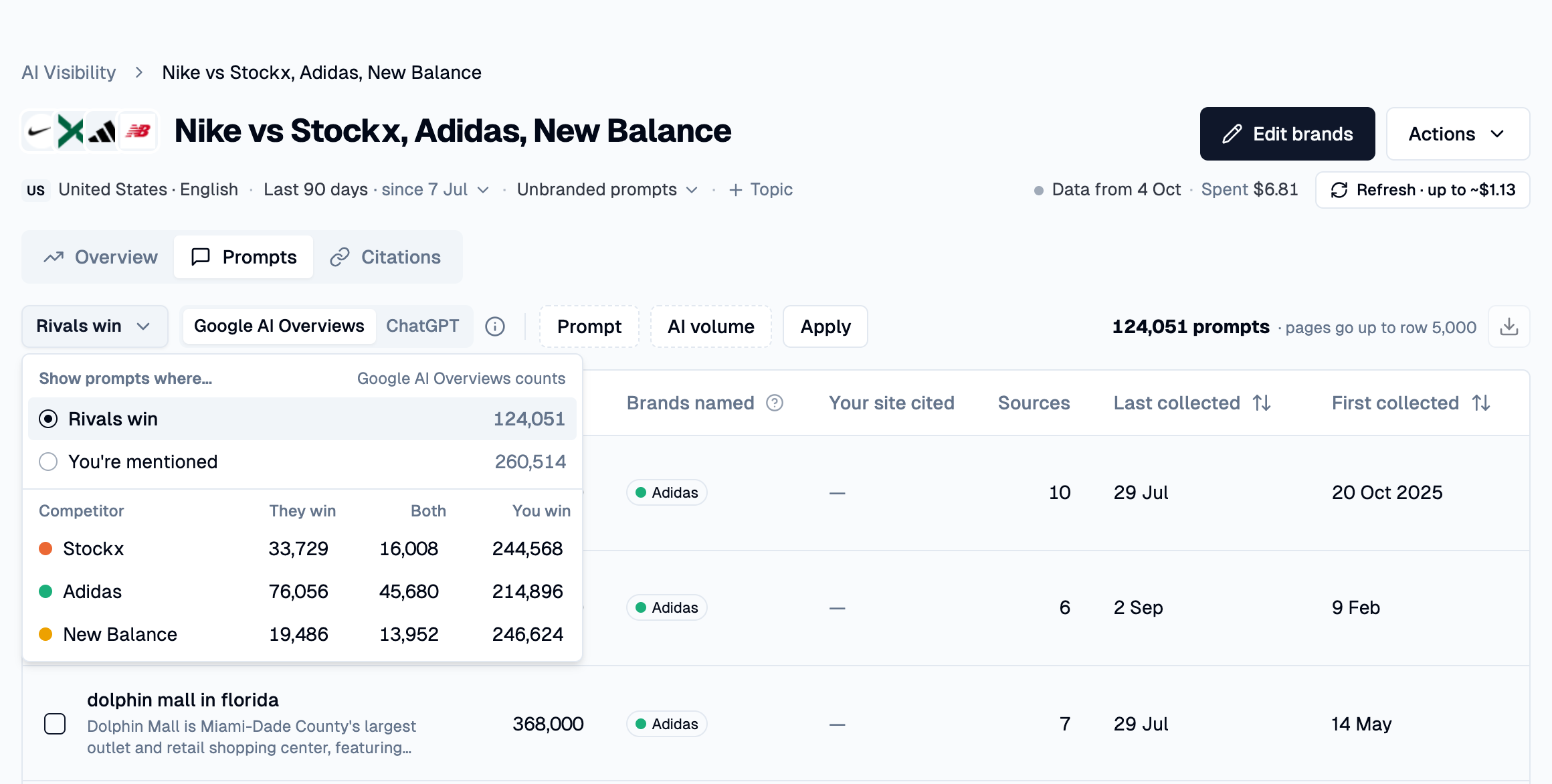
<figure><img src="https://1176579443-files.gitbook.io/~/files/v0/b/gitbook-x-prod.appspot.com/o/spaces%2F2DwV6sJBiKjUHMDggb4d%2Fuploads%2Fgit-blob-9484d2b48954a0e5b84b914c0eea2c512fb76703%2Fai-visibility-prompts.png?alt=media" alt=""><figcaption><p>The Prompts tab with the list picker open: <strong>Rivals win</strong>, <strong>You're mentioned</strong> and the <strong>They win / Both / You win</strong> counts of each competitor, for the platform shown</p></figcaption></figure>

* **List picker** (the first control): **Rivals win** (the default) is prompts that name a competitor and not you. **You're mentioned** is prompts that name you. For each competitor, **They win**, **Both** and **You win** open that group.
* **Platform**: **Google AI Overviews** or **ChatGPT**. A list shows one platform at a time, so under **All platforms** it shows Google.
* **Filters**: **Prompt** (contains or doesn't contain a word or phrase) and **AI volume** (minimum and maximum). Click **"Apply"** to load the filtered list.
* **Columns**: **Prompt**, **AI volume**, **Brands named**, **Your site cited**, **Sources**, **Last collected** and **First collected**. Sort by **AI volume** (default, highest first) or either date. AI volume estimates how often people ask a prompt. The platforms measure it differently, so compare it within one platform only.
* The count on the right (for example **124,051 prompts**) is exact. Pages go up to row 5,000, so refine the filters for longer lists. The download icon next to it [exports the list as CSV](#exporting-prompts).

**Cost.** Opening a list or a new page of it costs money unless it is cached, with the [limits above](#what-it-costs). The toolbar shows **Loading this list costs up to \~$0.20** while it loads. A bigger load asks first (**Load page** or **Cancel**). A list that reloads without a click, for example after **Edit brands**, never pays by itself. It shows **Not loaded** and a **Load list** button.

### The Answer Drawer

Click a prompt to open its answer. Opening it is free.

<figure><img src="https://1176579443-files.gitbook.io/~/files/v0/b/gitbook-x-prod.appspot.com/o/spaces%2F2DwV6sJBiKjUHMDggb4d%2Fuploads%2Fgit-blob-f9520653930e6a7a5d20e502d540f203e4223c6b%2Fai-visibility-answer-drawer.png?alt=media" alt=""><figcaption><p>The answer drawer: the prompt, its volume and dates, whether you are named and cited, the answer with brand highlights, and its sources</p></figcaption></figure>

* **The header** shows the platform and market, the AI volume with a 12-month trend, the first and last collection dates, whether you are named and cited, and the brands named.
* **The answer** has every brand's name highlighted in its colour. Images load only after you click **Show**.
* **Sources** lists the pages the answer cites, with a **Your site** or **Rival's site** badge. A source marked **This page** is the page you came from in Citations.
* On ChatGPT you also see **Retrieved, not cited**, **Fan-out queries** and **Brand entities**.
* The icons copy the prompt, open it in Google or ChatGPT, or track it.

### Track Prompts in LLM Rank Tracker

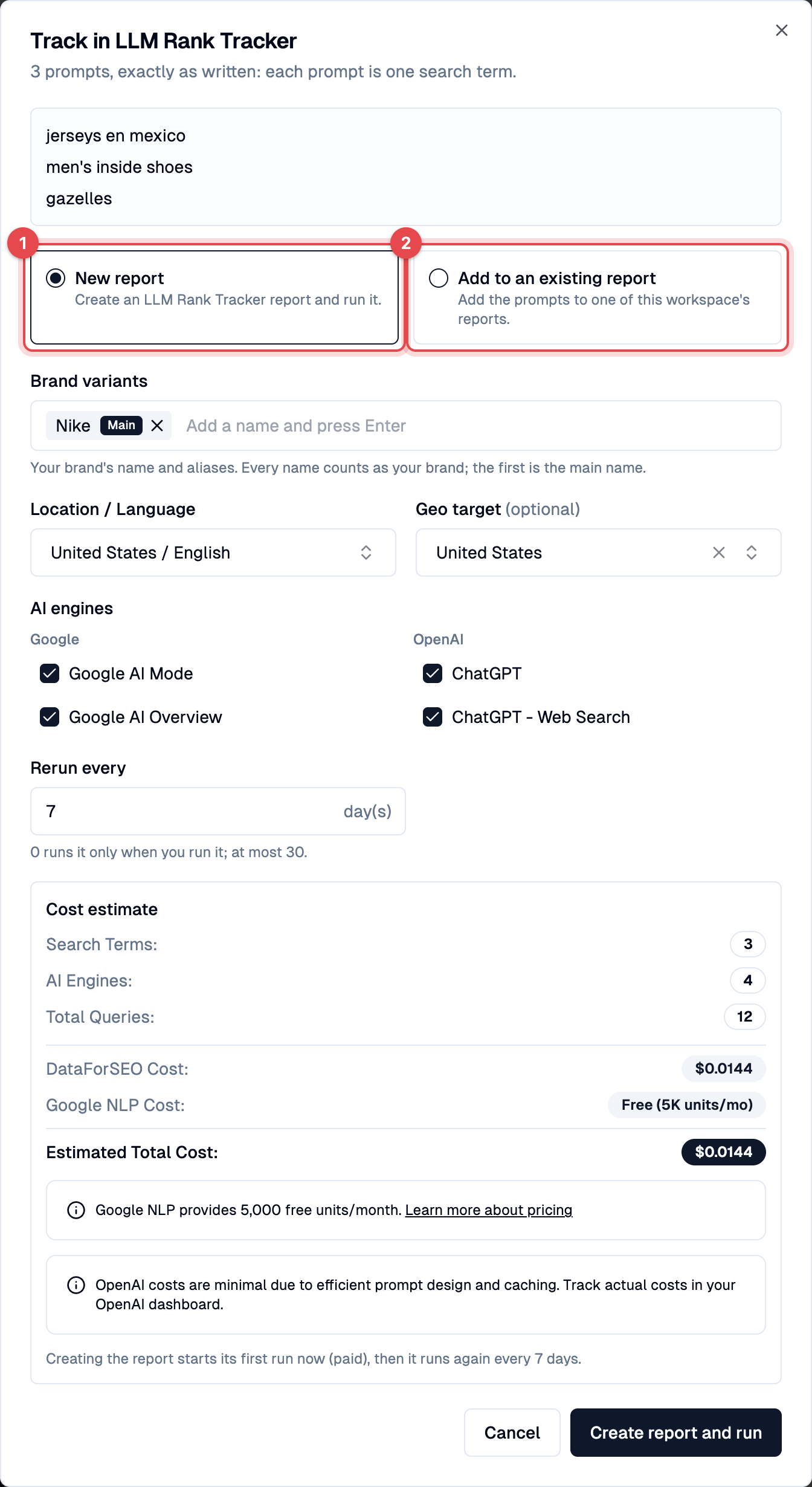
Select prompts with the checkboxes and click **Track in** [**LLM Rank Tracker**](/guide/llm-rank-tracker.md), or click the track icon in the drawer for one prompt.

<figure><img src="https://1176579443-files.gitbook.io/~/files/v0/b/gitbook-x-prod.appspot.com/o/spaces%2F2DwV6sJBiKjUHMDggb4d%2Fuploads%2Fgit-blob-f2d12f479d82d82f34f58b59269867de63d3966c%2Fai-visibility-track-dialog.png?alt=media" alt=""><figcaption><p>The <strong>Track in LLM Rank Tracker</strong> dialog: <strong>New report</strong> (1) or <strong>Add to an existing report</strong> (2)</p></figcaption></figure>

| Option                            | What happens                                                                                                                                                                                                                                                                                                                                                                                                     |
| --------------------------------- | ---------------------------------------------------------------------------------------------------------------------------------------------------------------------------------------------------------------------------------------------------------------------------------------------------------------------------------------------------------------------------------------------------------------- |
| **New report** (1)                | Creates an LLM Rank Tracker report and runs it now. Check the **Brand variants**, **Location / Language**, **AI engines**, **Rerun every** and **Cost estimate**, then click **"Create report and run"**. The first run is paid. It needs your DataForSEO credentials and an AI provider key, as in the [LLM Rank Tracker setup](/guide/llm-rank-tracker.md#initial-setup-configuring-required-api-credentials). |
| **Add to an existing report** (2) | Adds the prompts to a report in this workspace. Free. Prompts it already tracks are skipped, and the new ones are tracked from its next run.                                                                                                                                                                                                                                                                     |

Each prompt is added exactly as written. Prompts over 700 characters are skipped because Google AI Mode can't take them.

## Citations

The **Citations** tab shows which sites AI cites. Choose a list with the picker at the top left.

### Sources by Brand

Free. Each row is a domain and each column a brand: the number of answers naming that brand that cite the domain, both platforms together. A **Your site** or **Rival's site** badge marks the tracked brands' own sites. "—" means the domain isn't among that brand's top 10. Click a count to open the matching prompts.

<figure><img src="https://1176579443-files.gitbook.io/~/files/v0/b/gitbook-x-prod.appspot.com/o/spaces%2F2DwV6sJBiKjUHMDggb4d%2Fuploads%2Fgit-blob-befda1a71ef59aea9140da02a2cc00f97b4969a0%2Fai-visibility-citations-sources.png?alt=media" alt=""><figcaption><p><strong>Sources by brand</strong>: the domains AI cites in answers naming each brand, with a badge on the tracked brands' own sites</p></figcaption></figure>

### Your Cited Pages

The pages that AI cites on your website, labelled **Pages on** *your domain* **and its subdomains**, with **Mentions** (answers citing the page) and **AI volume**. Choose the platform above the list. It needs a website on your brand.

### Cited for a Competitor, Not You

Pick **Cited for** *a competitor***, not you** (1) for the pages cited in answers that name that competitor and not you. It works as an outreach list. **Open answers** (2) opens the matching prompts, filtered to that domain, with the page marked **This page** in each answer's sources.

<figure><img src="https://1176579443-files.gitbook.io/~/files/v0/b/gitbook-x-prod.appspot.com/o/spaces%2F2DwV6sJBiKjUHMDggb4d%2Fuploads%2Fgit-blob-c4d806bc480586d18b1956ee1aa8f47b45eaac6a%2Fai-visibility-citations-gap.png?alt=media" alt=""><figcaption><p>Pages cited for Adidas and not for Nike: the list picker (1) and <strong>Open answers</strong> (2) on each row</p></figcaption></figure>

A page list loads when you open it and follows the same price rules as Prompts. A list you return to loads for free if it is cached. Otherwise it waits for **Load list**.

{% hint style="warning" %}
**Why a count can differ from Prompts.** **Sources by brand** counts one exact website host on both platforms together. When you click a count, Prompts counts the domain and its subdomains on one platform. Either number can be the higher one.
{% endhint %}

## Exporting to CSV

Three exports save a CSV file that opens in Excel and Google Sheets. In the desktop app, each one opens your computer's save dialog, so you choose the file name and the folder. In the browser, the browser downloads the file.

<figure><img src="https://1176579443-files.gitbook.io/~/files/v0/b/gitbook-x-prod.appspot.com/o/spaces%2F2DwV6sJBiKjUHMDggb4d%2Fuploads%2Fgit-blob-0b21139b04762ff22c9eafc3710b64afde49bde9%2Fai-visibility-actions-menu.png?alt=media" alt=""><figcaption><p>The <strong>Actions</strong> menu: <strong>Export shares &#x26; gaps CSV</strong> (1), <strong>Export citations CSV</strong> (2) and <strong>Client report</strong> (3)</p></figcaption></figure>

| Export                           | Where                                              | What the file holds                                                                                                                    |
| -------------------------------- | -------------------------------------------------- | -------------------------------------------------------------------------------------------------------------------------------------- |
| **Export shares & gaps CSV** (1) | **Actions**                                        | The Overview's numbers: share of voice per brand and platform, the gaps against each competitor, **Rivals win** and the monthly shares |
| **Export citations CSV** (2)     | **Actions**, or the download icon on **Citations** | The cited domains of **Sources by brand**, then every page list already loaded                                                         |
| **Export prompts as CSV**        | The download icon on **Prompts**                   | The list on screen, with its sort and filters                                                                                          |

**Export shares & gaps CSV** is free. It reads the loaded Overview, so it shows **Load the Overview first** until there is one.

### Exporting Prompts

Click the download icon (1) on the **Prompts** toolbar. Opening the dialog is free and sends nothing.

<figure><img src="https://1176579443-files.gitbook.io/~/files/v0/b/gitbook-x-prod.appspot.com/o/spaces%2F2DwV6sJBiKjUHMDggb4d%2Fuploads%2Fgit-blob-4b372567ba00af8d6c56997d88b8b371c9e08fed%2Fai-visibility-export-prompts.png?alt=media" alt=""><figcaption><p>The <strong>Export prompts as CSV</strong> dialog: the download icon (1), <strong>Include full answers</strong> (2) and the <strong>Cost</strong> (3)</p></figcaption></figure>

* **List** and **Rows** say what the file will hold: the list on screen, in its order and with its filters. A file stops at 20,000 rows, so filter a long list first.
* **Include full answers** (2) is on by default. It adds the full AI answer to each row, which makes the file bigger. It costs nothing extra.
* **Cost** (3) is the price of the rows the export still has to fetch. Rows already loaded this week are free (**Free: every row is already cached this week**). The figure is an upper bound: you pay only for the requests that are sent. The example is high because it covers 20,000 rows. A shorter list costs less.

Click **"Export"** and choose where to save the file. Each row has the **Prompt**, **Platform**, **Location**, **Language**, **AI search volume**, **Brands named**, **Your site cited**, **Cited domains**, **First collected** and **Last collected**, plus the **Answer** when you included it.

### Exporting Citations

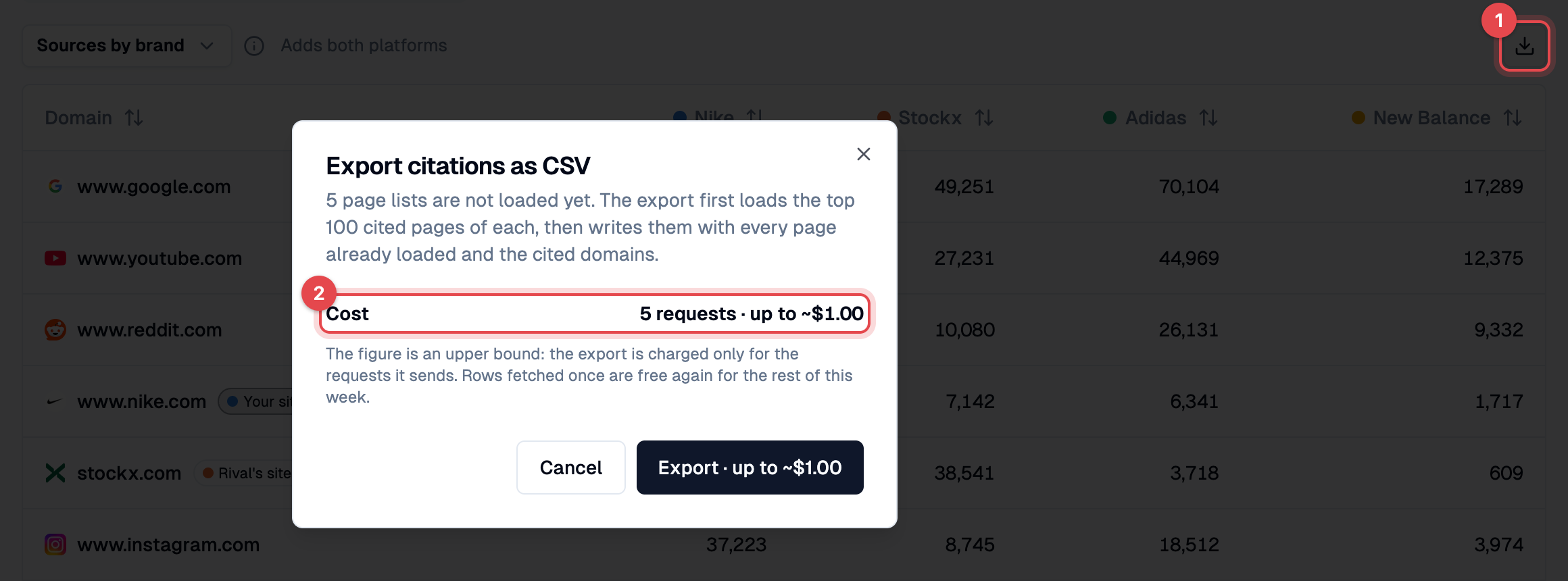
The download icon (1) on **Citations** does the same as **Export citations CSV** in **Actions**. When every page list is loaded, the export is free and goes straight to the save dialog.

Otherwise a dialog opens first. It says how many page lists are missing (**5 page lists are not loaded yet**), and the **Cost** (2) is the price of loading the top 100 cited pages of each. Click **"Export"** to accept it, or **"Cancel"** to send nothing.

<figure><img src="https://1176579443-files.gitbook.io/~/files/v0/b/gitbook-x-prod.appspot.com/o/spaces%2F2DwV6sJBiKjUHMDggb4d%2Fuploads%2Fgit-blob-bee6b4e2a00219141aa182769fc8399aa826a786%2Fai-visibility-export-citations.png?alt=media" alt=""><figcaption><p>The price dialog of <strong>Export citations as CSV</strong>: the download icon (1) and the <strong>Cost</strong> (2) of loading the missing page lists</p></figcaption></figure>

## Client Report

The client report turns the loaded Overview into a document of A4 pages that you can send to a client as a PDF or an HTML file. In the browser, you print the report instead. It shows the Overview as it was last loaded, so load or refresh the Overview first. Otherwise the report asks you to (**Open the Overview**).

{% stepper %}
{% step %}

#### Open the Report

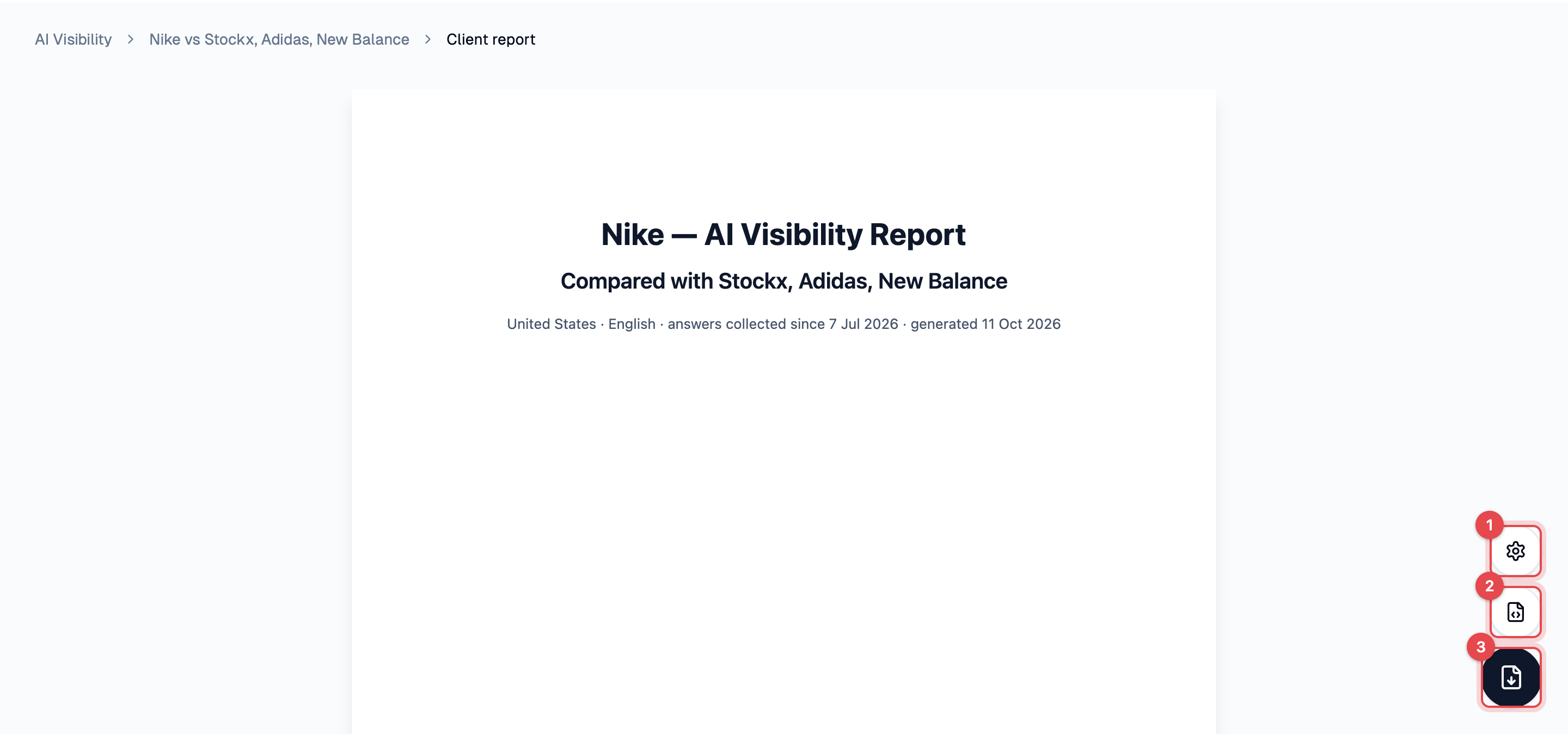
Choose **Actions > Client report**. The report opens on its own page, and its settings and save buttons float at the bottom right: **Report settings** (1), **Export as HTML** (2) and **Download PDF** (3). In the browser, the last two are replaced by one **Print or save as PDF** button.

<figure><img src="https://1176579443-files.gitbook.io/~/files/v0/b/gitbook-x-prod.appspot.com/o/spaces%2F2DwV6sJBiKjUHMDggb4d%2Fuploads%2Fgit-blob-a56ce734c706fb428d8ea426446febbfdfc7f191%2Fai-visibility-report-preview.png?alt=media" alt=""><figcaption><p>The report preview: <strong>Report settings</strong> (1), <strong>Export as HTML</strong> (2) and <strong>Download PDF</strong> (3)</p></figcaption></figure>

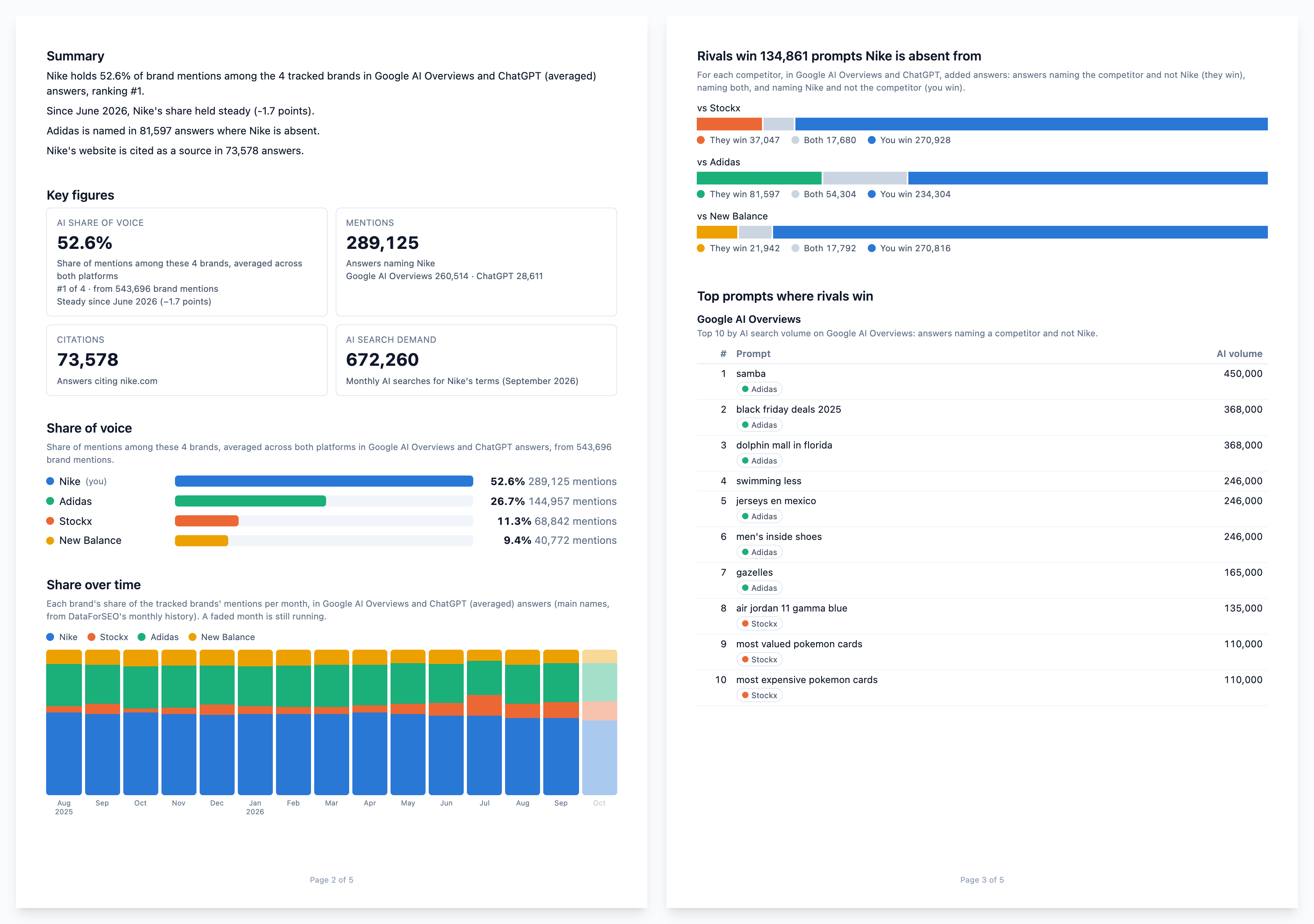
The pages follow this order:

| Section                          | What it shows                                                                                                |
| -------------------------------- | ------------------------------------------------------------------------------------------------------------ |
| **Cover**                        | The logo, heading, subheading and description, on a page of its own                                          |
| **Summary**                      | A few plain sentences: your share and rank, the trend, the rival gaps and your citations                     |
| **Key figures**                  | The key numbers at the top of the Overview                                                                   |
| **Share of voice**               | One bar per brand                                                                                            |
| **Share over time**              | Each brand's share per month, with the same date note as the Overview. A faded month is still running        |
| **Where rivals win**             | **They win**, **Both** and **You win** for each competitor                                                   |
| **Top prompts where rivals win** | The top 10 prompts by AI volume, each platform on its own page                                               |
| **Top cited domains**            | The 10 domains AI cites most, with a count for each brand                                                    |
| **Your cited pages**             | The pages AI cites on your website, from the lists you loaded on **Citations**. Left out when none is loaded |
| **Methodology**                  | How the numbers are counted                                                                                  |

<div data-full-width="true"><figure><img src="https://1176579443-files.gitbook.io/~/files/v0/b/gitbook-x-prod.appspot.com/o/spaces%2F2DwV6sJBiKjUHMDggb4d%2Fuploads%2Fgit-blob-fbd6e16ab060987d3e20d71b8d2b6f3fa4c6be1a%2Fai-visibility-report-pages.png?alt=media" alt=""><figcaption><p>Two pages of the report: the summary, key figures, share of voice and share over time, then where rivals win and the top prompts</p></figcaption></figure></div>

**The top prompts are the only part that can cost money.** When they are not loaded yet this week, the report prepares them as it opens: a line shows the price (for example **Preparing the report costs up to \~$0.33**). Above 10 requests or $1.00 it asks first (**Prepare** or **Cancel**). A report you reopen with a reload or Back never pays by itself. It shows **Not prepared** and a **Prepare** button instead.
{% endstep %}

{% step %}

#### Adjust the Settings

Click **Report settings**. Changes show in the preview as soon as you click **"Save"**, and each exploration keeps its own settings.

<figure><img src="https://1176579443-files.gitbook.io/~/files/v0/b/gitbook-x-prod.appspot.com/o/spaces%2F2DwV6sJBiKjUHMDggb4d%2Fuploads%2Fgit-blob-77e86259342c77f1a9eb101f9be45d52b18cb892%2Fai-visibility-report-settings.png?alt=media" alt=""><figcaption><p>The report settings: the heading (1), the placeholders (2), the sections (3) and <strong>Reset to defaults</strong> (4)</p></figcaption></figure>

* **Logo URL**: a full web address of an image, starting with `http://` or `https://`. Leave it empty for no logo.
* **Heading**, **Subheading** and **Description** (1): the texts of the cover. An empty field uses the default shown in it.
* **Placeholders** (2) work in all three texts and are filled in when the report is built. Click the copy icon next to one to copy it. For example, `[brand] — AI Visibility Report` becomes "Nike — AI Visibility Report".
* **Sections** (3): switch off what you don't want in the report.
* **Reset to defaults** (4) clears your changes at once: the logo, the texts and the sections.

| Placeholder     | Becomes                                |
| --------------- | -------------------------------------- |
| `[brand]`       | Your brand's name                      |
| `[competitors]` | The competitors' names                 |
| `[market]`      | The country and language, or Worldwide |
| `[window]`      | The window, such as "the last 90 days" |
| `[cutoff]`      | The first day of the window            |
| `[date]`        | The date the report is generated       |
| {% endstep %}   |                                        |

{% step %}

#### Save the Report

Click **Download PDF** for an A4 PDF, or **Export as HTML** for a file with the same pages. Both open the save dialog and are free, because they use the data the preview has already prepared. They stay disabled until the report is ready.

In the browser, click **Print or save as PDF** instead. It opens the browser's own print dialog, where you choose a printer or save the report as a PDF. It is free too, and stays disabled until the report is ready. **Download PDF** and **Export as HTML** are available in the desktop app only.
{% endstep %}
{% endstepper %}

## Finding an Exploration Again

Press **⌘K** (**Ctrl+K** on Windows and Linux) to open the command palette. **Recent** lists each exploration once, as its name and market, and opens its Overview whichever tab or filter you used last. Type "ai visibility" and choose **New AI Visibility exploration** to start another. **View all explorations** on the AI Visibility page lists every exploration with its share of voice, data date and spend.

## Using AI Visibility in the Browser

With [Remote Access](/guide/remote-access.md), you, as the owner, can use AI Visibility from any web browser. Your computer still does the work and sends the DataForSEO requests, and the results stay on it.

In the browser you can:

* Open the start page and the list of explorations, review the brands and competitors, and click **"Explore"**.
* Watch the Overview load part by part, with **Stop** available while it loads.
* Work in **Prompts** (with the answer drawer) and **Citations**, including the page lists.
* Export the [three CSV files](#exporting-to-csv). The browser downloads each file.
* Open the [client report](#client-report). It has **Print or save as PDF** in place of **Download PDF** and **Export as HTML**.

Spending works as on the desktop. Every paid action shows its price first, and a page you reload never pays by itself. See [What It Costs](#what-it-costs).

{% hint style="info" %}
**Employees do not see AI Visibility.** The **AI Visibility** entry under **AI Era** is missing from their sidebar, the command palette does not find it, and a direct link shows **Not available** with the message "You do not have access to this feature."
{% endhint %}